
Step 1: Once your stream is live, log in to FrogBox Go and select Manage Stream for the stream you'd like to mute or unmute. This is located either in the menu bar, or under your Today's streams list.

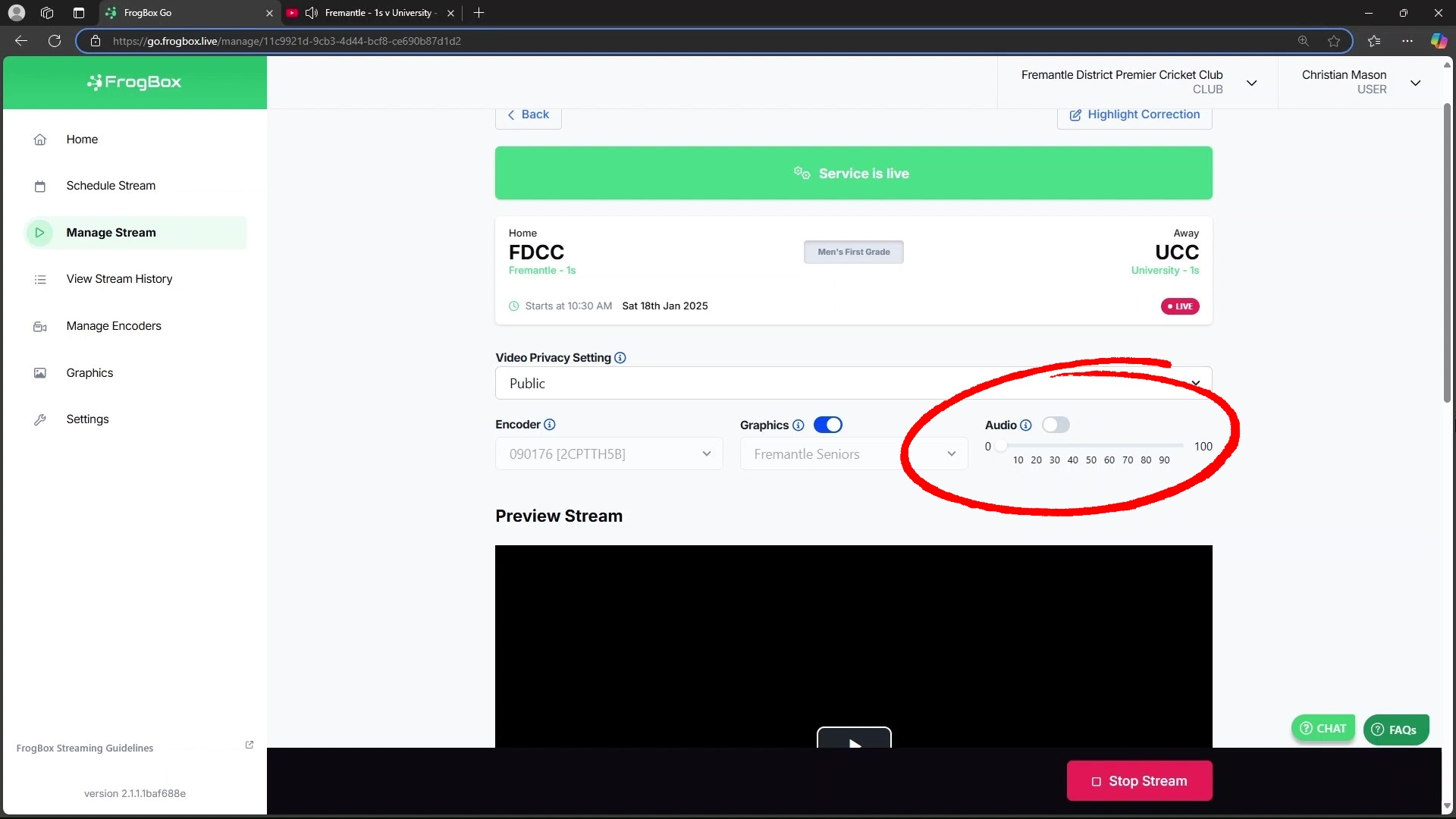
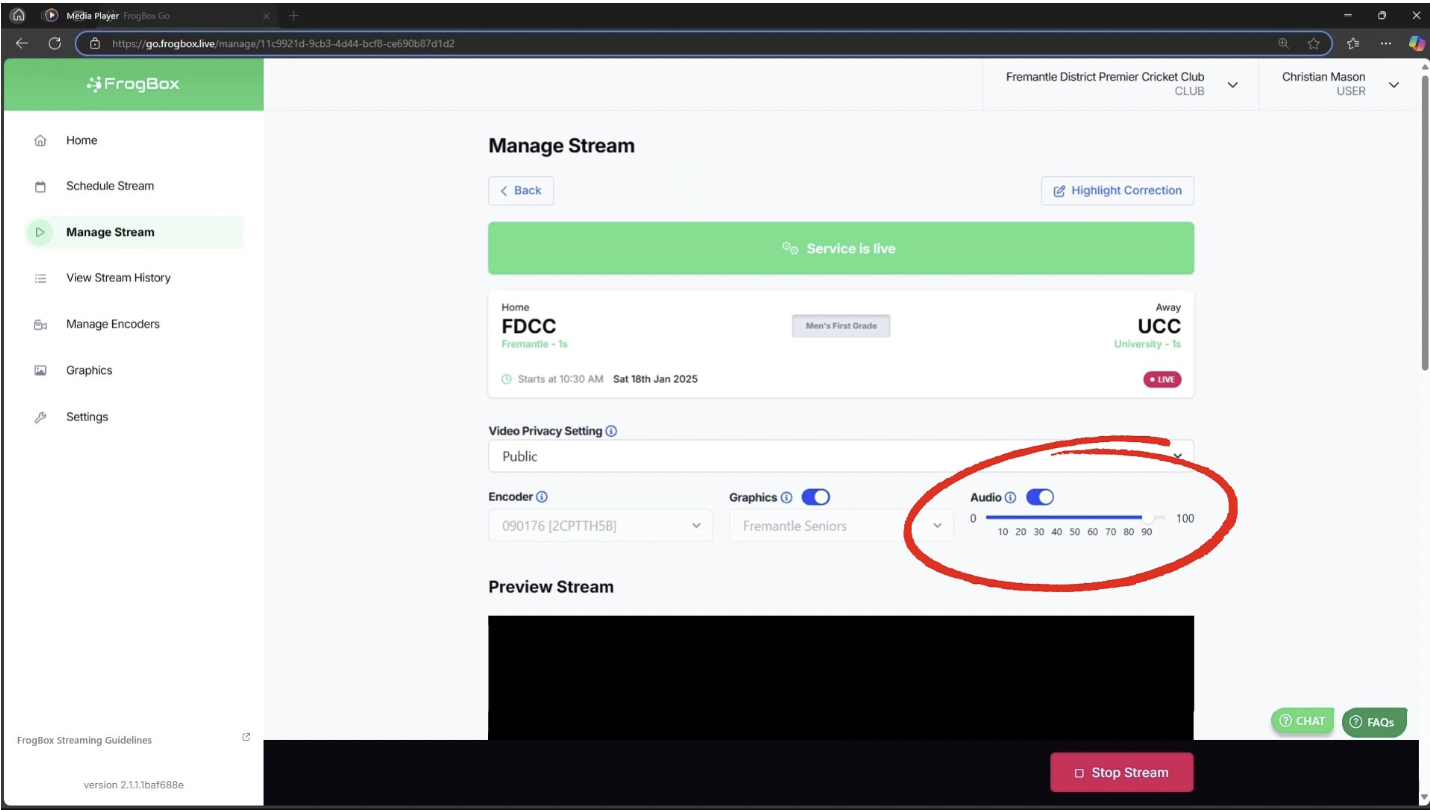
Step 2: Navigate to the sliding Audio button above the stream preview.
IMPORTANT: The audio toggle buttons can only be used once the service is live - i.e. while streaming is taking place. They cannot be used in advance of matchday, nor after the stream has ended.

Step 3: To mute your stream, click the sliding Audio button. This will grey out your audio and volume slider confirming that your stream has been muted.
NOTE: The volume slider can also be used to increase and decrease your stream's audio on YouTube. Please be aware that muting or adjusting the volume here will not impact the audio in your preview.
Step 4: To unmute your stream, click the sliding Audio button. This will enable your audio and volume slider confirming that your stream has been muted.
NOTE: The volume slider can also be used to increase and decrease your stream's audio on YouTube. Please be aware that muting or adjusting the volume here will not impact the audio in your preview.
Step 5: If you are streaming with a Version 2 FrogBox kit, please review your camera's audio settings on the FrogBox Connect app as these will override the audio settings in FrogBox Go.