
FrogBox Go now allows you to schedule streams flexibly so you can schedule additional match days with ease. This includes:
Streaming on a reserve day
Scheduling Day 3 or Day 4 of a multi-day match
Replaying a match that was washed out earlier in the season
All of these scenarios now follow the same simple process.
When Would I Use This?
This feature is helpful if:
A match moves to a reserve day due to weather
You need to stream Day 3 or Day 4 of a multi-day fixture when you're unable to set match days 3 or 4 on PlayHQ
A match was washed out/ postponed earlier in the season and is now being replayed weeks later
You’re scheduling a stream for a date that doesn’t match the original fixture date
How to Schedule the Stream
No matter which scenario applies, the steps are the same.
Step 1: Go to the Schedule Stream page on FrogBox Go
Step 2: Search for the original match record
You can use the new 'From Date' picker to search for matches in the past
You can use the 'show scheduled' option to search for matches that already have a stream attached to it
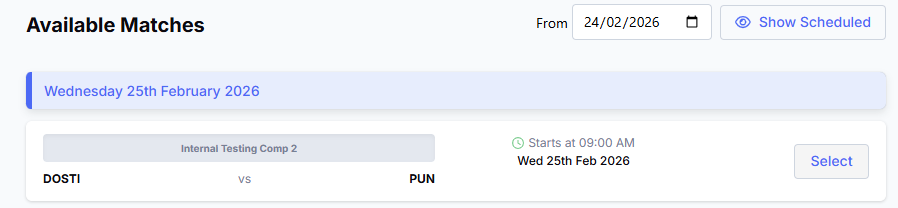
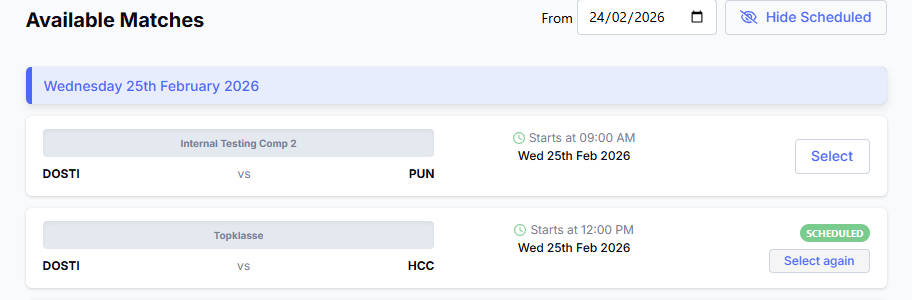
Step 3: Select the applicable match
Step 4: Schedule the stream as usual by changing the match date and time to suit
PHQ E-Scoring Customers – Confirm Live Scoring for Additional Match Days
Double check with your league administrator to confirm the match date is available on PHQ e-scoring to live score and therefore keep the graphics display working on your stream. Your league administrator will need to make the following adjustments to match dates if they haven't already:
For Matches With a Reserve Day
If Day 1 or Day 2 is affected by rain or another disruption and a reserve day is required:
• Update Day 1, Day 2, or both in PlayHQ so the scheduled dates still cover the days you intend to stream.
• Make this adjustment before play resumes
For a 3-Day Match
• Day 1: Leave the date unchanged
• Day 2: Set the date to the final day of the match (i.e. Day 3)
This allows live scoring graphics to work across the full match duration while remaining within PlayHQ’s 2-day limit.
For a 4-Day Match
• Day 1: Leave the date unchanged
• Day 2: Set the date to the final day of the match (i.e. Day 4)
This allows live scoring graphics to work across the full match duration while remaining within PlayHQ’s 2-day limit.
Important Notes
If you're unable to find the match on your scoring application please contact your league administrator to adjust the match dates
You do not need to create a new match record for these additional streams
The selected stream date does not need to match the original fixture date
You can repeat this process for the same match as many times as you like if you need to schedule additional streams against the match for multi day matches etc.