Overview
In this guide, we'll walk you through resolving the "Service has encountered an error" message that can appear when scheduling streams in FrogBox. This error typically occurs if the stream's scheduled start time is more than an hour in the past. We'll show you how to easily fix this by adjusting the schedule and ensuring that your stream is set up correctly, so you can get back to broadcasting smoothly.
STEP ONE: Identify the Error: If you see the "Service has encountered an error" message, it typically means your scheduled stream start time is more than an hour in the past.
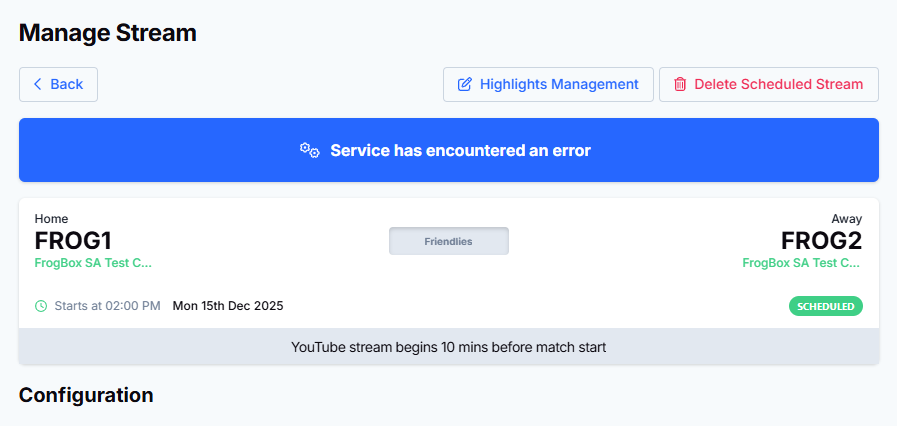
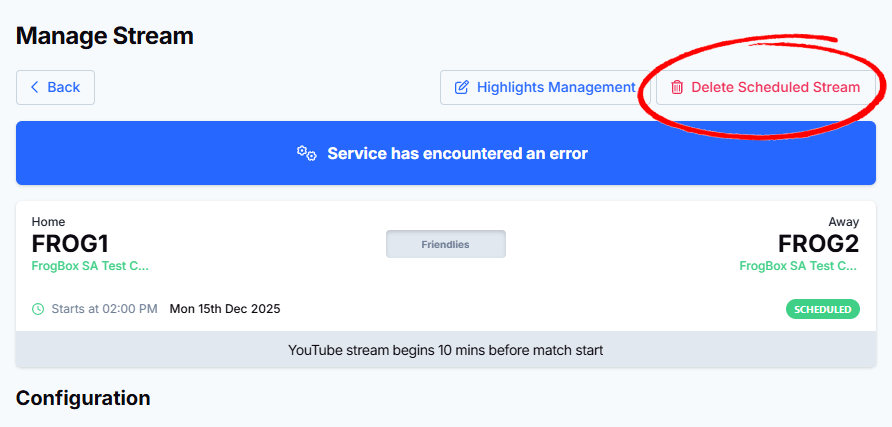
STEP TWO: Delete the Scheduled Stream: Navigate to the "Manage Stream" page and click on the "Delete Scheduled Stream" button.
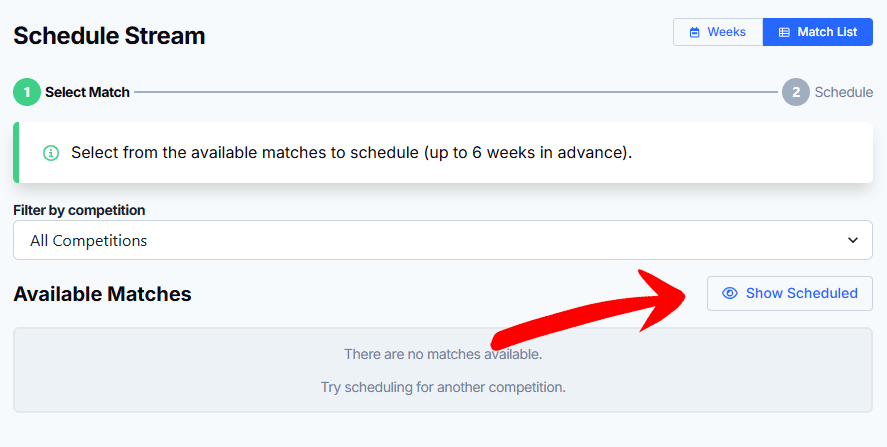
STEP THREE: Return to the Schedule Stream Page: Go back to the "Schedule Stream" page. To see your stream, click on "Show Scheduled" to make it visible again.
STEP FOUR: Reschedule Your Stream and Adjust the Start Time: Set the stream’s start time to be within an hour of the current time. For example, if your match is about to start, adjust it to the current time or slightly earlier.
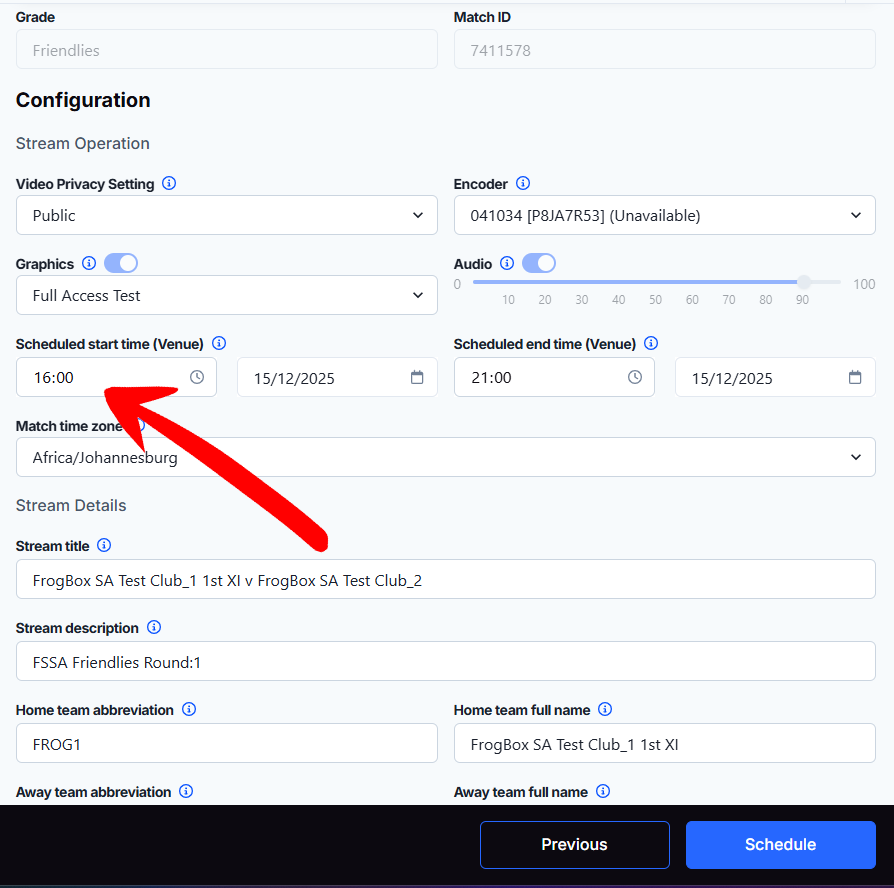
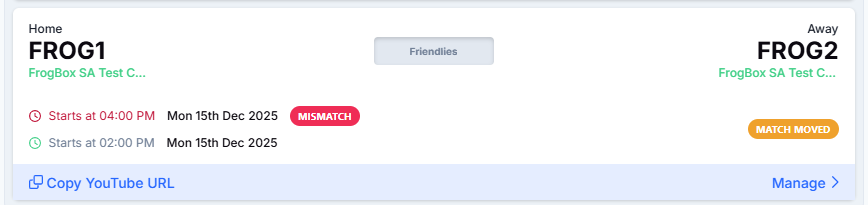
STEP FIVE: Click the "Schedule" button. You might see warnings like "Mismatch" or "Match Moved," but these can be ignored.
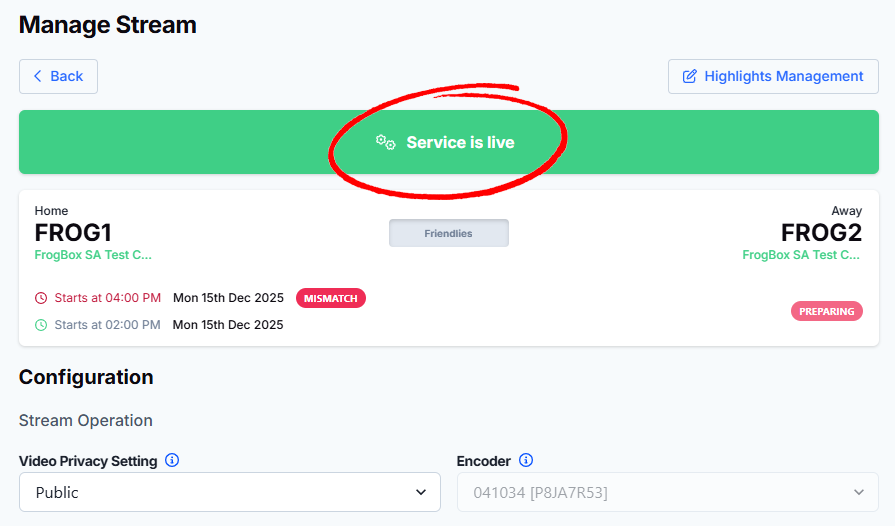
STEP SIX: Verify the Stream: Once the stream is rescheduled, you should see a green "Service is Live" indicator, confirming that you can now preview and generate a YouTube link. Your stream is now good to go.