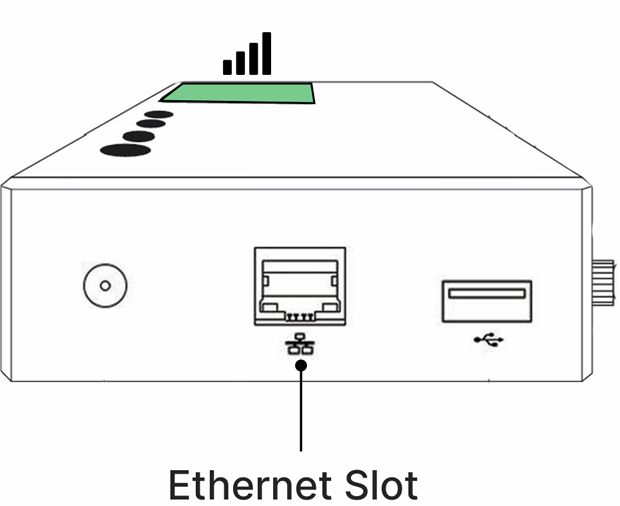
Select how your club connects your kit to the internet:
OPTION 1: SIM CARD CONNECTION
Step 1: Ensure sufficient mobile data for streaming. We recommend an unlimited data plan where possible. Otherwise, you can estimate your data needs based on your expected streaming volume - as a guide, a 6-hour stream uses 5 to 10GB of data. Be sure to also check your provider's coverage map to confirm your grounds are within a strong $G coverage area.
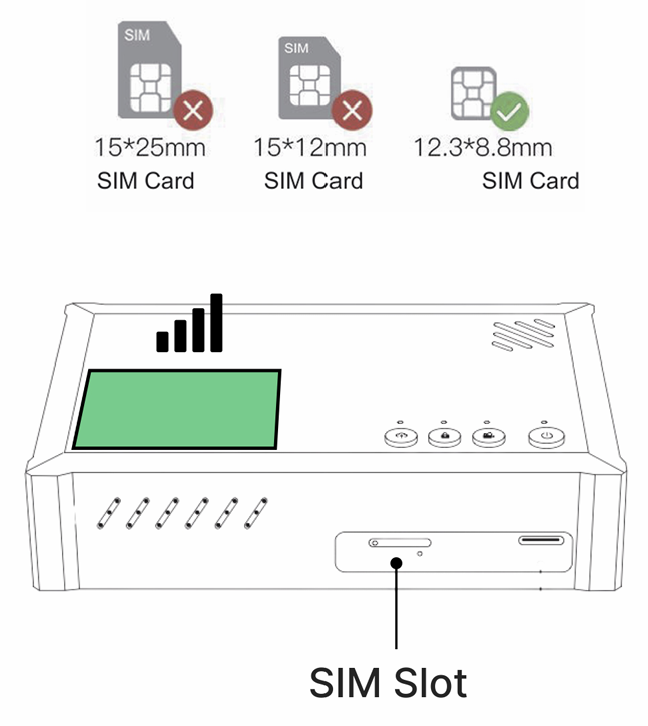
Step 2: Insert a nano SIM card into the encoder's SIM slot
Step 3: Screw on the antennas (2).
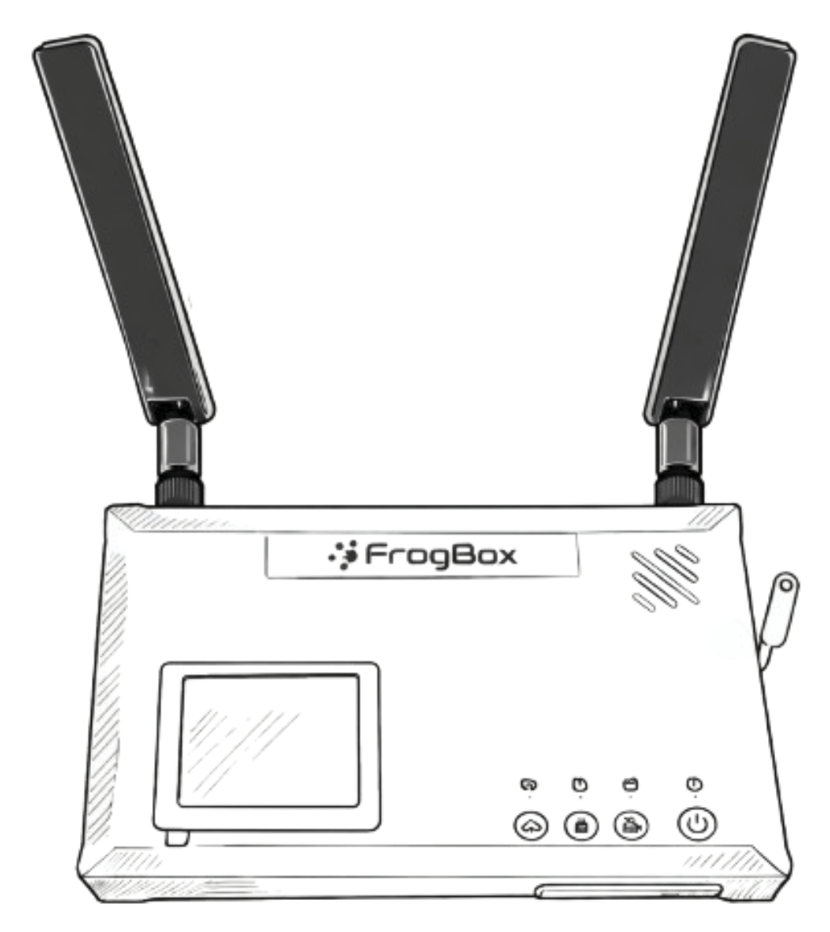
Optional: If only using one antenna (1), make sure you screw the antenna into the correct port. If using SIM card, screw into the 4G port. If using WiFi, screw into the WiFi port.
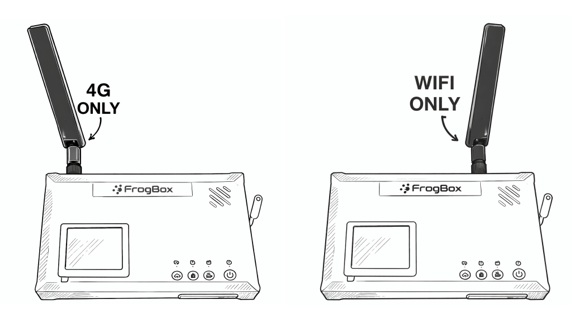
Step 4: Press the power button on the encoder for 5 seconds
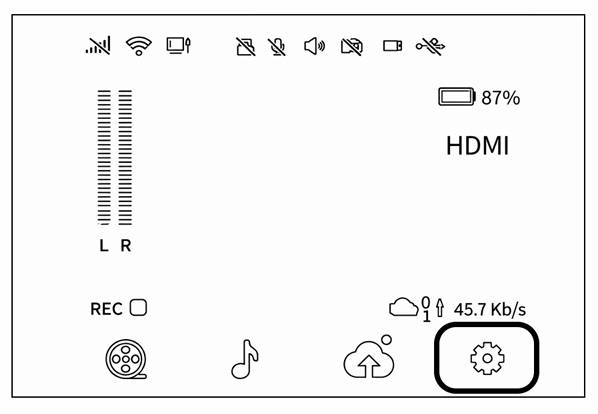
Step 5: Network symbol appears on the preview screen when connected
Step 6: Unscrew the antennas (2). You’ll reattach them later during the kit set up process.
OPTION 2: WIFI CONNECTION
Step 1: Press the power button on the encoder for 5 seconds
Step 2: Screw on the antennas (2)
Step 3: On the preview screen, tap Settings
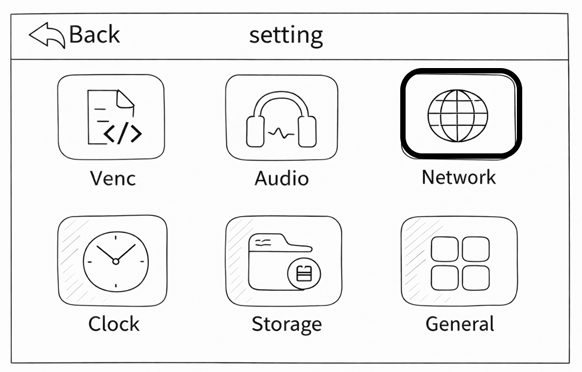
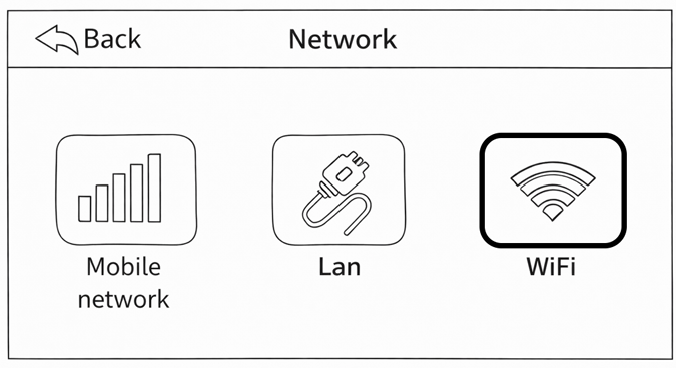
Step 4: Select Network, then tap WiFi
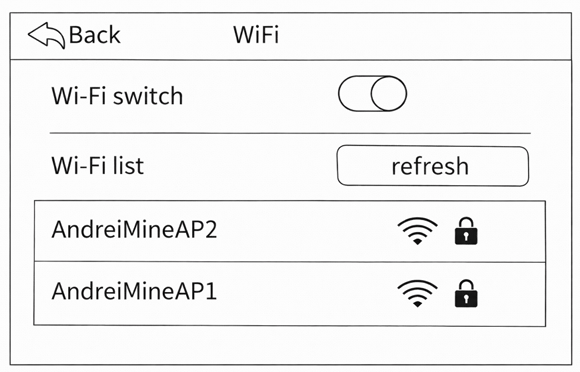
Step 5: Find and select your WiFi network from the list
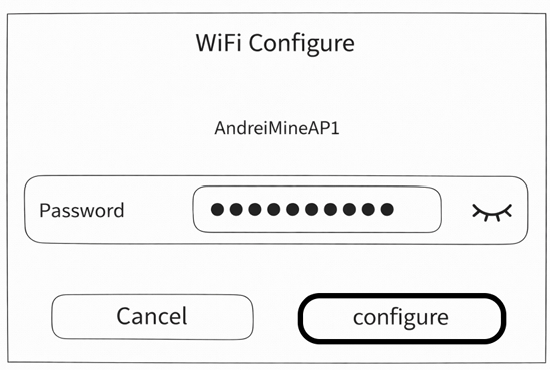
Step 6: Enter the password and tap Configure
Step 7: Network symbol appears on the preview screen when connected
Step 8: Unscrew the antennas (2). You’ll reattach them later during the kit set up process.
OPTION 3: ETHERNET CONNECTION
Step 1: Press the power button on the encoder for 5 seconds
Step 2: Insert CAT5/6 cable into Ethernet slot
Step 3: Network symbol appears on the preview screen when connected