
Important: This feature is only available for Australian customers. Once created and published, the packages will be publicly available in the Cricket Australia Play Cricket app when viewing the applicable match (note they will not appear in the Play Cricket website - only the app).
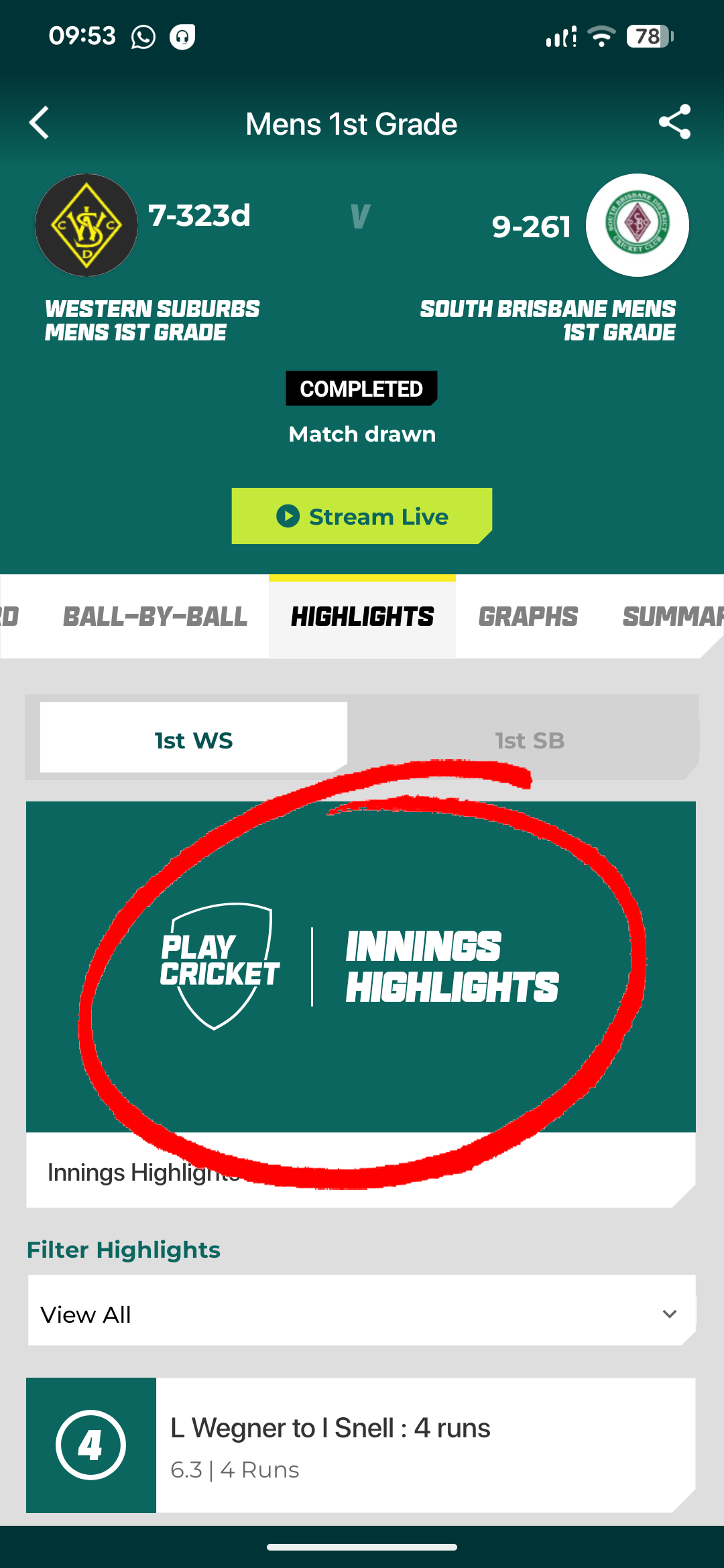
In FrogBox, you can create an innings highlights package made up of selected clips (for example, wickets and boundaries). Once published, the package will appear at the top of the Highlights page in the Cricket Australia Play Cricket app.
Before starting, we recommend completing any individual clip editing first to get highlights as tight as possible.
Before You Start
Innings packages appear at the top of the 'Highlights' tab in the Play Cricket app once published
There is no limit to the number of clips you can include in a package
- The default length of a clip is 10 seconds
- If the 'extend clip' option is selected it adds 5 seconds to the clip for a total clip length of 15 seconds
- The clip categories you can add to packages are Wickets, Fours, Sixes, 50's, 100's, first ball of innings & last ball of innings
Package generation should take around ~20 seconds
Step-by-Step: Creating an Innings Package
Step 1 - Find Your Stream
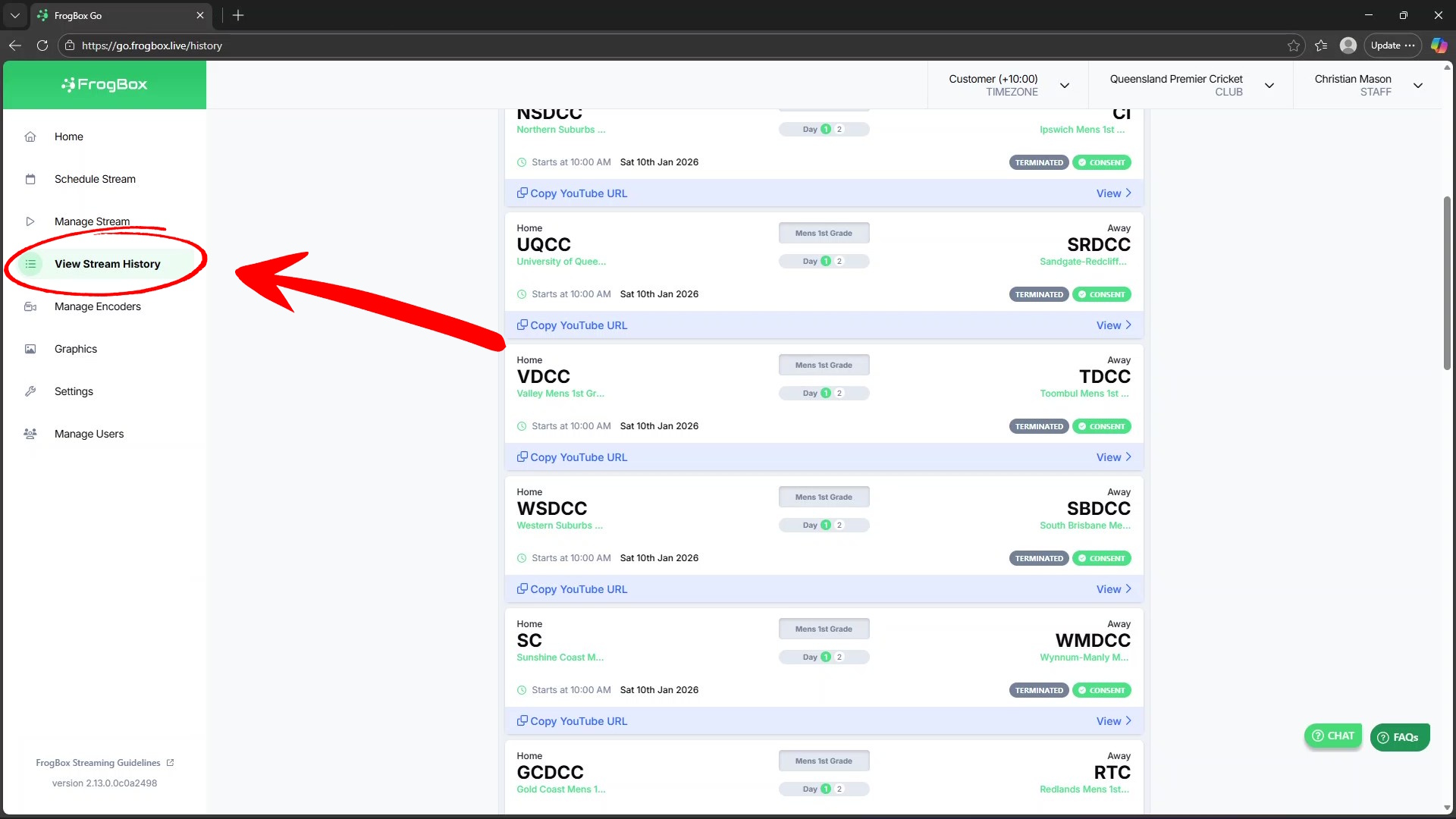
Locate your match stream
If the match has already finished, go to View Stream History and click View
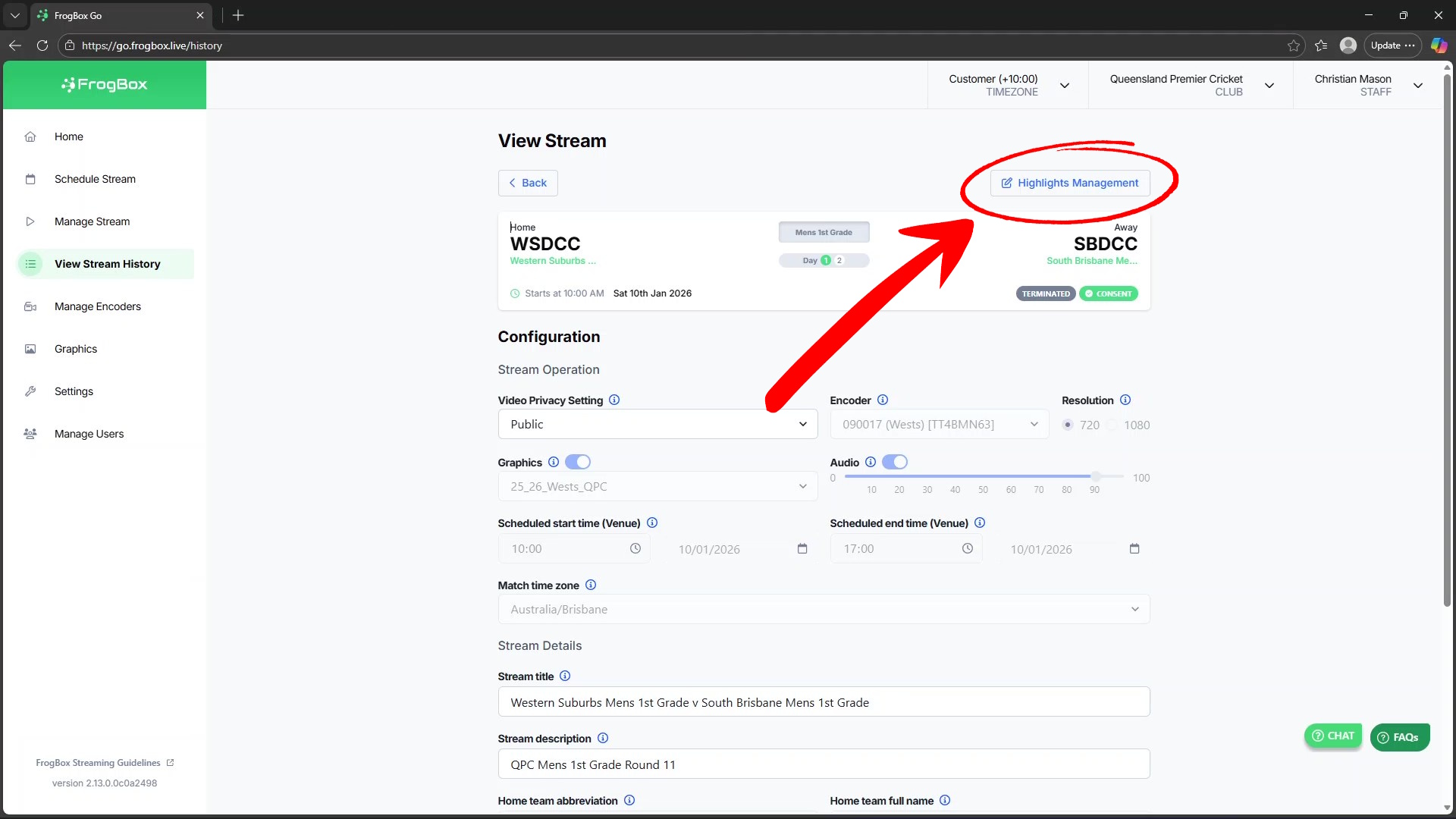
Step 2 - Open Highlights Management
From the stream view, click Highlights Management
Step 3 - Select Clips for Your Package
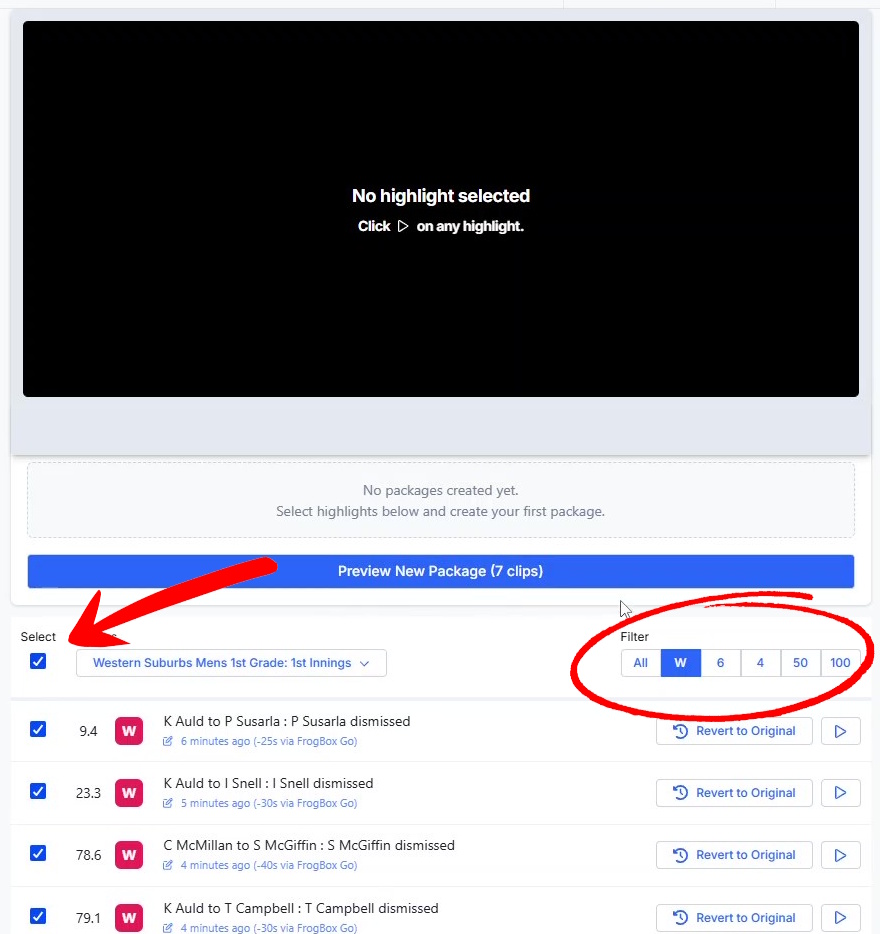
Select the innings you wish to generate highlights for in the innings dropdown
Select the clips you would like to include in your innings package
For example, you may wish to include all wickets and sixes (use the filter if required)
There is no clip limit
Step 4 - Preview New Package
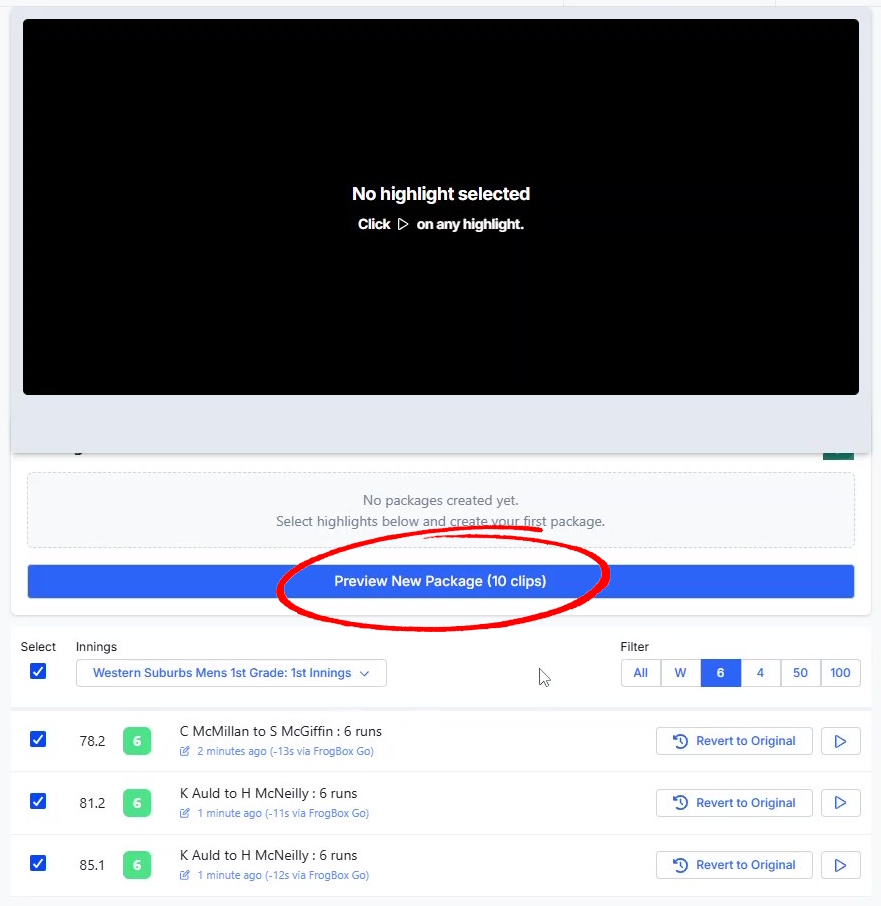
Click Preview New Package
Step 5 - Review and Adjust Clip Lengths
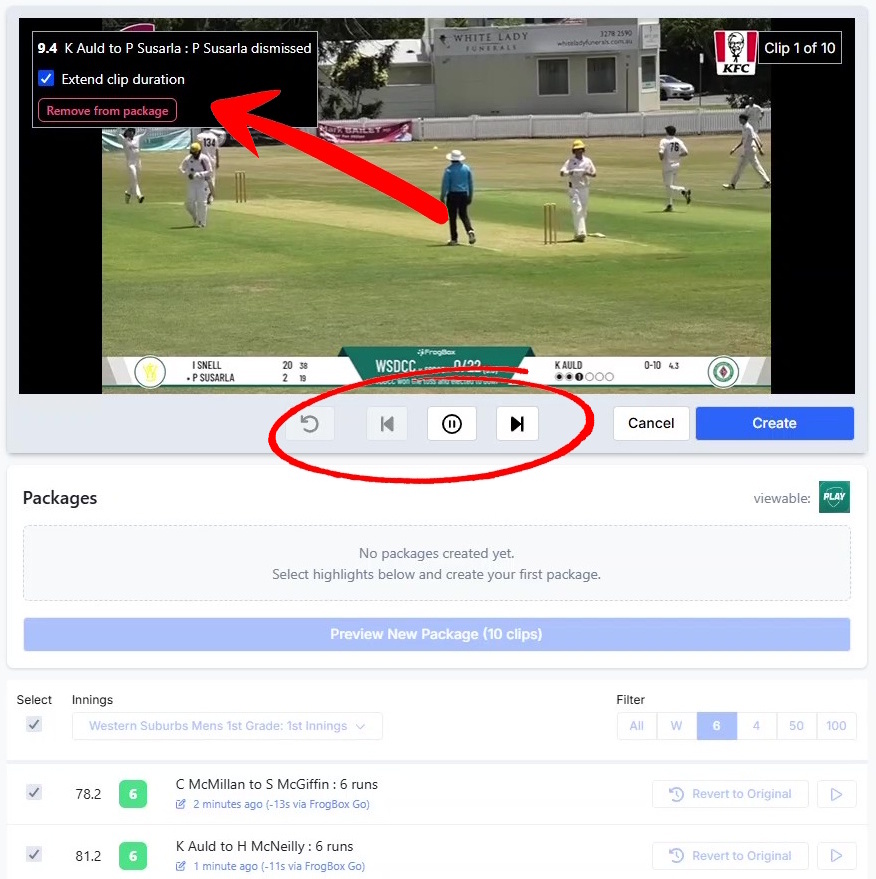
Preview your innings package by cycling through the clips (using Return to Start, Previous Clip, Pause and Next Clip buttons)
If a clip needs additional seconds, tick Extend clip duration
Step 6 - Create the Package
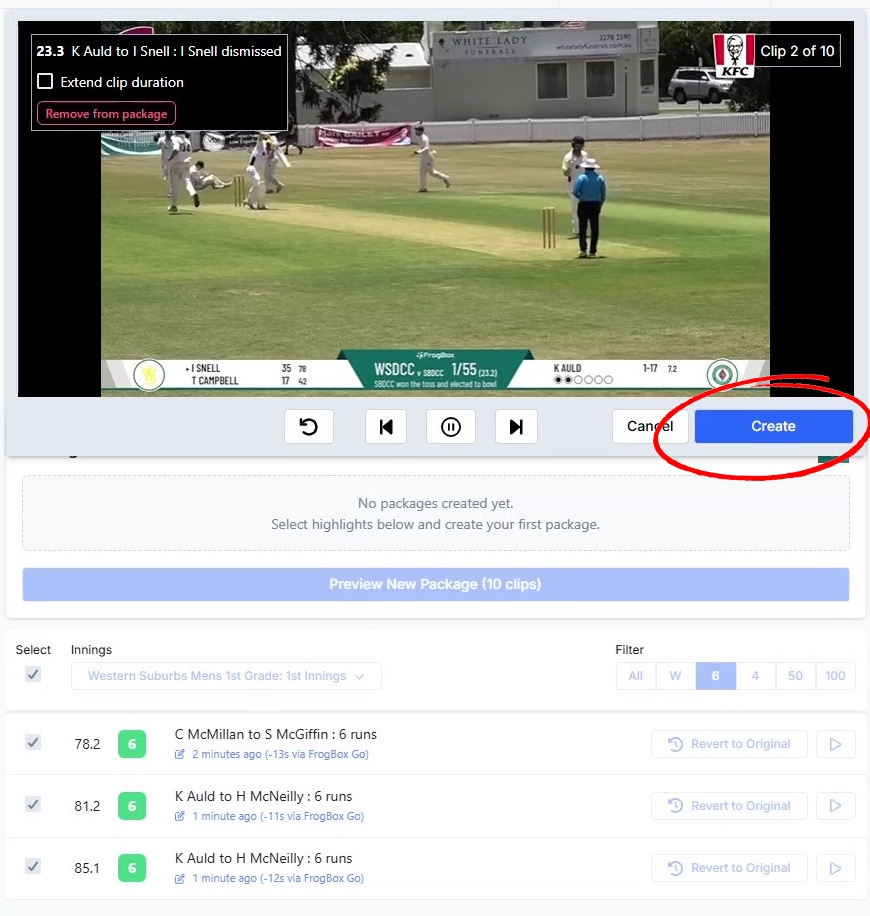
When ready, click the Create button
Wait while the innings package is created
Step 7 - Publish or Discard
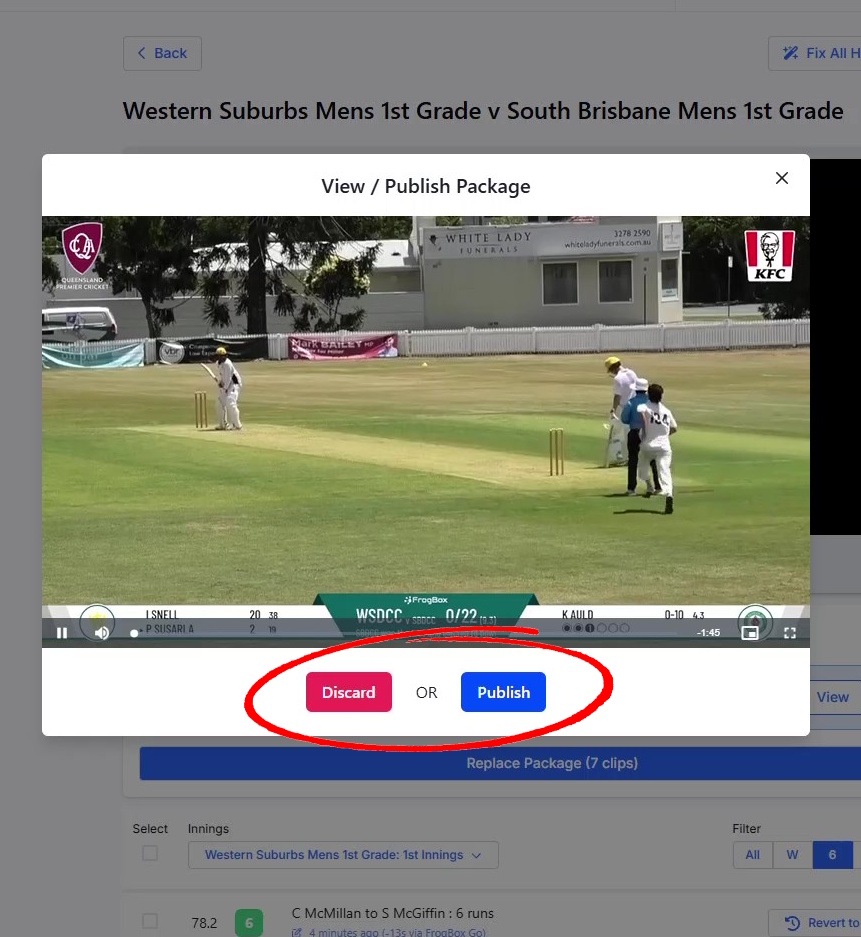
You will be given a final chance to preview your package
Choose to either Discard or Publish the package to the Play Cricket app
After Publishing
Once published, the innings highlights reel will appear instantaneously in the Play.Cricket app under the highlights tab
Editing or Replacing an Existing Package
If later you need to make changes (for example, adjusting clip timings or adding/removing clips) return to Highlights Management, select the new clips you wish to include, and Click Replace Package. The updated package will replace the existing innings package in the Play.Cricket app.
If you experience issues creating or publishing an innings package, please contact FrogBox Support.