
It's now possible to connect your encoder to a Wi-Fi network within FrogBox Go.
Before You Start
Turn on your encoder (you do not need a match scheduled)
Connect your encoder to the Internet, either by:
SIM. Avoid unconfigured SIMs that require an APN configuration such as Aldi, Belong or Exetel in Australia, or Vodafone and other Vodafone piggyback networks in the UK)
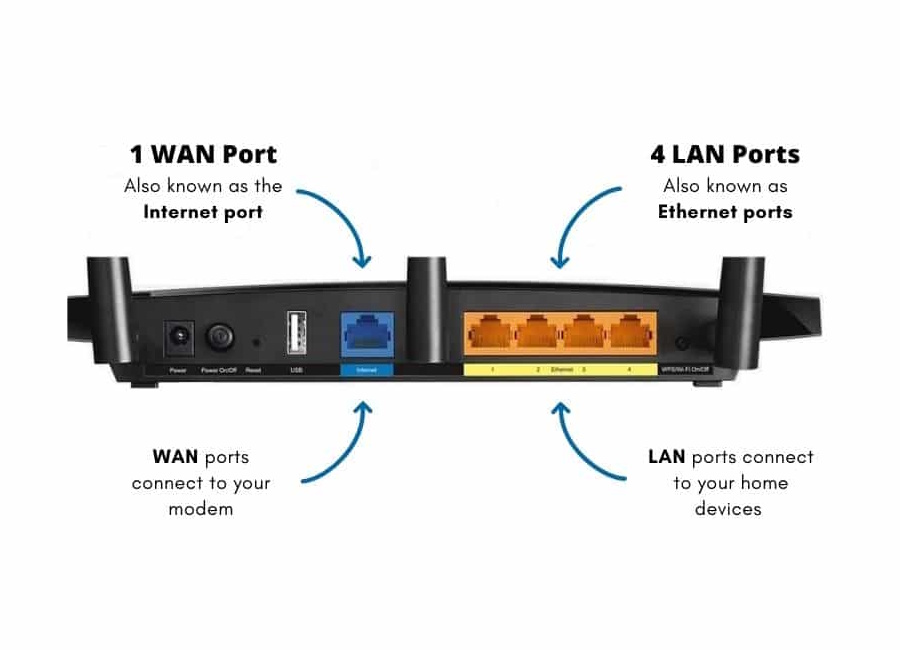
A LAN. Use an Ethernet cable (Cat-5 or Cat-6) to plug your encoder directly into an Ethernet port of a router.
Step 1 - Accessing Your Encoder
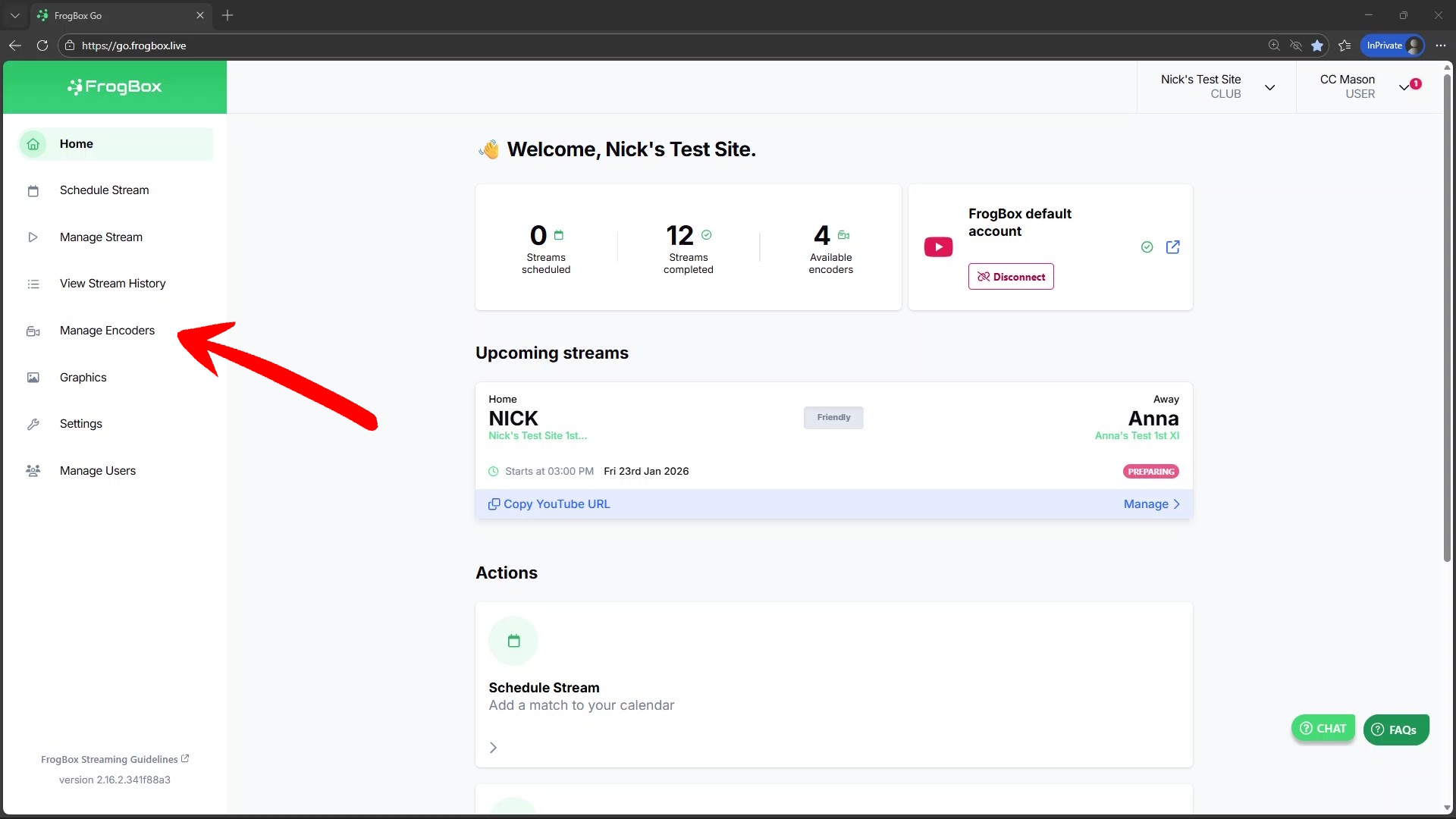
- From your homepage, navigate to the 'Managing Encoders' section.
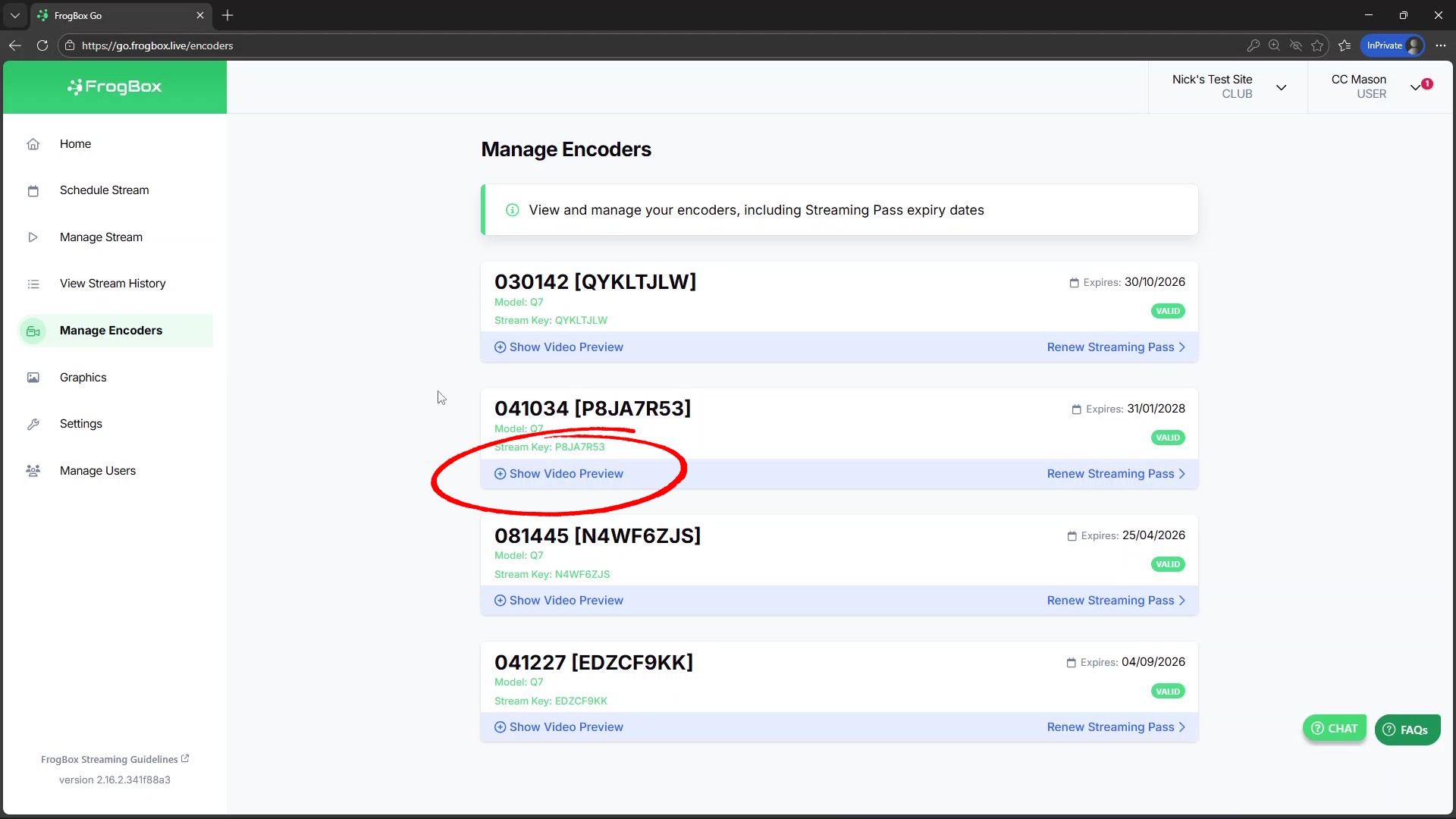
- Here, you'll see a list of all your encoders. Click 'Show Video Preview'. If there's no preview, don't worry - it will only appear during a live stream or shortly before one.
Step 2 - Viewing Diagnostics
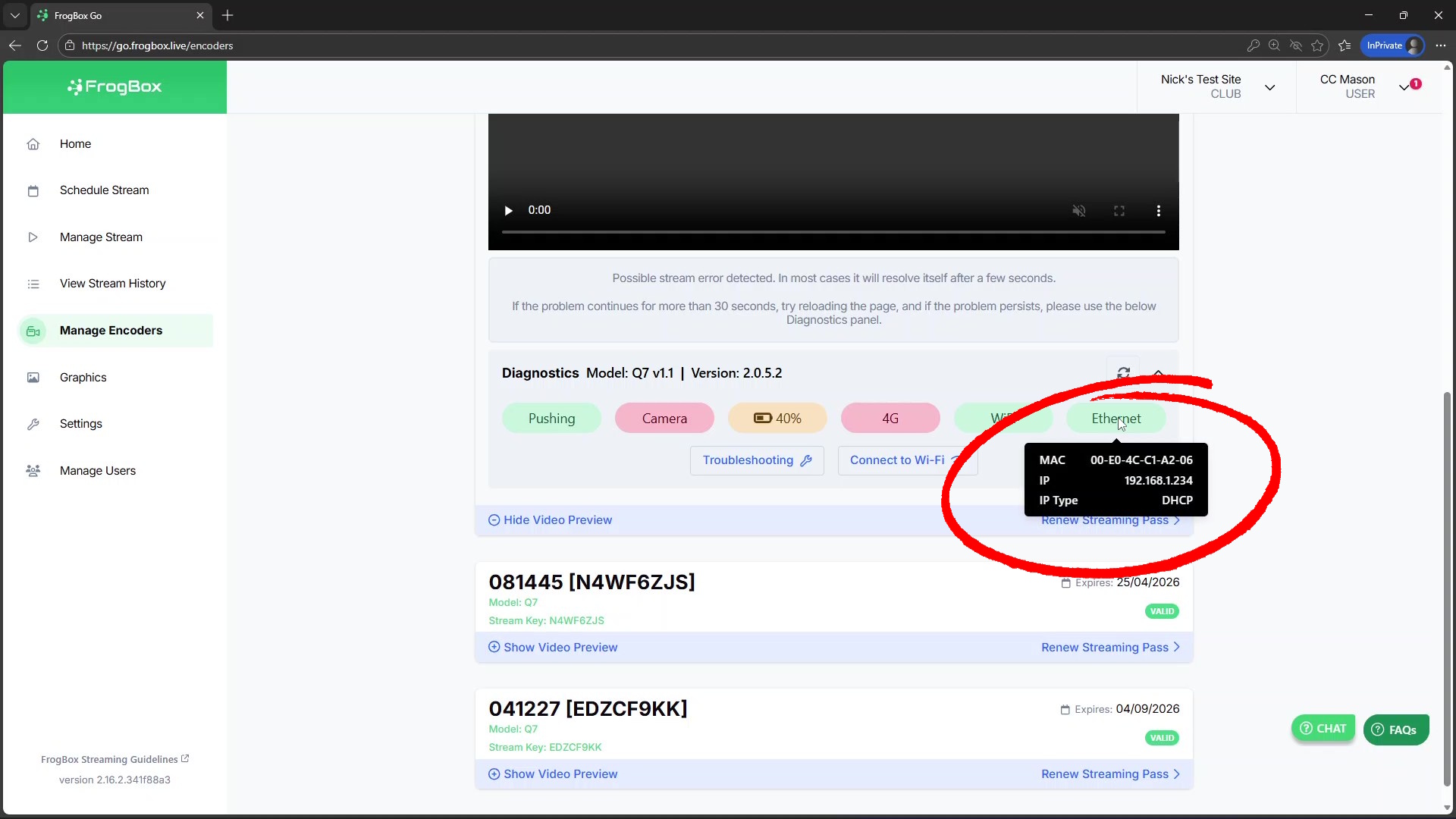
From the Manage Encoders view, click the Diagnostics bar.
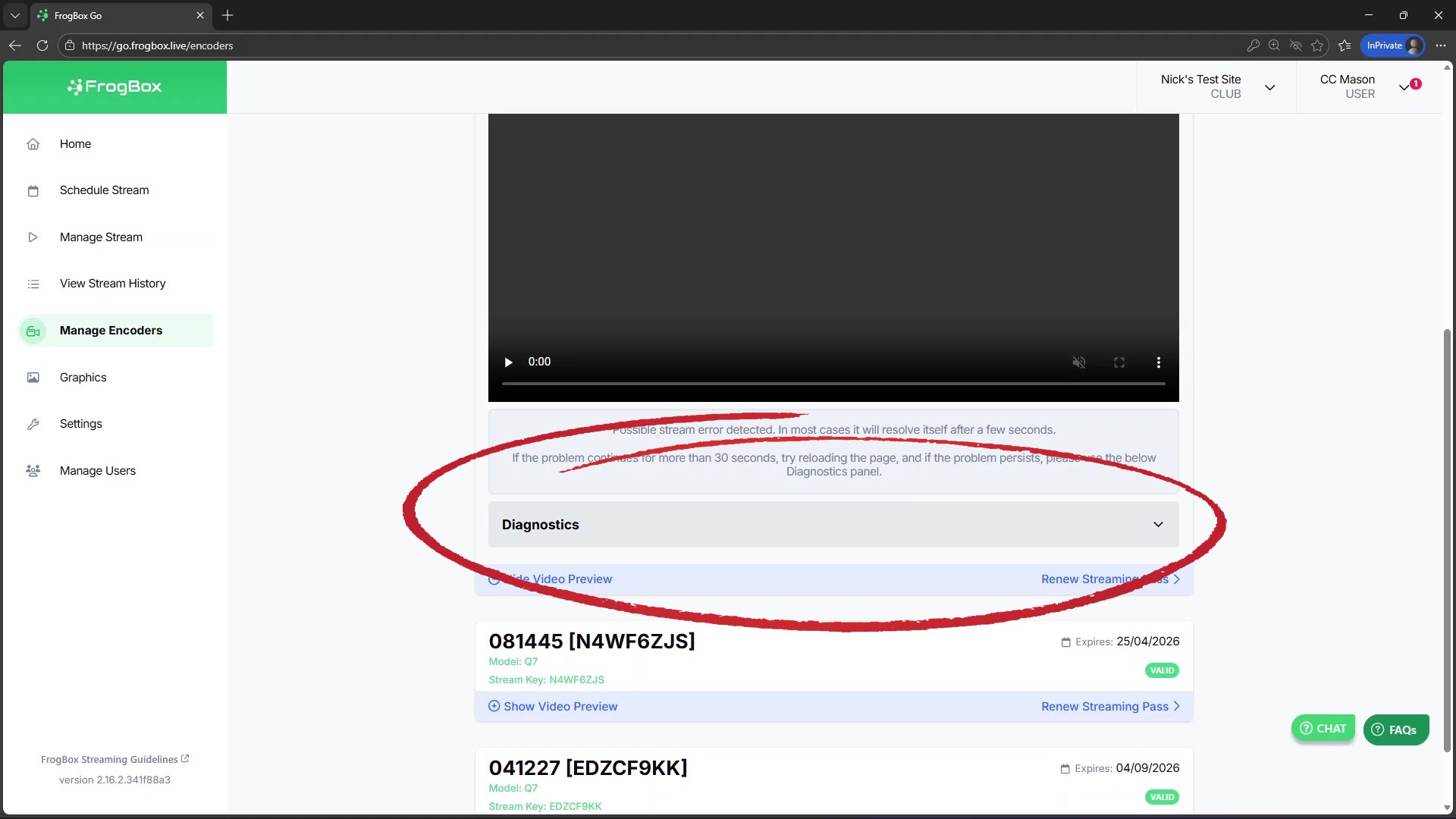
Under Diagnostics you'll see whether your camera is connected, your encoder’s battery level, and the type of connection - whether it’s 4G, Wi-Fi, or Ethernet. Hovering over the connection icon will display the IP address. If your encoder shows as offline, you’ll need to connect it via 4G SIM or an Ethernet cable to input your WiFi details.
Step 3 - Connecting to Wi-Fi
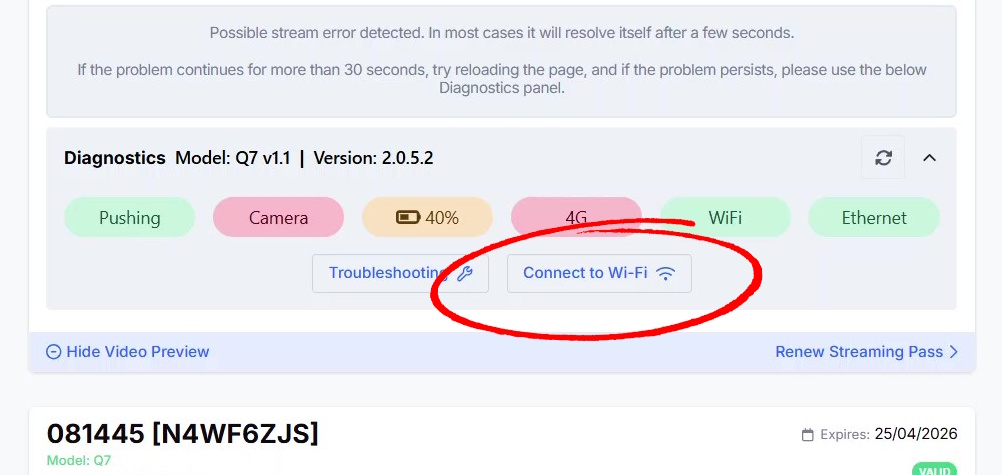
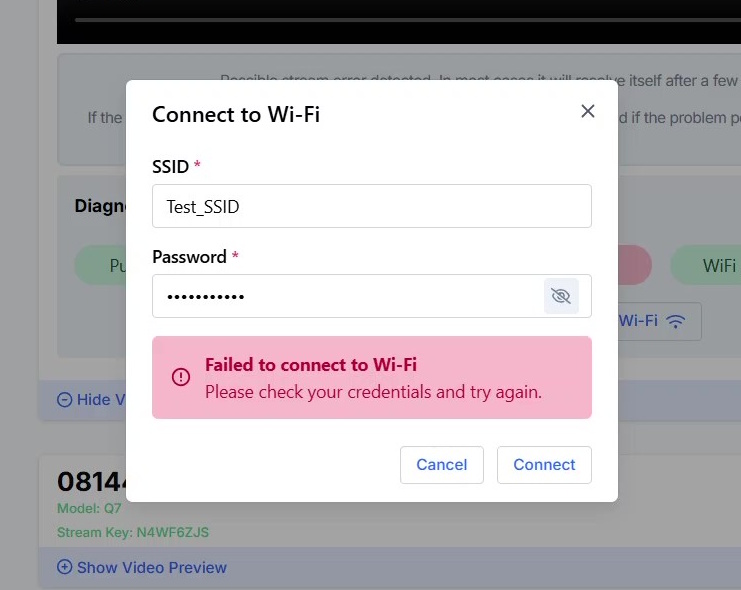
- Once confirmed online, click the 'Connect to Wi-Fi' button.
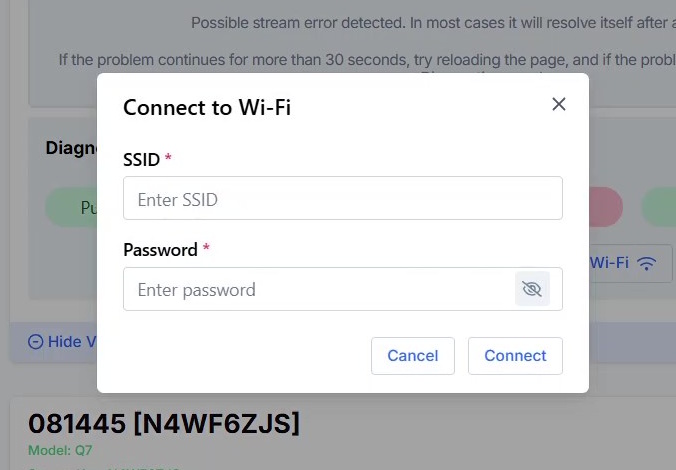
- Enter your SSID and password. Make sure to double-check for any special characters or spaces.
Step 4 - Confirming Connection
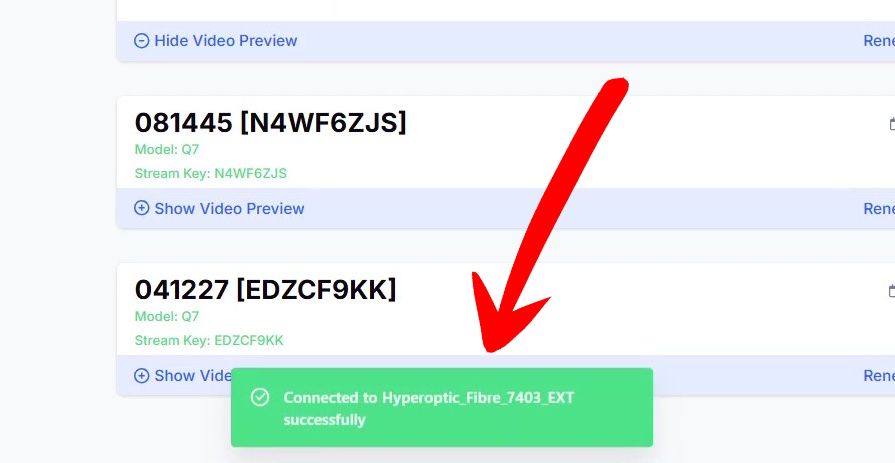
If the connection is successful, you'll see a green confirmation box.
If not, you'll get a red error box prompting you to check your credentials and try again.
Step 5 - Auto Connecting to Wi-Fi
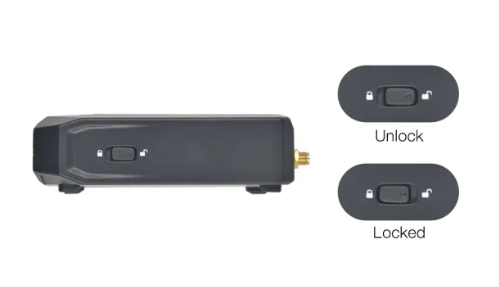
- To toggle between 4G and Wi-Fi on matchday, open the sliding lock switch on the encoder
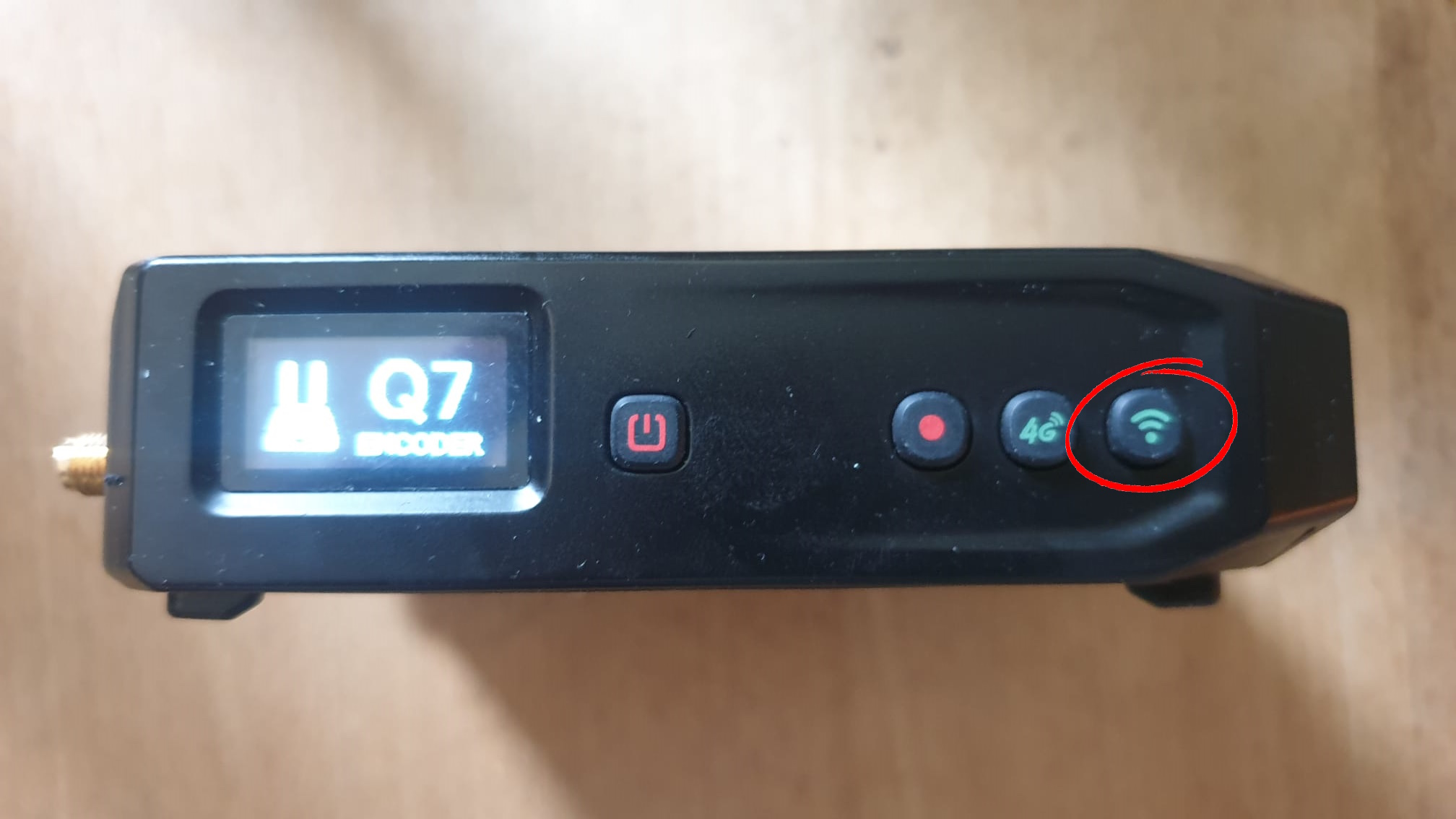
- Short press the Wi-Fi button to toggle on or off. To confirm your connection, check the IP address in the encoder's LED. If it is followed by a (W), it is connected to a Wi-Fi network. If it's followed by (G), it's connected to 4G. If it's followed by (E), it's connected to Ethernet.
- FrogBox encoders are preconfigured to look for a 4G celltower when first turned on. If you'd prefer to amend these settings so it searches for Wi-Fi by default, please submit a ticket: Submit a ticket : FrogBox.