
This article explains what to do if your encoder is showing a blue screen.
If, as part of setting up your FrogBox kit, the encoder preview screen appears blue, this usually indicates an HDMI connection issue.
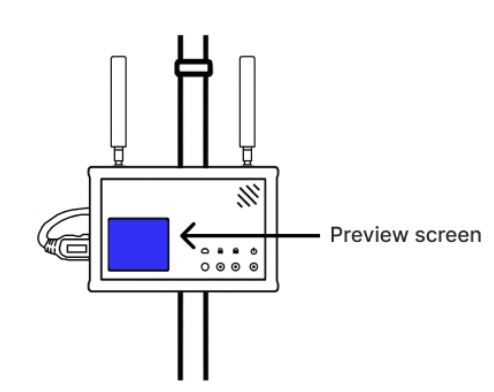
Follow these steps to resolve the blue screen issue and see live vision on your encoder screen:
Step 1: Check the encoder HDMI connection
Unplug the HDMI lead from the encoder and plug it back in securely.
Tip: Make sure it clicks into place and isn’t loose.
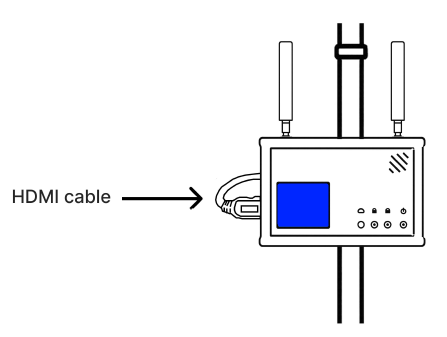
Step 2: Check the Camera Connection
If the blue screen persists, you may need to lower the tripod pole to access the camera.
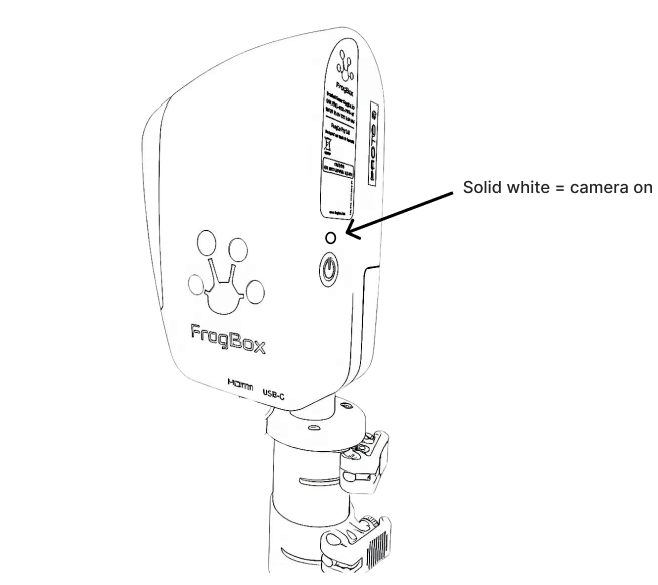
Ensure the camera is powered on with a solid white power light.
Unplug the HDMI lead from the camera and plug it back in securely.
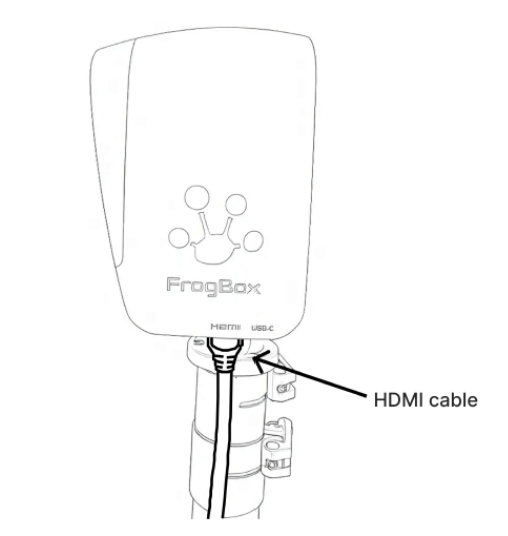
Step 3: Turn the camera off and on again
- Press the black button on the back of the camera.
- A solid white light indicates the camera is back on.
The above steps resolve most instances of a blue encoder screen. If the issue continues, please contact FrogBox Customer Support for further assistance.