
When Should You Use This?
Use this workaround if your stream is experiencing severe fogging that significantly affects visibility.
The DEFOG setting, set to Mid or High, can:
Improve visibility in heavy fog
Increase contrast to cut through haze
However, it may also:
Darken shadows
Reduce definition in some lighting conditions
Impact overall image balance
If your stream does not have major fog issues, we do not recommend using this feature.
Before Updating the Camera Firmware
Ensure you have updated the FrogBox Connect App to the latest version (minimum v1.9.1).
How to update apps on Android - Google Play Help
Update apps from the App Store on iPhone - Apple Support
How to Update the Camera Firmware
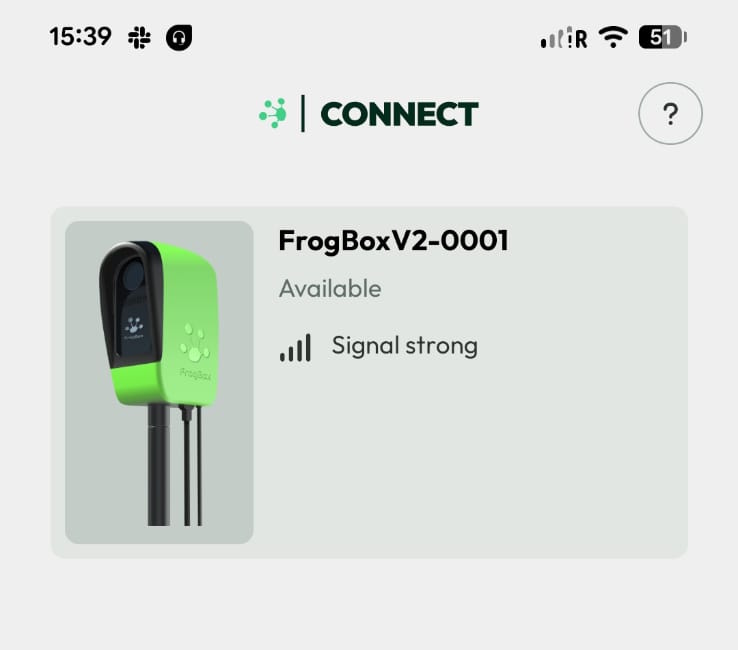
Step 1: Open FrogBox Connect and Tap on your device.
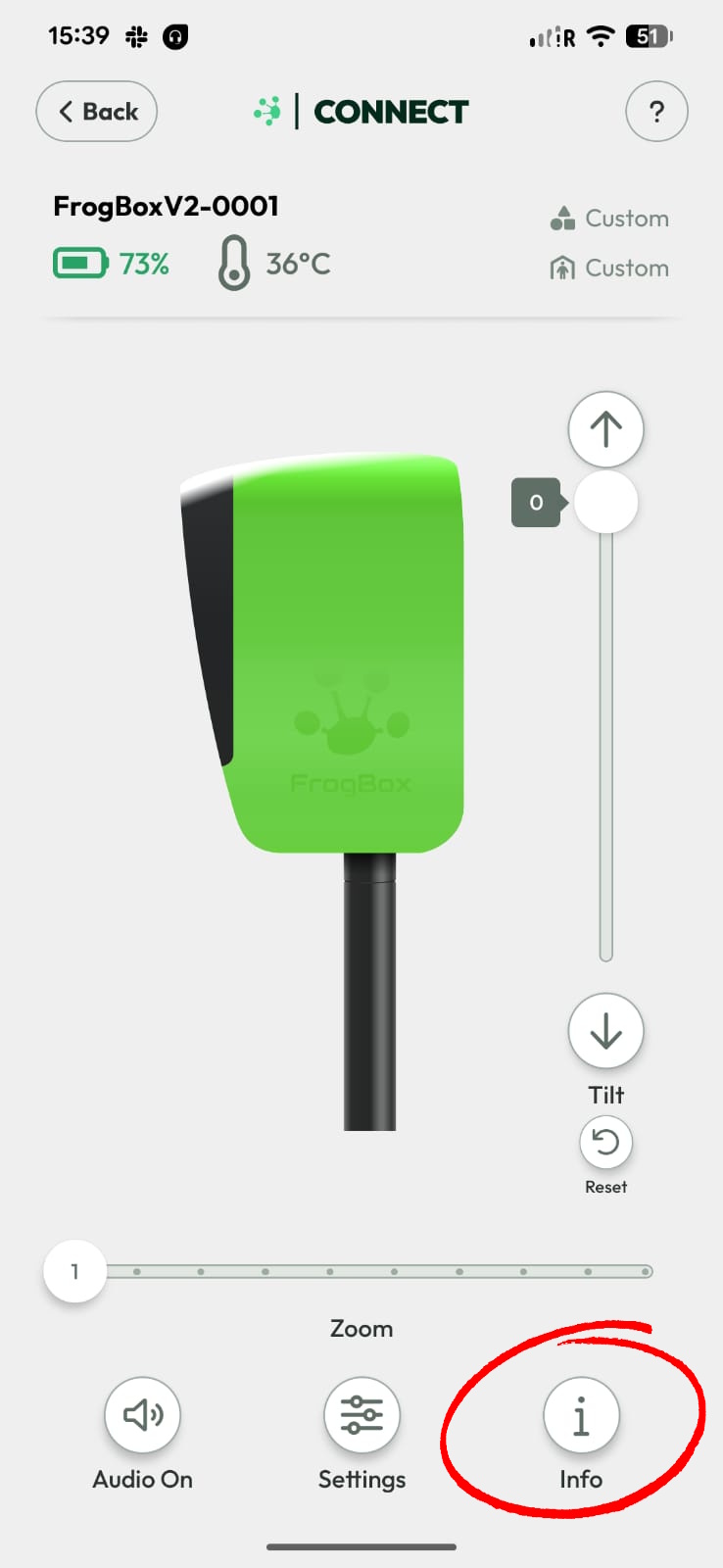
Step 2: Press the Info button.
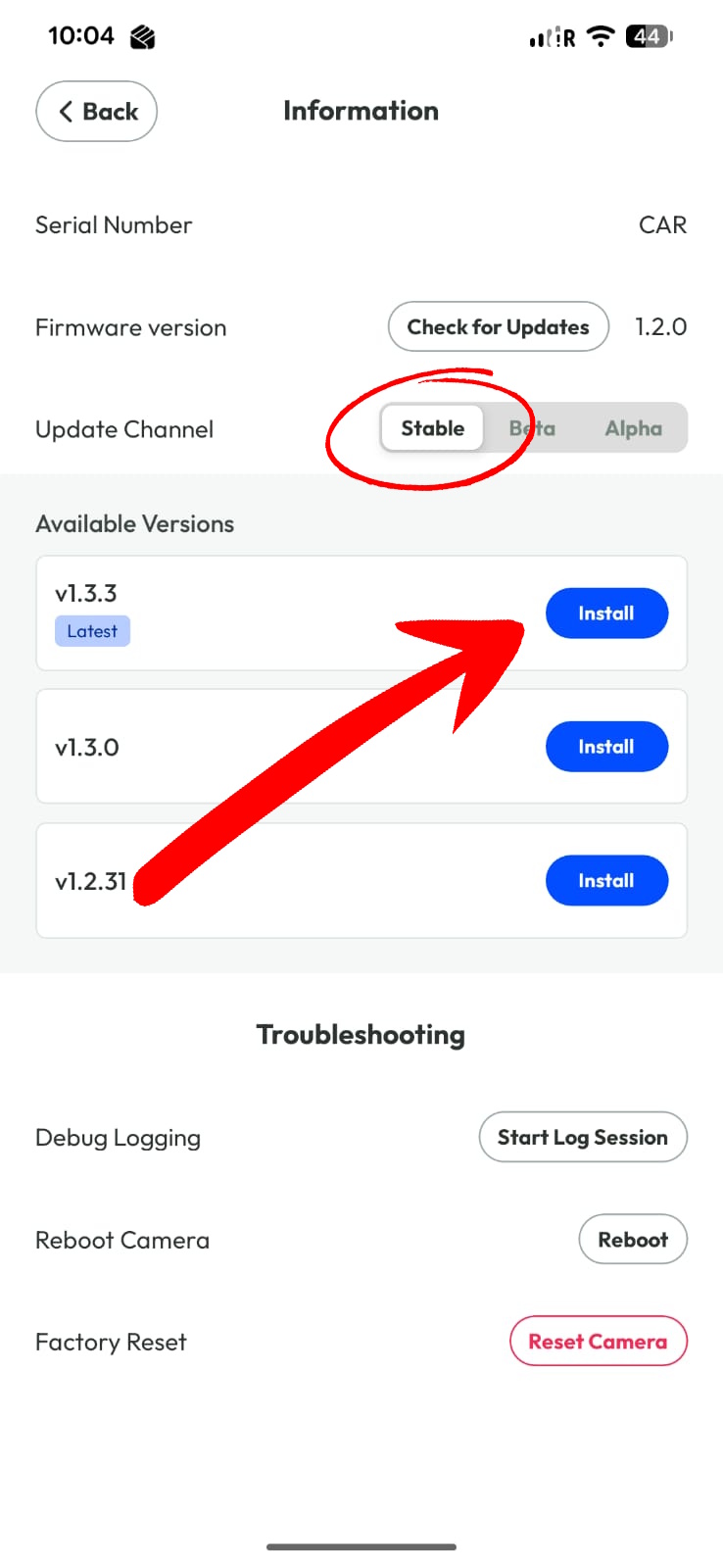
Step 3: Ensure you select Stable from the Update Channel Options and install the latest available version of the app (minimum v1.3.3)
- Under Update Channel, select Stable, and Install
- Your camera will go offline temporarily. Wait at least one minute for the firmware to fully apply. Do not power off the camera or encoder during this time.
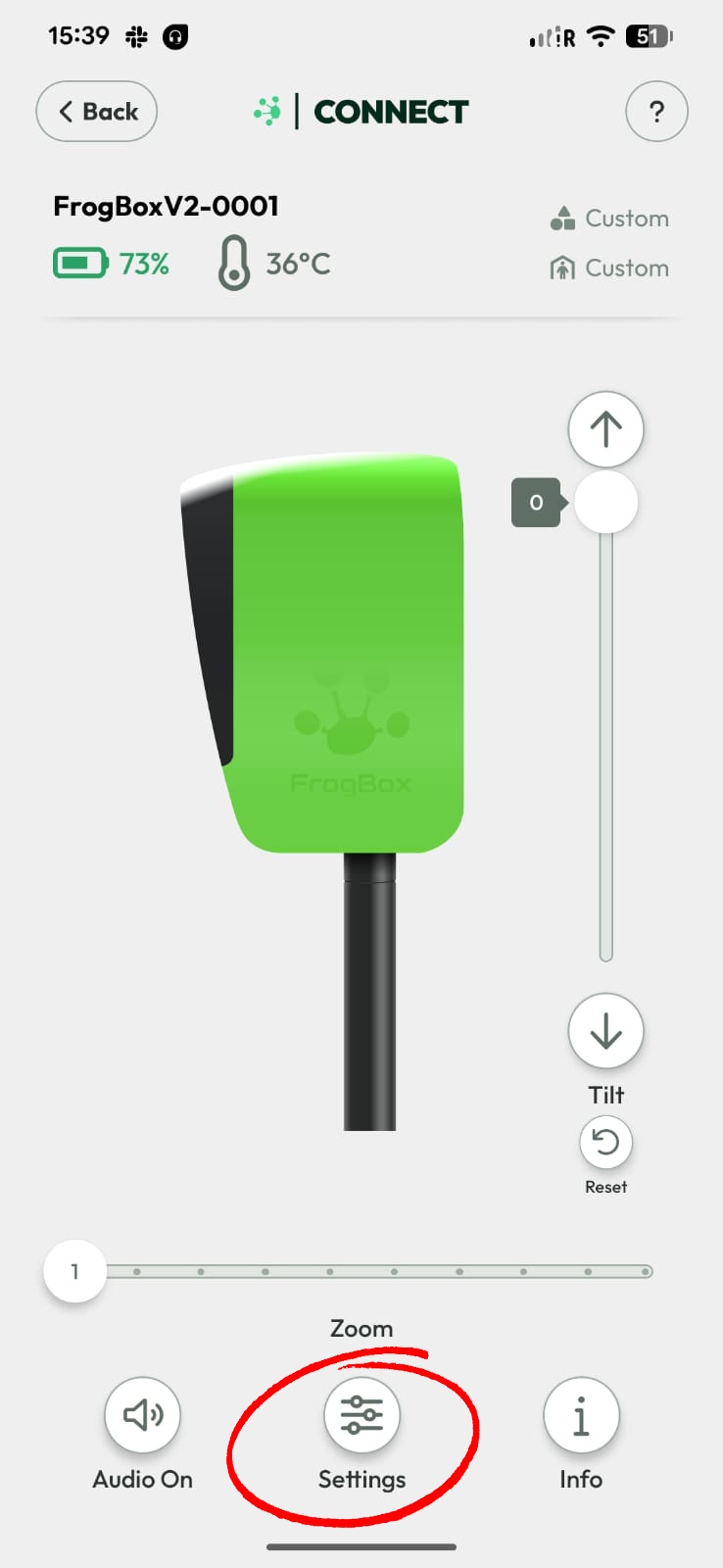
Step 4: Select Settings
Step 5: Scroll down to the Defog option
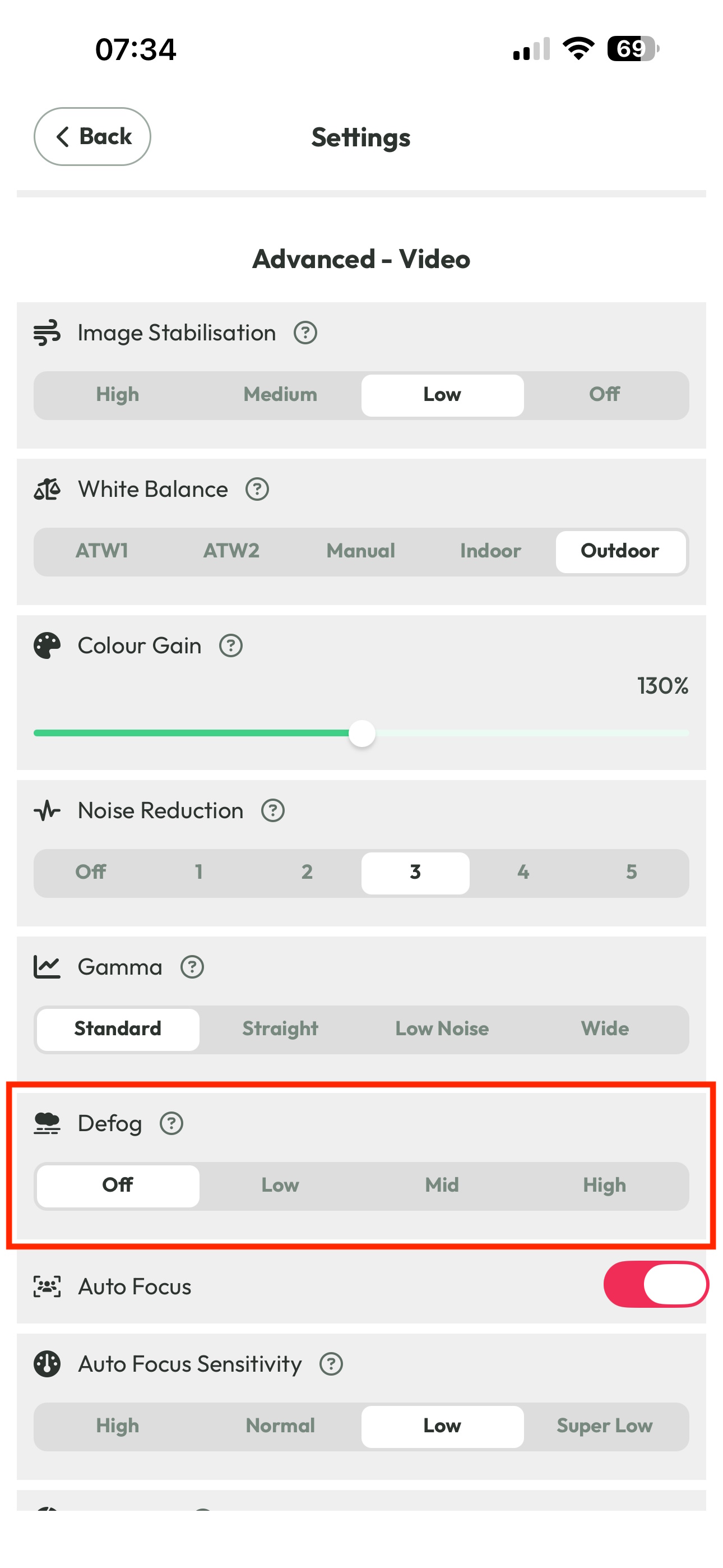
What This Does
Fog reduction processing increases contrast to cut through haze. The Connect app allows manual selection of:
Off
Low
Mid
High
Please select MEDIUM or HIGH as required for your conditions.
If visibility does not improve after adjusting Defog, please contact Support for further troubleshooting.