
The Clip Library page sits in the main menu between Clip Search and Playlists and is only available to National and State users with the Clip Library permission.
Access
In order to access the feature we'll need to assign the permission to specific staff members that are on Lilypad. Please request access by sending in a ticket
Users who have access to the clip library will have the ability to do the following:
Search by Match ID
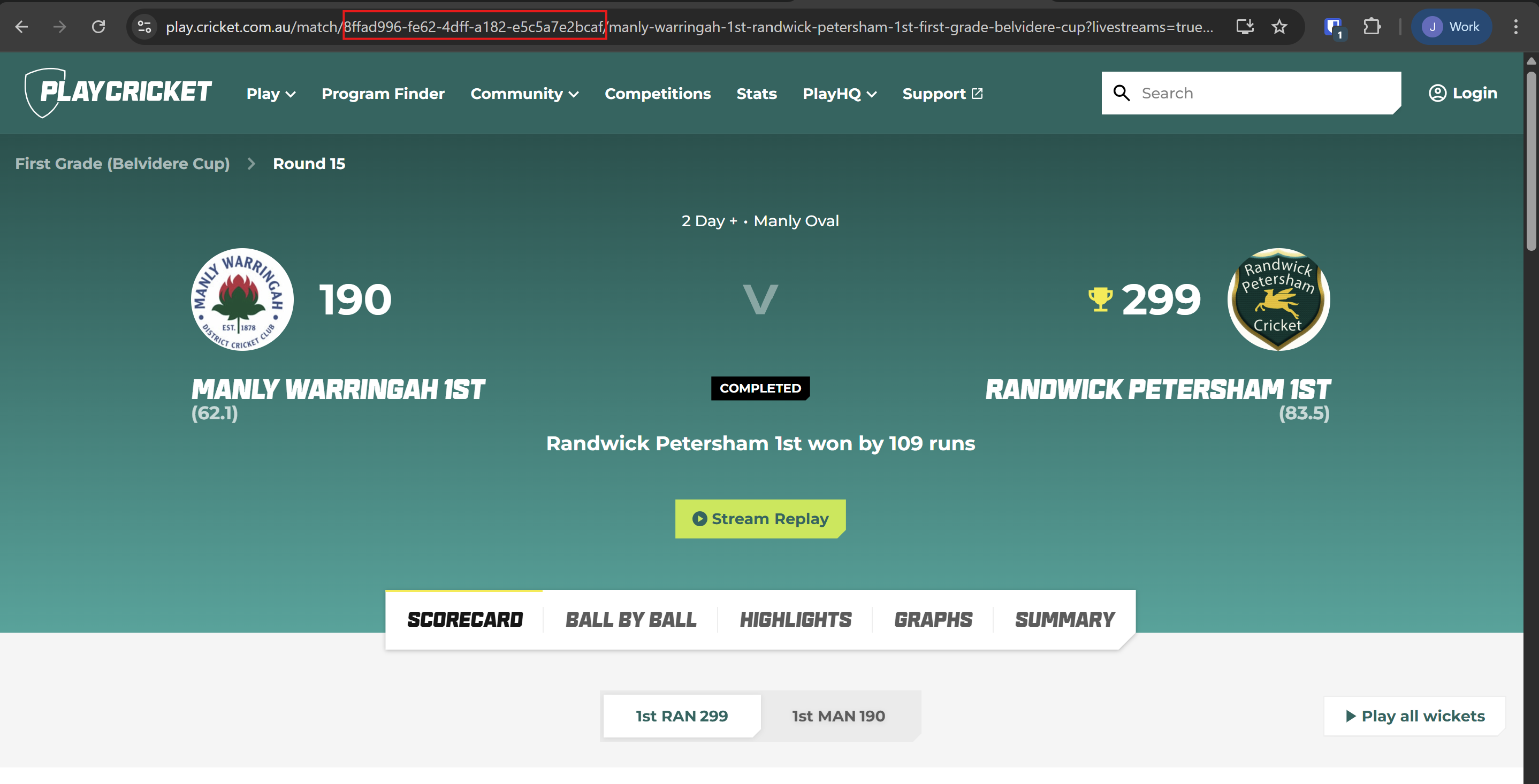
Step 1: Search and find the applicable match on the Play Cricket website match centre.
Step 2: Find the match ID of a match streamed by FrogBox in the URL. For example, the match ID of the match in the screenshot below is 8ffad996-fe62-4dff-a182-e5c5a7e2bcaf
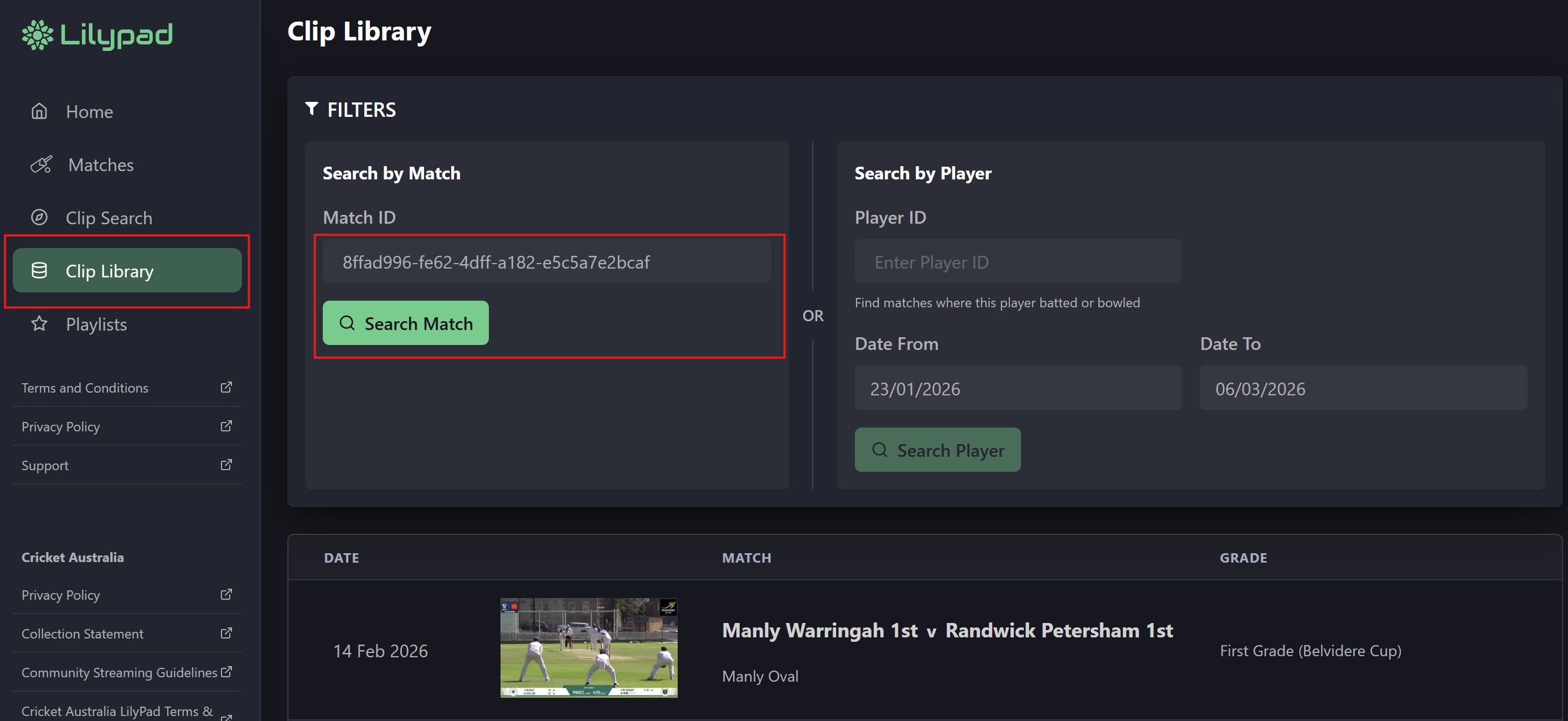
Step 3: Paste the Match ID into the Match ID area of the Clip Library search and select 'Search Match'
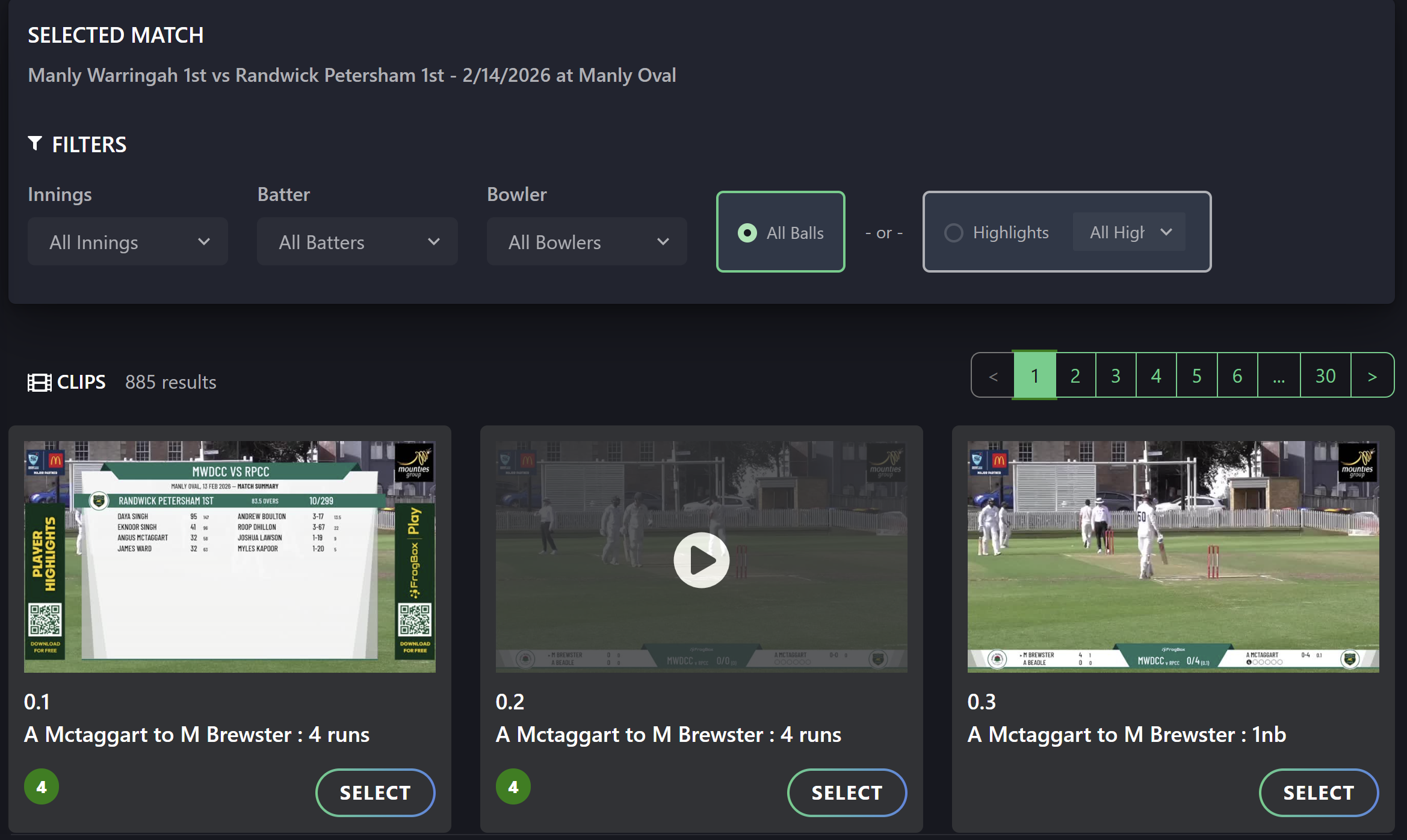
Step 4: Click on the match and use the filters to search and add clips to your playlists
Search by Player ID
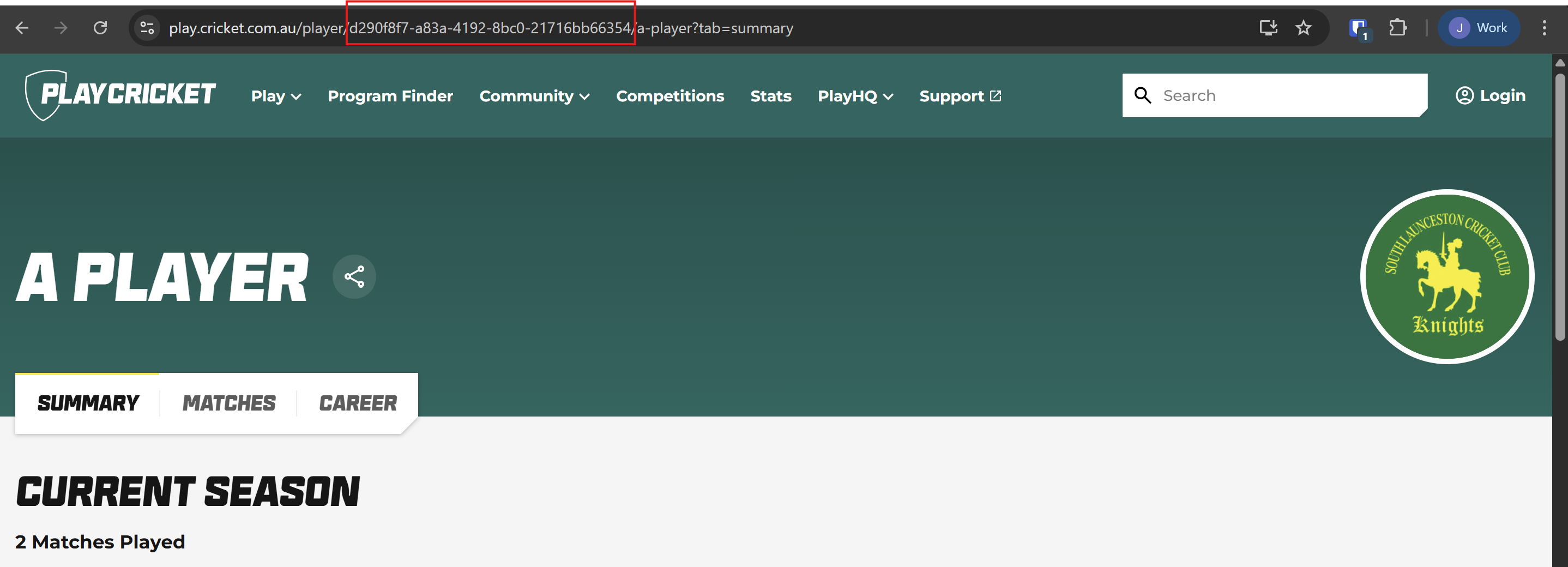
Step 1: Search and find the applicable player on the Play Cricket website

Step 2: Find the match ID of a player streamed by FrogBox in the URL.
Step 3: Enter the Player ID into the Player ID field in the Clip Library search, select the date range covering the matches you want to locate for that player’s FrogBox games, and then click “Search Player.”
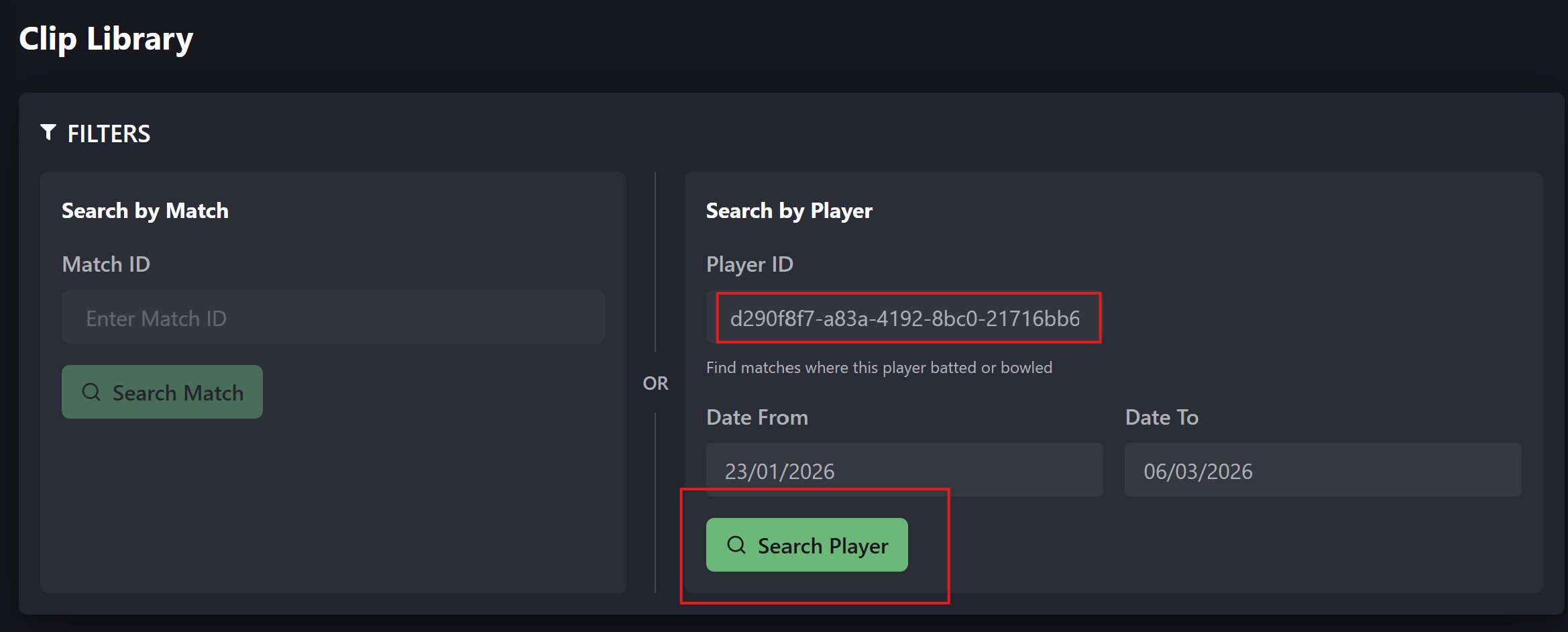
Step 4: The system will return all matches within the selected date range where the player has at least one clip. Click on a match to view the player’s clips and add them to your playlists as needed.