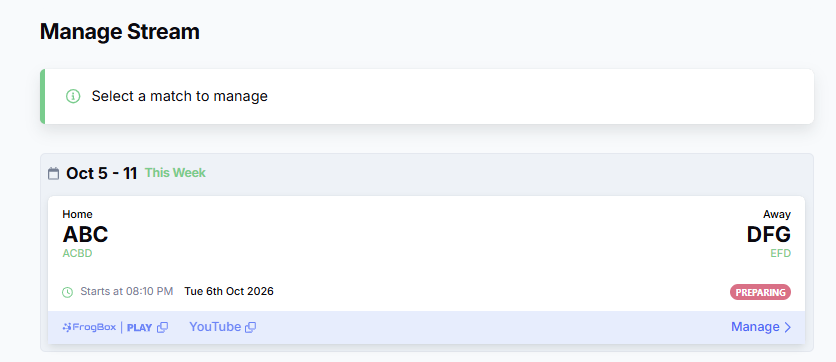
The process for scheduling a stream in FrogBox Go depends on if you are:
A club in a FrogBox partner region; or
Not a club in a FrogBox partner region.
Scroll down to view the how to guide relevant to your club.
Are you a club in a FrogBox partner region?
For clubs affiliated with organisations such as Cricket Australia, ECB, Cricket New Zealand, KNCB, Cricket Scotland or other FrogBox partners, follow these steps:
Step 1: Select Schedule Stream.
Step 2: Available Matches will now populate. You can filer by Match List (all available matches) or by Weeks. Please note: It's not possible to create a stream for away matches until 72 hours prior to the scheduled match start.

Step 3: Click Next.

Step 4: Under Encoder, select the FrogBox Kit Number you wish to connect the stream.
Step 5: Under Graphics, select the required graphics configuration from the dropdown options. For further information on how to add or amend a graphics configuration, please read this article.

Step 6: Click on Show Advanced Options if you wish to alter the default match times or amend the team names, stream title, stream description or team name abbreviations.
Step 7: Click Schedule.

Step 8 (IMPORTANT for Australia Only): Australian matches will need to have consent confirmed before the stream will go live. Review this guide: How to confirm consent in .
Scheduling Multi Day Matches
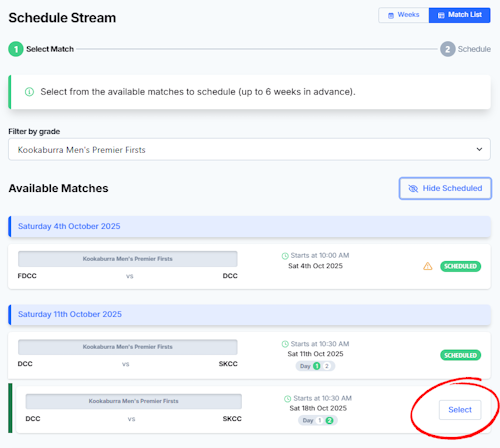
When scheduling a Day 2, Day 3 or Day 4 of a multi-day match, you must select the "Show Scheduled" button to see them.
Step 1: Note that when you search for a match that has its Day 1 already scheduled, the remaining days are missing from the available fixtures.
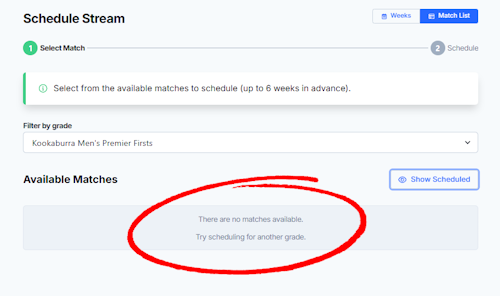
Step 2: Note and "Show Scheduled" button as pictured below.
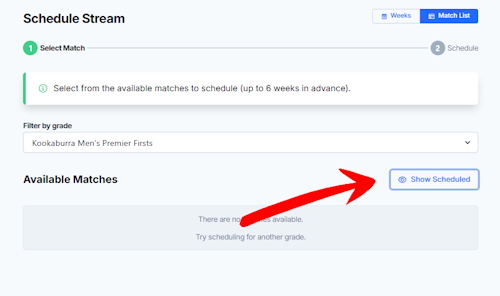
Step 3: Press "Show Scheduled" to see Day 2 or Day 3 fixture dates. Select as per the usual scheduling process.
For all other sporting clubs
For clubs NOT affiliated with FrogBox partner.
Step 1: Select Schedule Stream.
Step 2: Configure your stream
- Video Privacy Setting: Select the required privacy setting for your stream.
- Source: Select the streaming source you will be using (A FrogBox encoder or the Go Lite App)
- Resolution: Choose between 720p or 1080p.
- Graphics: Select the graphics package you would like displayed on your stream.
- Audio: Adjust the stream audio level if required.
- Scheduled start time (Venue): Enter the date and time your stream is scheduled to begin.
- Scheduled end time (Venue): Enter the expected date and time your stream will finish.
- Match time zone: Select the time zone where the match or event is taking place.
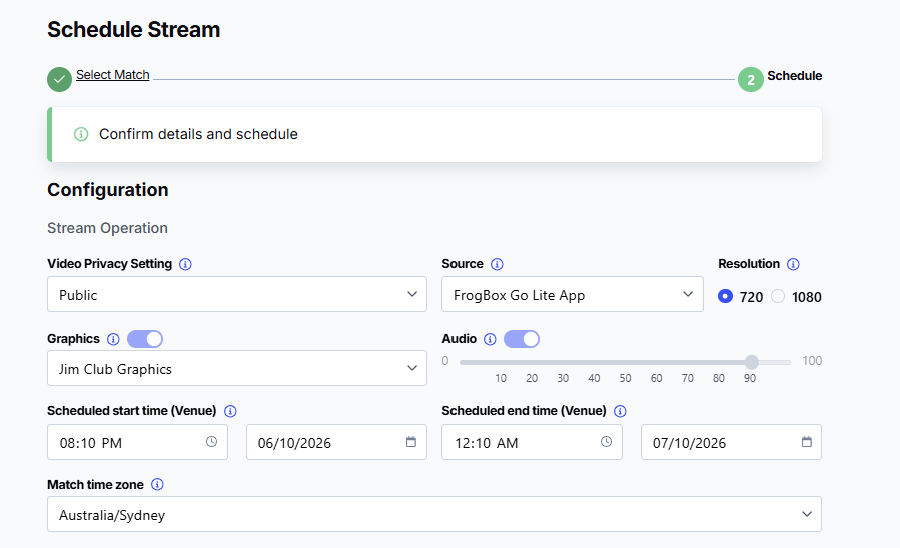
Step 3: Enter your stream details
- Sport: Select the sport being played.
- Stream title: Enter the title you would like displayed for your stream.
- Stream description: Enter a description of the match or event if required.
- Home team abbreviation: Enter a shortened version of the home team's name.
- Home team full name: Enter the home team's full name.
- Away team abbreviation: Enter a shortened version of the away team's name.
- Away team full name: Enter the away team's full name.
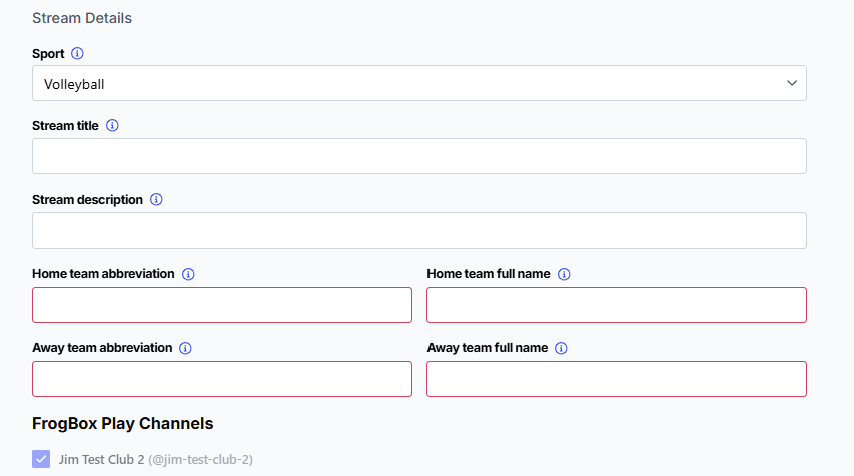
Step 4: Select your FrogBox Play Channel
Step 5: Select Schedule
Your match or event is now scheduled and will appear in FrogBox Go ready for streaming on the Manage Stream page.