
To remotely monitor battery life and adjust your camera's tilt and zoom from your phone/tablet during a game, you'll need to download FrogBox Connect and pair your phone/tablet with the camera.
DOWNLOAD FROGBOX CONNECT
Visit frogbox.live/connect.
Download the free FrogBox Connect app onto your phone/tablet.
TURN ON BLUETOOTH
On Phone/Tablet:
Settings → Bluetooth → Toggle On
On Camera:
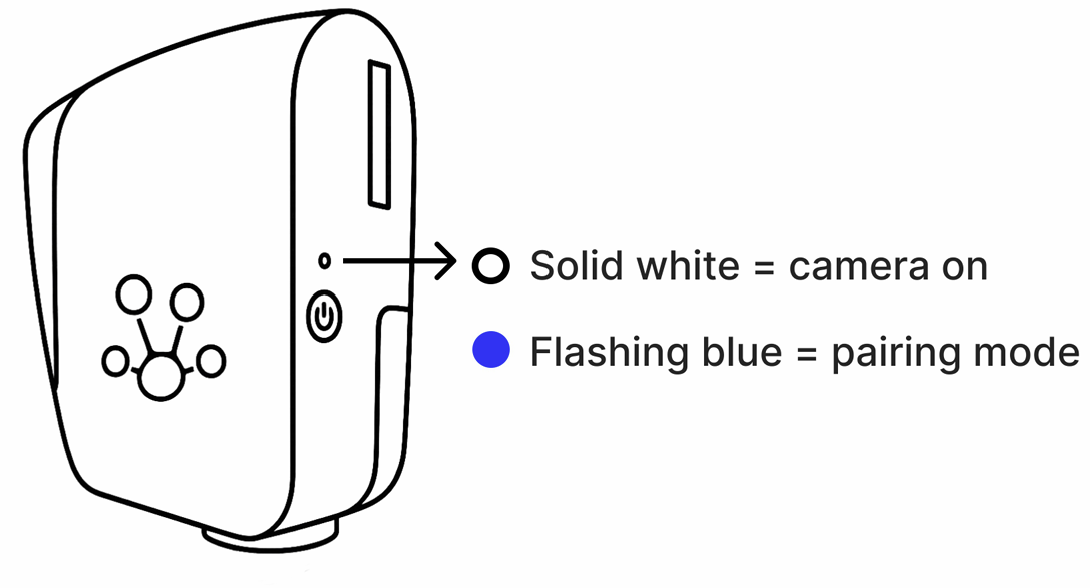
Press the black button to turn on (solid white = camera on)
Press again 3 secs (flashing blue = bluetooth pairing mode)
PAIR DEVICES
On Phone/Tablet:
Settings → Bluetooth → Pair With “FrogBoxV2-XXXXX”
FrogBox Connect:
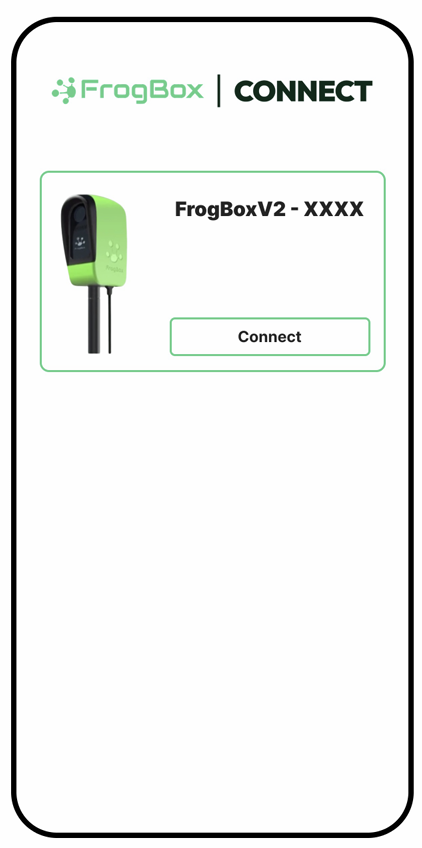
Open App → Scan For Devices → Connect With “FrogBoxV2-XXXXX”
Step 3: Devices Paired
A brief solid blue light indicates your phone/tablet and camera is paired.
It will then switch to solid white.
If you're experiencing any issues, you may need to unpair or forgot your device before repairing your devices. Please find more information here: V2 Troubleshooting: How to unpair or forget your camera