
If you’re having trouble pairing your FrogBox V2 camera via Bluetooth to your phone or tablet, sometimes you need to remove/forget the device within (1) FrogBox Connect and (1) on your phone/tablet before attempting to pair again. In some cases you may also need to clear the app cache as well before trying to re-pair.
How to "Remove This Device" within FrogBox Connect
Step 1: Open the FrogBox Connect app
Step 2: Swipe left on your camera until you see the Remove option. Tap Remove
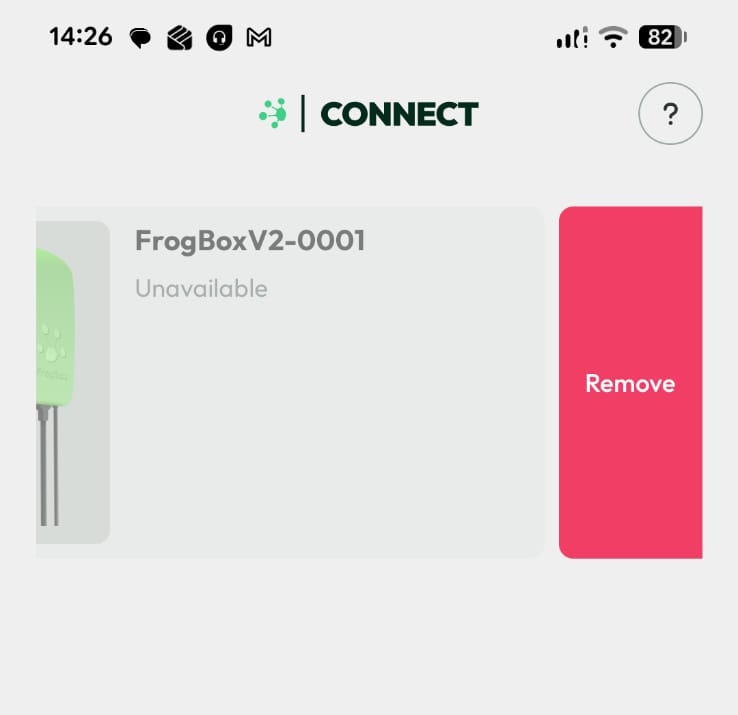
Step 3: Tap Remove again
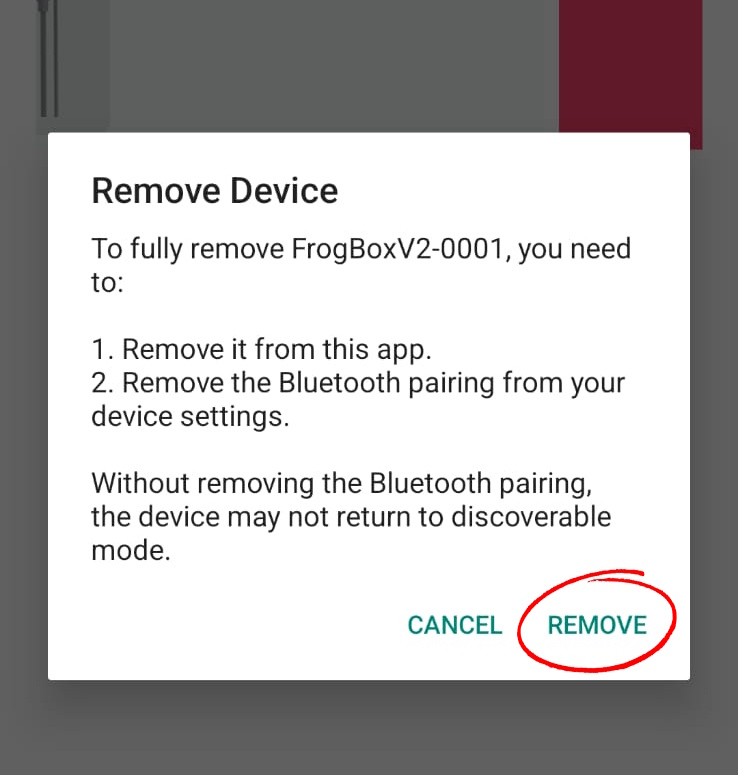
Step 4: Follow the steps below on How to Forget This Device on your phone/tablet
How to "Forget This Device" on your phone/tablet
For iPhone (iOS 15 and later)
Open the Settings app.
Tap Bluetooth.
Find the FrogBox Camera in the list of My Devices.
Tap the (i) icon next to the FrogBox Camera name.
Tap Forget This Device.
Confirm by tapping Forget Device again.
For Android (most recent versions, steps may vary slightly by manufacturer)
Open the Settings app.
Tap Connections or Connected devices.
Tap Bluetooth.
Locate your FrogBox Camera under Paired devices.
Tap the gear icon (or three-dot menu) next to the device.
Tap Unpair or Forget.
How to Clear App Cache on FrogBox Connect
Step 1: Click ? button top left
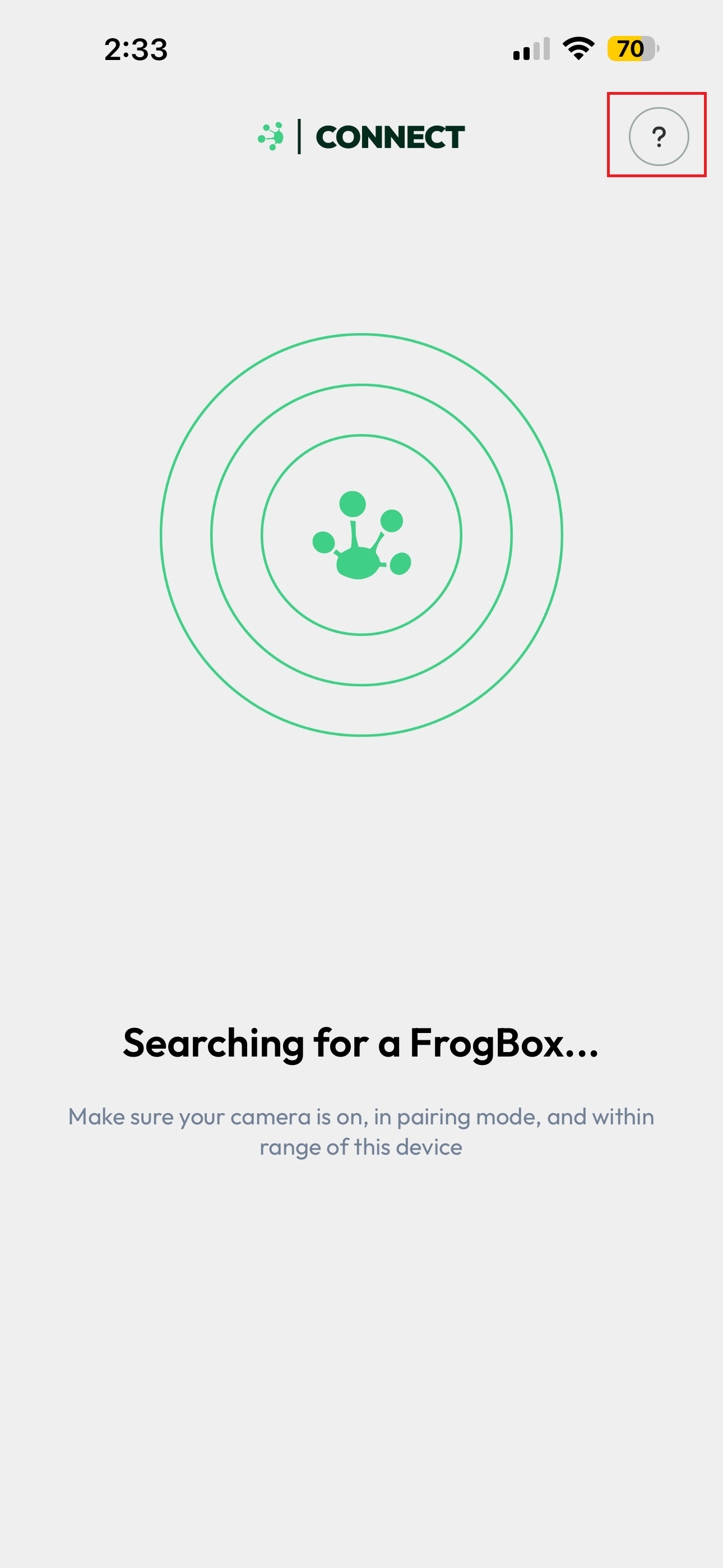
Step 2: Scroll down and click 'Clear App Cache'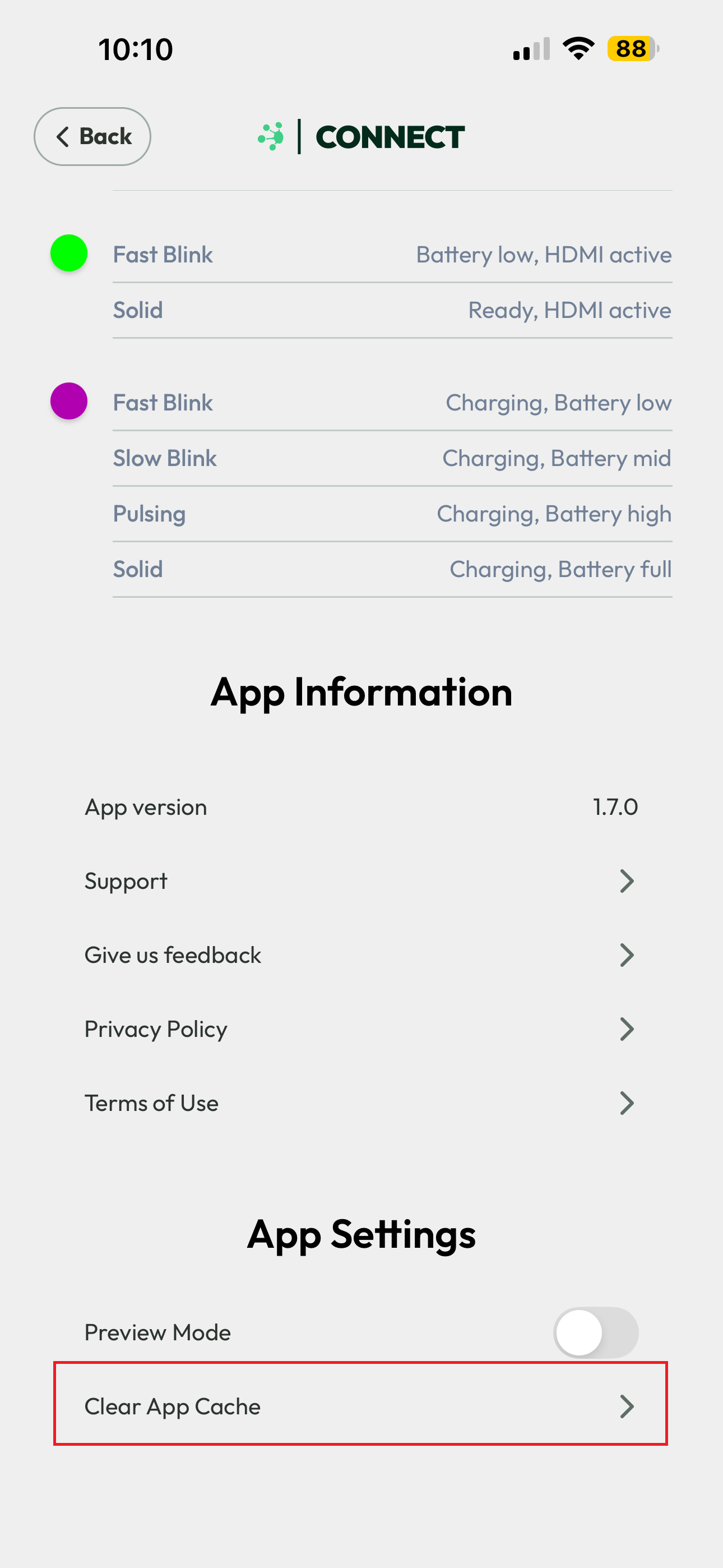
Step 3: Click Proceed on the pop up message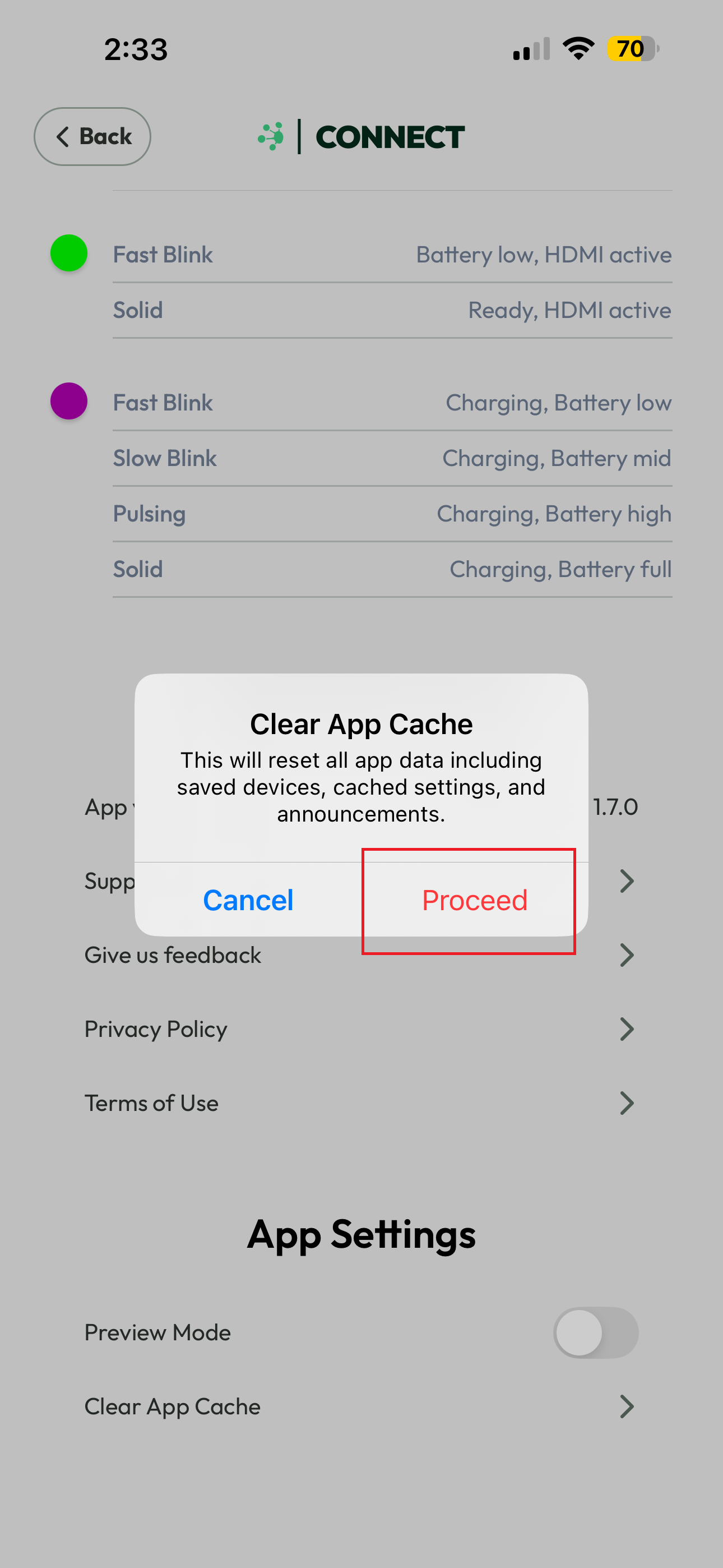
Repairing your phone/tablet to FrogBox Connect
Now that you have removed/forgotten the device within (1) FrogBox Connect and (1) on your phone/tablet and cleared your app cache, you will need to repair your phone/tablet with your camera
Make sure your FrogBox camera is powered on (press the black button) and in pairing mode when attempting to repair your device and camera.
If your camera still does not appear, try restarting your phone.
For persistent issues, try moving the phone closer to the camera to ensure a strong Bluetooth signal.