
Already have a camera you’d like to use for streaming? You can connect your existing camera to a V2 FrogBox Encoder and use the FrogBox platform without needing to replace your camera.
The V2 FrogBox Encoder acts as the connection between your camera and the FrogBox platform, taking the video feed from your camera and delivering it to your FrogBox Go stream.
What you'll need
To stream using your own camera, you'll need:
What your club provides
- An existing camera with an HDMI output
- A reliable internet connection via Wi-Fi, Ethernet or 4G SIM
- A FrogBox Go streaming plan, purchased directly from FrogBox
What FrogBox provides
When you purchase a FrogBox Encoder, we'll supply:
- A V2 FrogBox Encoder, including aerials and charger adaptor
- An HDMI cable to connect your camera to the Encoder
The FrogBox Encoder supports virtually any camera with an HDMI output, including fixed cameras, PTZ cameras, camcorders, broadcast cameras and existing venue camera systems.
How the setup works
Your existing camera captures the match and sends the video signal to the v2 FrogBox Encoder via HDMI.
The v2 FrogBox Encoder then processes the video and sends it to the FrogBox platform using your available internet connection.
Camera → HDMI → v2 FrogBox Encoder → Internet → FrogBox Platform → Your viewers
Once connected, your streams can be managed through FrogBox Go, including scheduling, stream management, branding, live scores and stream monitoring.
Connecting your camera
1. Position and set up your camera
Set up your existing camera in the position you normally use to capture your matches.
Make sure the camera is powered on and configured to output video through its HDMI connection
2. Connect the camera to the FrogBox Encoder
Connect an HDMI cable from the HDMI output on your camera to the HDMI input on the FrogBox Encoder.
Once connected, the Encoder can receive the live video feed from your camera.
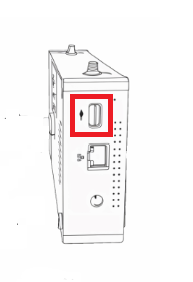
3. Connect the v2 FrogBox Encoder to the internet
The FrogBox Encoder can connect to the internet using:
Wi-Fi,
Ethernet, or
4G SIM
4. Check your camera feed
The FrogBox Encoder includes a built-in live monitor, allowing you to check the video feed being received from your camera.
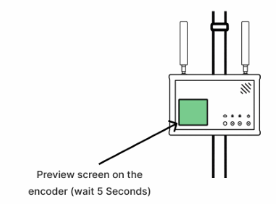
You can also remotely monitor your stream through FrogBox Go.
Before starting your first live stream, we recommend checking that:
Your camera is powered on
The HDMI cable is securely connected
The Encoder has an active internet connection
The camera feed is visible on the Encoder screen
Your camera is outputting a video signal to FrogBox Go
5. Schedule and manage your stream
Once your camera and Encoder are connected, use FrogBox Go to schedule and manage your stream.
FrogBox Go provides access to:
Stream scheduling and management
Club and sponsor branding
Live score integration
Stream diagnostics and monitoring
Your FrogBox Play Club Channel
Your completed streams are then available for viewers through your FrogBox Play Club Channel, including replays and highlights.
What cameras are compatible?
The FrogBox Encoder is compatible with virtually any camera that has an HDMI output.
This makes it suitable for a wide range of camera setups, including:
Fixed camera installations
PTZ cameras
Camcorders
Broadcast cameras
Existing venue camera systems
The quality of your stream will depend partly on the video output of your camera. The FrogBox Encoder can process and stream video at up to Full HD 1080p, depending on your camera's output resolution.
V2 FrogBox Encoder features
The FrogBox Encoder is designed to provide a reliable connection between your existing camera and the FrogBox platform.
Key features include:
Full HD 1080p video processing and streaming
12+ hour built-in battery
Wi-Fi, Ethernet and 4G connectivity
HDMI camera connection
Built-in live monitor
Remote monitoring through FrogBox Go
Local SD card recording
H.265 video compression
Battery charger and power adaptor included