
You can cast a FrogBox Play stream from your phone or laptop to a compatible TV or Google Cast device, allowing your community to watch the action on a larger screen.
How to cast a FrogBox Play stream from your laptop
Before you start
Make sure:
- Your laptop and TV and/or Google Cast device are connected to the same Wi-Fi network.
- Your TV supports Google Cast, or you have a compatible Chromecast/Google TV device connected.
- You have opened FrogBox Play on your laptop and selected the stream you want to watch.
Step 1: Open FrogBox Play on a web browser (https://play.frogbox.live/).
Step 2: Open the live stream or replay you want to cast.
Step 3: At the bottom of the live stream video, select the Google Cast icon in the bottom-right corner. The cast icon looks like a small screen with Wi-Fi waves in the corner.
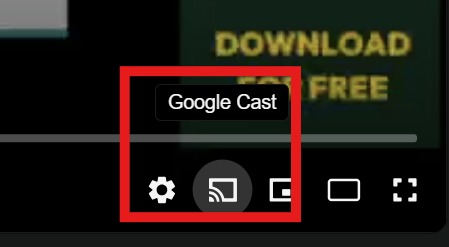
Step 4: Select the TV or device you would like to cast to from the list of available Google Cast devices on your network.
Step 5. Once connected, your FrogBox Play live stream will be displayed on your selected TV or device.
Step 6: To stop casting, select the Cast icon again and choose the option to stop casting or disconnect from your device.
Having trouble casting?
If your TV or device doesn't appear, check that your computer and Google Cast device are connected to the same Wi-Fi network. You should also make sure your browser and casting device are up-to-date. Google recommends using an up-to-date version of Chrome when casting from a computer.
If you're unable to use the Cast button within FrogBox Play, you can also cast the browser tab through Google Chrome by selecting More (⋮) → Cast, save and share → Cast, then choosing your device.
Google's guide to casting from Chrome
How to cast a FrogBox Play stream from your mobile
Before you start
Make sure:
- Your mobile and TV and/or Google Cast device are connected to the same Wi-Fi network.
- Your TV supports Google Cast, or you have a compatible Chromecast/Google TV device connected.
- You have opened the FrogBox Play app and selected the stream you want to watch.
Step 1: Download and open the FrogBox Play (https://play.frogbox.live/).
Step 2: Open the live stream or replay you want to cast.
Step 3: At the top of the live stream video, select the Screen Cast icon in the top-right corner. The cast icon looks like a small screen with a triangle in the middle.
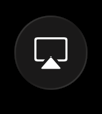
Step 4: Select the TV or device you would like to cast to from the list of available Google Cast devices on your network.
Step 5. Once connected, your FrogBox Play live stream will be displayed on your selected TV or device.
Step 6: To stop casting, select the Cast icon again and choose the option to stop casting or disconnect from your device.