
Can a live stream appear on more than one FrogBox Play Channel?
Yes! We can link your stream to multiple FrogBox Play Channels, allowing your live stream to appear on more than one channel simultaneously.
For example, a Premier League cricket club might want its live stream to appear on both the Premier League's FrogBox Play Channel and its own club channel. Similarly, a cricket association might want streams from its member clubs to appear on both the association's channel and the individual clubs' channels.
Please note: Multiple-channel linking applies to FrogBox Play only. This feature cannot be used to broadcast a single stream simultaneously to multiple YouTube channels.
How do I link my FrogBox Play Channel to another channel?
Channel linking is managed by the FrogBox Customer Team. Customers cannot create these links themselves.
If you'd like a live stream to appear on more than one FrogBox Play Channel, please submit a ticket to FrogBox Support with your request.
Please provide as much information as possible to help us identify the channels you want to link, including:
- Your club or organisation's name and location.
- The name of your existing FrogBox Play Channel.
- The name of the additional FrogBox Play Channel(s), or the relevant league, association or other organisation, where you'd like your stream to appear.
- Any other information that will help us identify the correct channels.
- Whether you'd prefer additional channels to be selected automatically whenever you schedule a stream, or whether you'd prefer to select them manually each time.
How does automatic or manual channel selection work?
When we set up your channel links, we can configure the additional channels to be selected automatically whenever you schedule a stream, or leave them unselected by default so you can choose when to use them.
- Automatic selection: Your linked channels will be selected by default whenever you schedule a stream. You can deselect any additional channels for individual streams if you don't want your stream to appear on them.
- Manual selection: Your linked channels won't be selected by default. You can choose which additional channels to include whenever you schedule a stream.
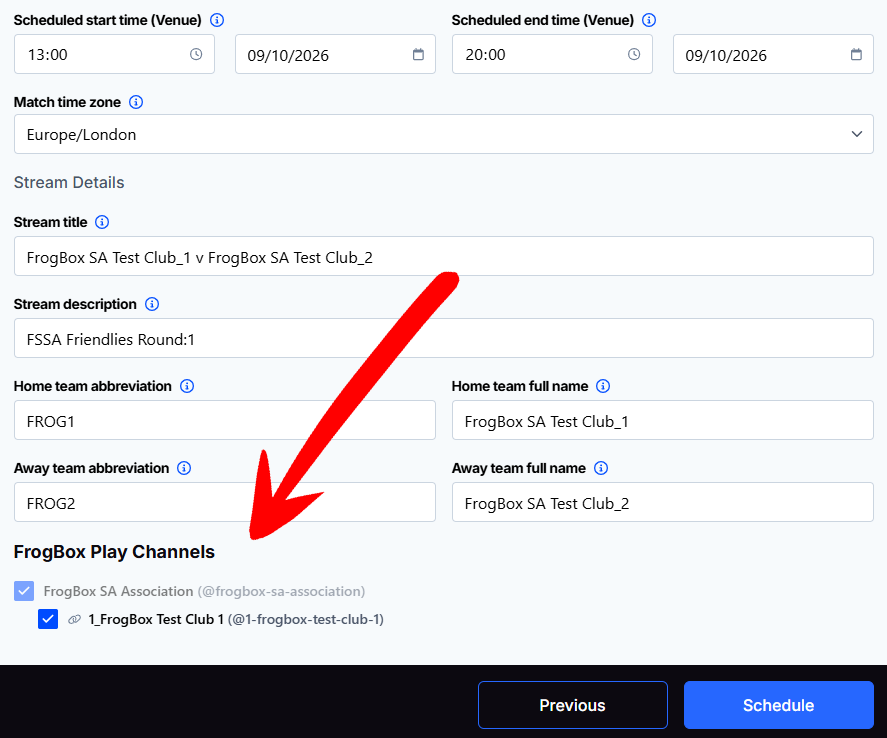
You can change your channel selections when scheduling a stream, or afterwards, provided the change is made more than one hour before the scheduled start time.
If you'd like to change your automatic or manual channel selection settings in the future, or if you'd like your channels to be unlinked, simply submit a ticket to FrogBox Support with your request. Our team will be happy to help.
Our team will review your initial request, configure the channel links for you, and confirm once they're ready to use.
Once your stream is scheduled with the relevant channels selected, it will simultaneously appear on all connected FrogBox Play Channels.