
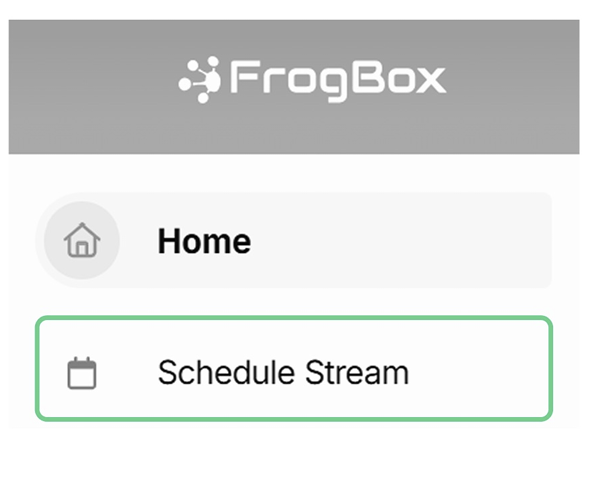
Step 1: Log into FrogBox Go (https://go.frogbox.live/login) and select Schedule Stream. You first need to make sure you have activated your club's FrogBox Go account.
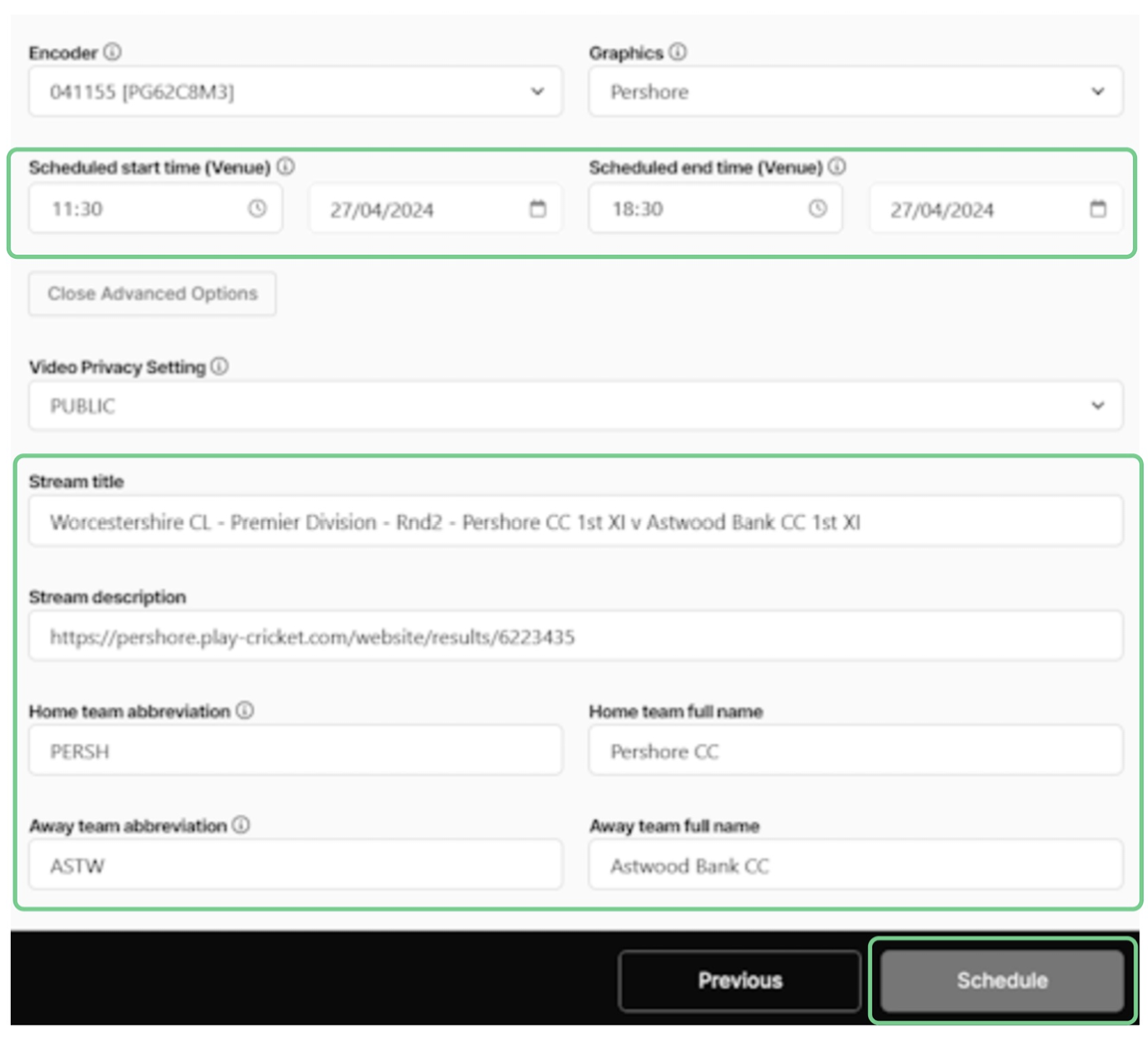
Step 2: Enter your match or event details. Click Schedule. Click here for more detail on how to schedule streams.
Step 3: Now share your Club Channel with your community so they can watch your live streams. Make sure you have branded your Club Channel with club and sponsor logos (How to set up your FrogBox Go account).
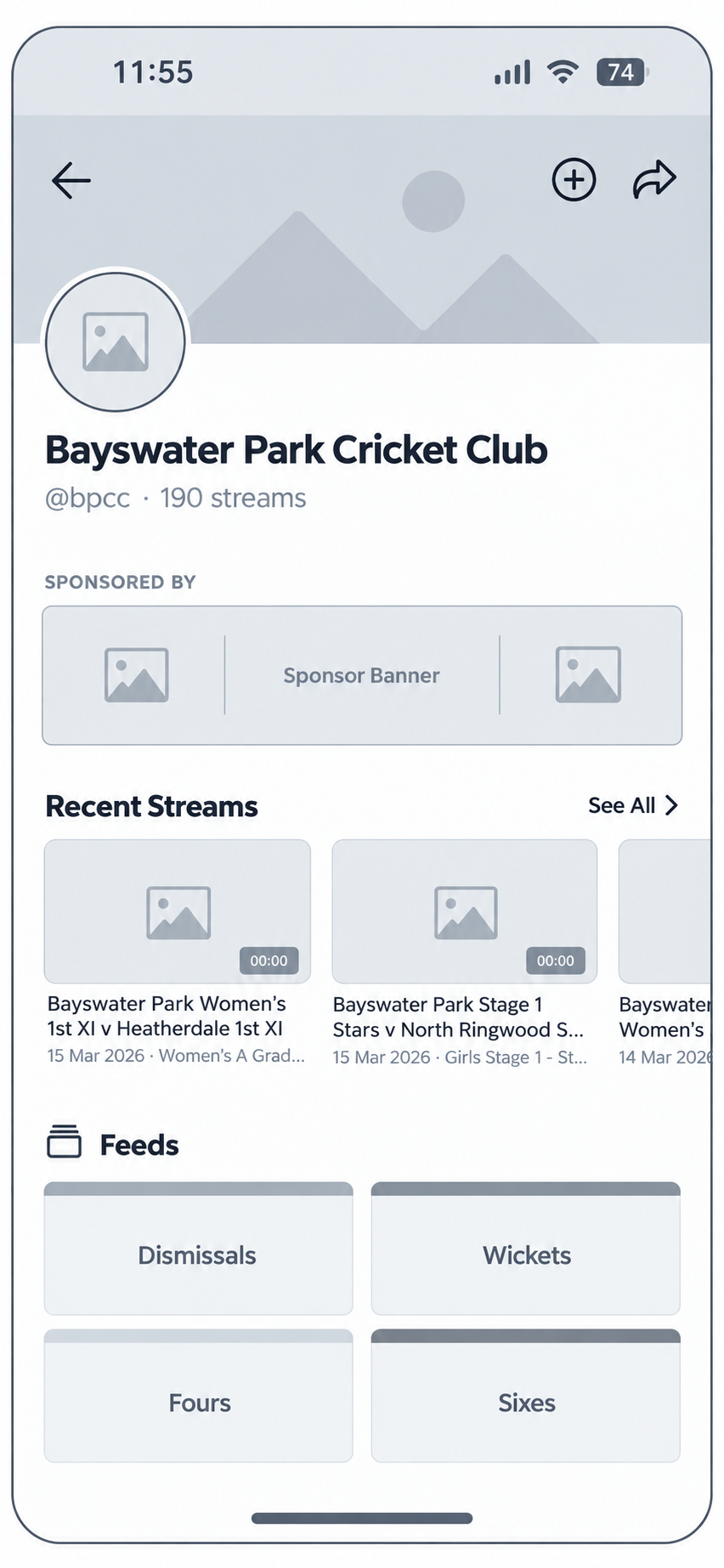
Step 4: To share, download and log into FrogBox Play (https://play.frogbox.live). Search for your Club Channel, then click the arrow in the top right-hand corner to share your Club Channel link, giving your community one place to watch your live streams and replays.
NEXT STEP: Now, it's time to set up your camera and FrogBox encoder.
NEED HELP?
Submit a FrogBox Support Ticket or please contact our Support team at support@frogbox.com. Please provide your club details so our team can assist you.