
Follow the steps below to connect your existing camera to your FrogBox Encoder and prepare for live streaming.
Step 1: Set Up & Position Your Camera
Make sure your camera is powered on and configured to output video through its HDMI connection.
Set up your existing camera in the position where you normally capture your matches.
Step 2. Connect Your Camera to the FrogBox Encoder
Connect the HDMI output on your camera to the HDMI input on the FrogBox Encoder.
Turn on the FrogBox Encoder and allow it to start up. Once connected, the Encoder will receive the live video feed from your camera.
Tip: Secure your HDMI cable so it cannot be accidentally pulled loose during the match.
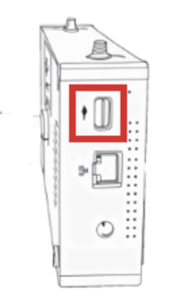
Step 3.Connect the Encoder to the Internet
The FrogBox Encoder can connect to the internet using Wi-Fi, Ethernet or a 4G SIMO Use the most reliable connection available at your venue to help maintain a stable live stream.
Click here for instructions on how to connect your FrogBox Encoder to the internet.
Before your first stream, confirm the Encoder has an active internet connection. If you are using a venue connection, test it from the location where the Encoder will be used on match day
Step 4. Check Your Camera Feed
The FrogBox Encoder includes a built-in live monitor so you can confirm the video feed being received from your camera before you start streaming.
Before starting your first live stream, check the following:
Your camera is powered on.
The HDMI cable is securely connected.
The Encoder has an active internet connection.
The camera feed is visible on the Encoder screen.
Your camera is outputting a video signal to FrogBox Go.
You can also remotely monitor your stream through FrogBox Go once your stream has been set up.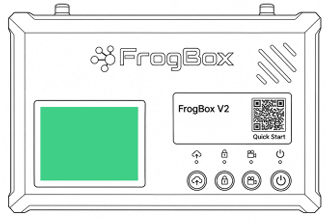
NEXT STEPS: Learn how to manage the score overlays shown to your viewers in
NEED HELP?
Submit a FrogBox Support Ticket or please contact our Support team at support@frogbox.com. Please provide your club details so our team can assist you.