
You can mute the microphone on your FrogBox V2 camera directly from the FrogBox Connect app. You can also mute your stream within FrogBox Go.
This turns off the microphone on the camera itself, which overrides any audio settings in FrogBox Go.
How to Mute Your V2 Camera
Step 1: Ensure your phone or tablet is paired with your camera.
Step 2: Open the FrogBox Connect app on your phone or tablet.
Step 3: Select your camera from the device list.
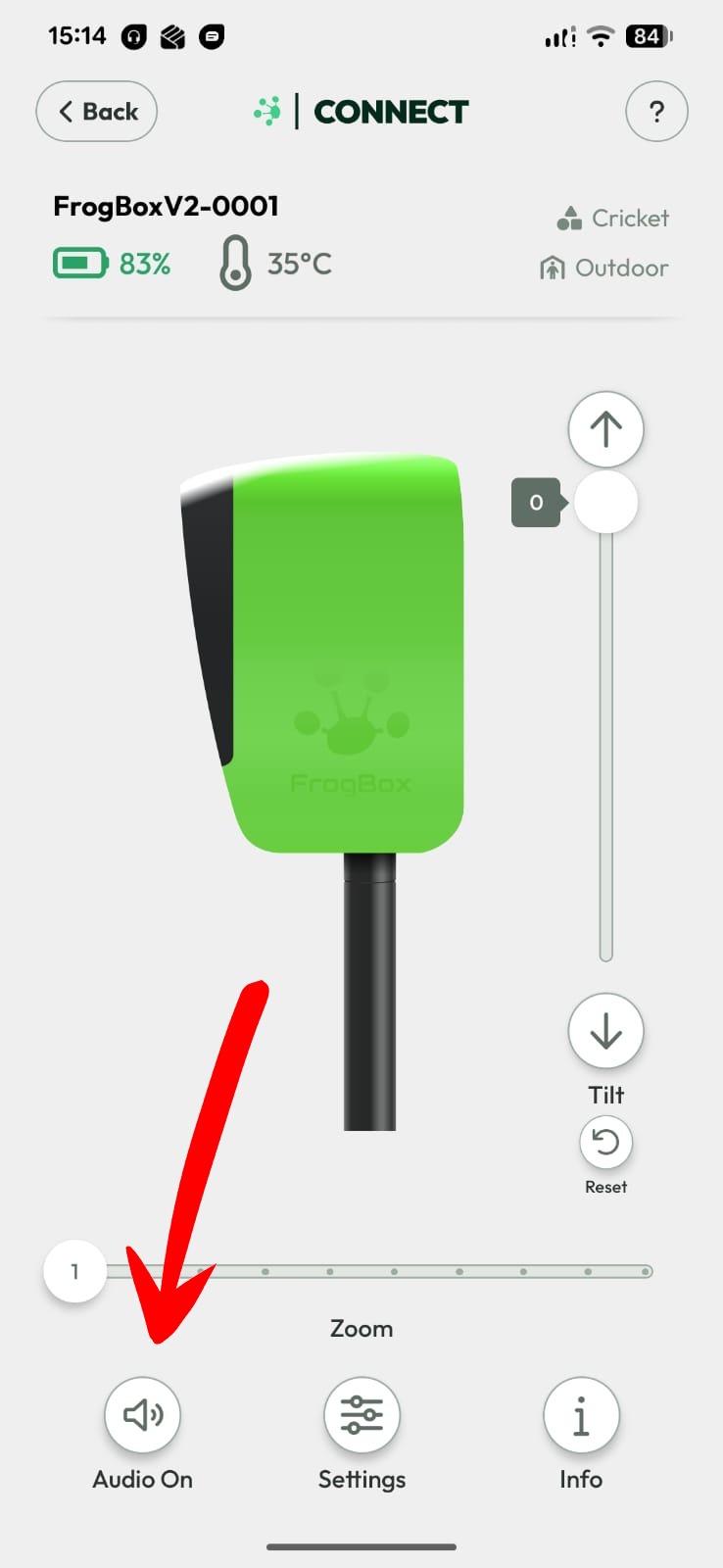
Step 4: Tap Audio On to mute the camera (bottom-left of the screen). The button will change to Muted, confirming the microphone is off.
Alternatively, you can also mute your stream within FrogBox Go.
How to Unmute Your V2 Camera
Step 1: Open the FrogBox Connect app on your phone or tablet.
Step 2: Ensure your phone or tablet is paired with your camera.
Step 3: Select your camera from the device list.
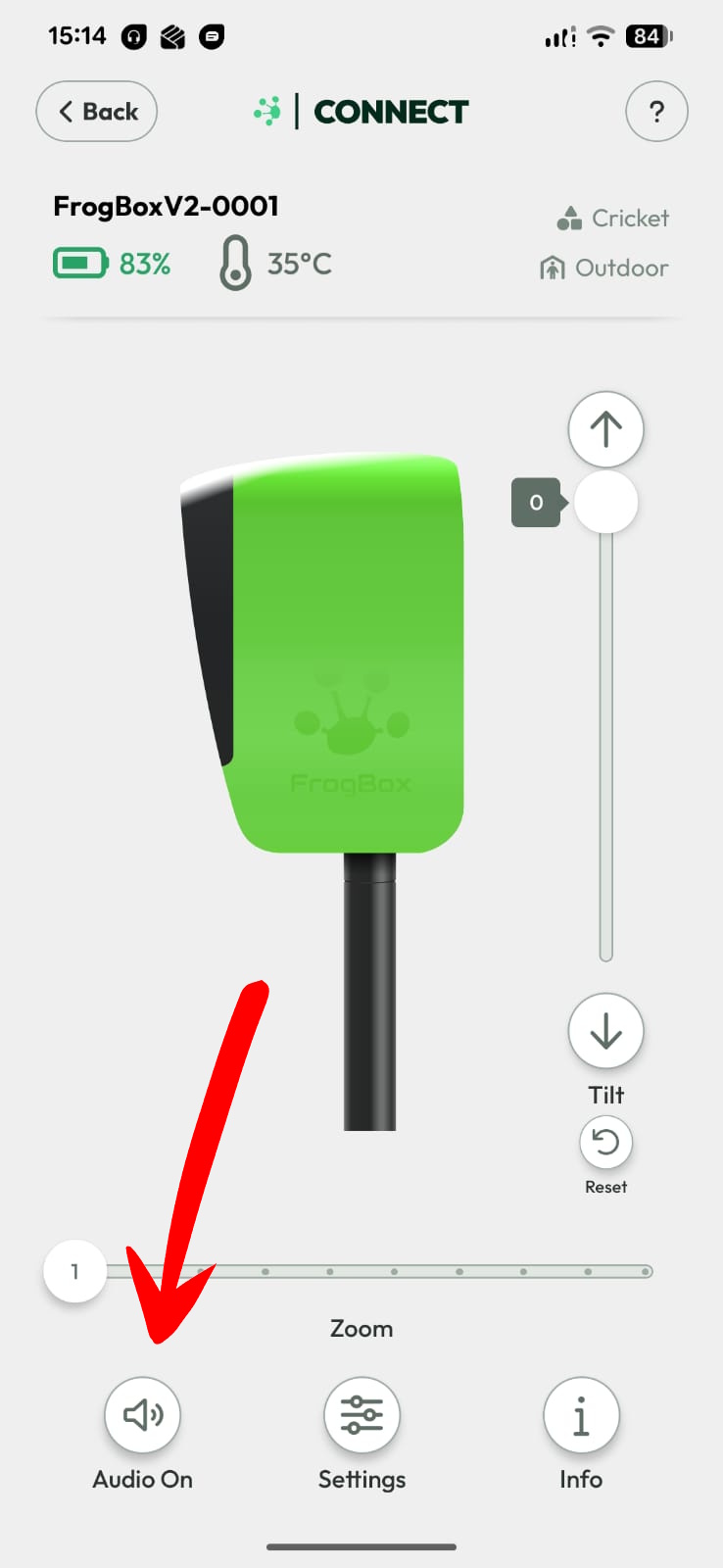
Step 5: To unmute, tap Muted and your camera will switch back to Audio On. You will also need to ensure audio is not muted in FrogBox Go.
Step 6: Review your stream settings in FrogBox Go to ensure your stream is not muted in FrogBox Go.