
To start streaming from your mobile, you need to first make sure you have activated your club's FrogBox Go account.
Upload your logos
FrogBox lets you showcase your club and sponsor logos on your streams, helping boost your club’s profile and generate sponsorship revenue.
Upload your logos now to feature them on your live streams. We recommend completing these steps from a laptop.
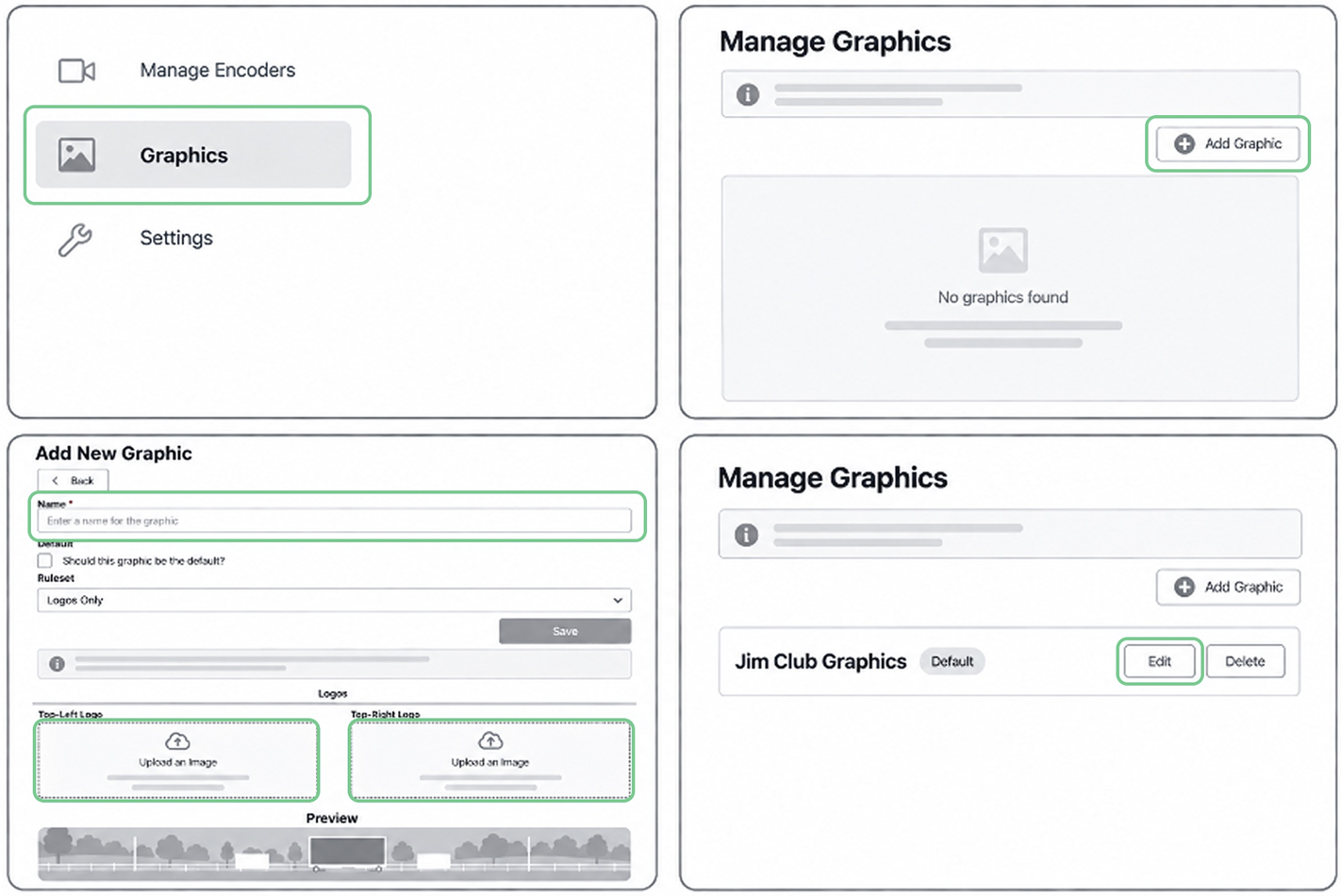
Step 1: Log into FrogBox Go (https://go.frogbox.live/login) and navigate to the Graphics menu and select Add Graphic.
Step 2: Enter a name for your graphics package and upload a Top-Left and/or Top-Right image. Use the Preview to check how your graphics will appear on your live stream. Select Save.
Step 3: To edit your graphics package at any time, select Edit. Make your changes and select Save.
Brand your Club Channel on FrogBox Play
FrogBox gives your club a dedicated Club Channel in FrogBox Play - one place for your community to find and watch all your live streams and replays.
Customise it with your club and sponsor branding, then share your unique Club Channel link with your community. We recommend completing these steps from a laptop.
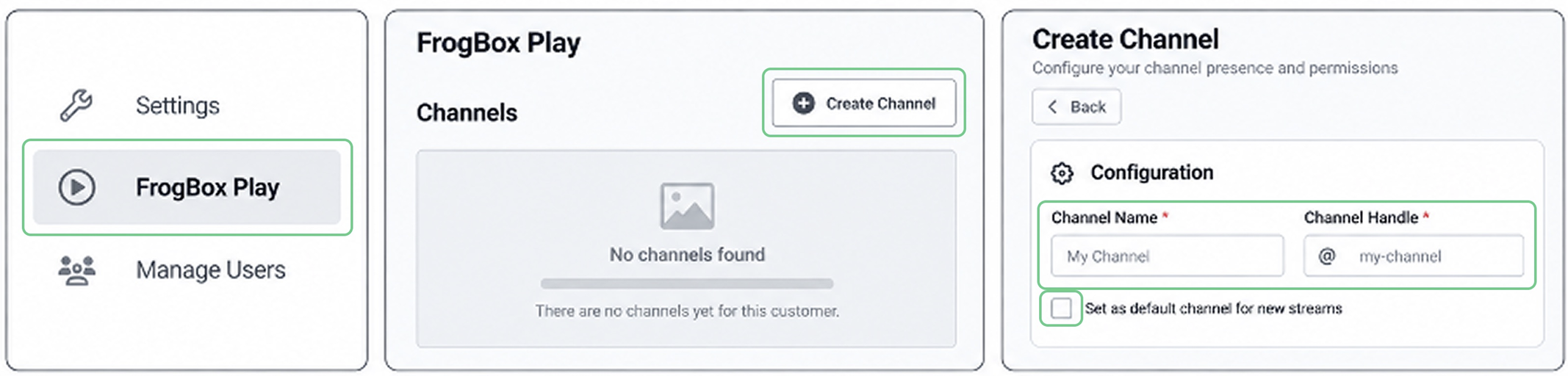
Step 4: Log into FrogBox Go (https://go.frogbox.live/login) and select FrogBox Play from the left-hand menu.
Step 5: On the Channels page, select Create Channel.
Step 6: Enter a Channel Name and Channel Handle. If you would like this channel to be automatically selected when scheduling new streams, tick Set as default channel for new streams.
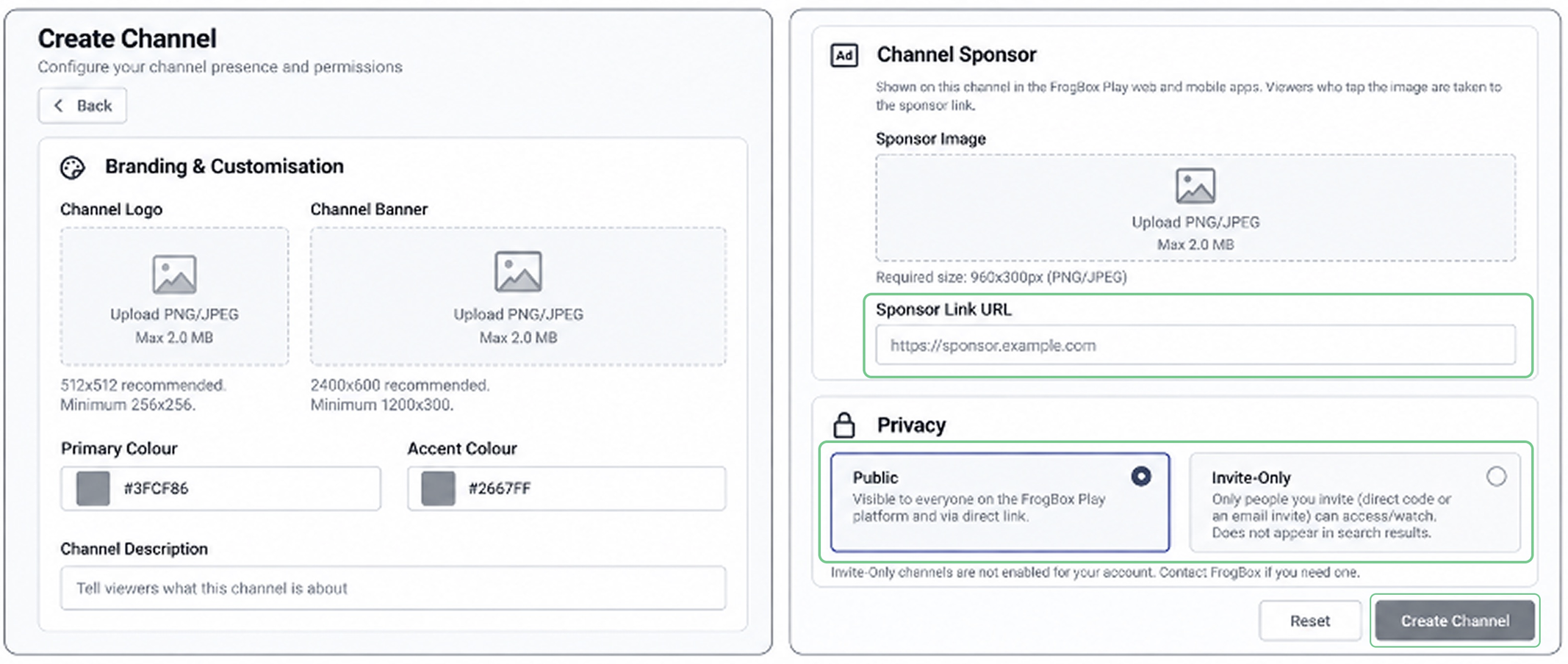
Step 7: Upload your Channel Logo, Channel Banner, Primary Colour, Accent Colour, Channel Description, Sponsor Image and Sponsor Link URL to customise how your channel will appear to your community. add a Sponsor Link URL.
Step 8: Choose whether your channel will be Public or Invite-Only. Public channels are visible to everyone, while Invite-Only channels can only be accessed by invited viewers and will not appear in search results.
Step 9: Once you’re happy with your channel, select Create Channel to publish your Club Channel.
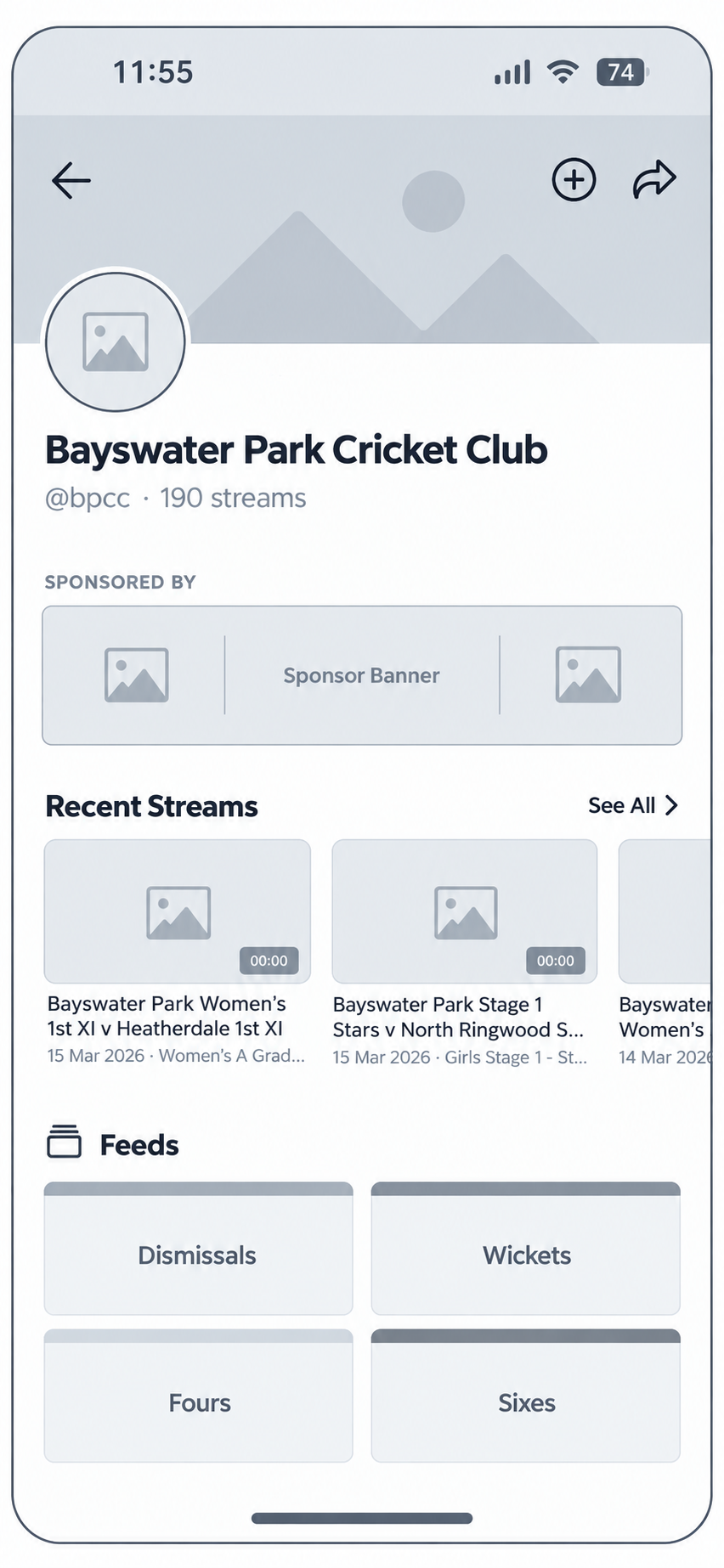
Step 10: To share your Club Channel with your community, log into FrogBox Play and open your Club Channel.
Step 11: Click the arrow in the top right-hand corner to share your Club Channel link, giving your community one place to watch your live streams and replays.
NEXT STEP: Now that your FrogBox Go account it set up, download the FrogBox Go Lite app and start scheduling your matches.
NEED HELP?
Submit a FrogBox Support Ticket or please contact our Support team at support@frogbox.com. Please provide your club details so our team can assist you.