
Before you can start streaming with your mobile on match day, make sure you've first completed the following steps:
- You've got everything you need: What you need to stream with your mobile phone
- You've set up your FrogBox Go account: How to set up your FrogBox Go account for mobile streaming
- You've downloaded FrogBox Go Lite: How to download the FrogBox Go Lite app
Once you've completed the above, now it's time to start scheduling your streams and sharing the watch link with your club's community of players, family, friends and members before kickoff.
Are you a cricket club in a FrogBox partner region?
For clubs affiliated with organisations such as Cricket Australia, ECB, Cricket New Zealand, KNCB, Cricket Scotland or other FrogBox cricket partners.
Step 1: You'll need to schedule your stream on FrogBox Go before you can go live on FrogBox Go Lite. Here's how to schedule your stream on FrogBox Go.
You will not be able to complete the steps below.
For all other sporting clubs
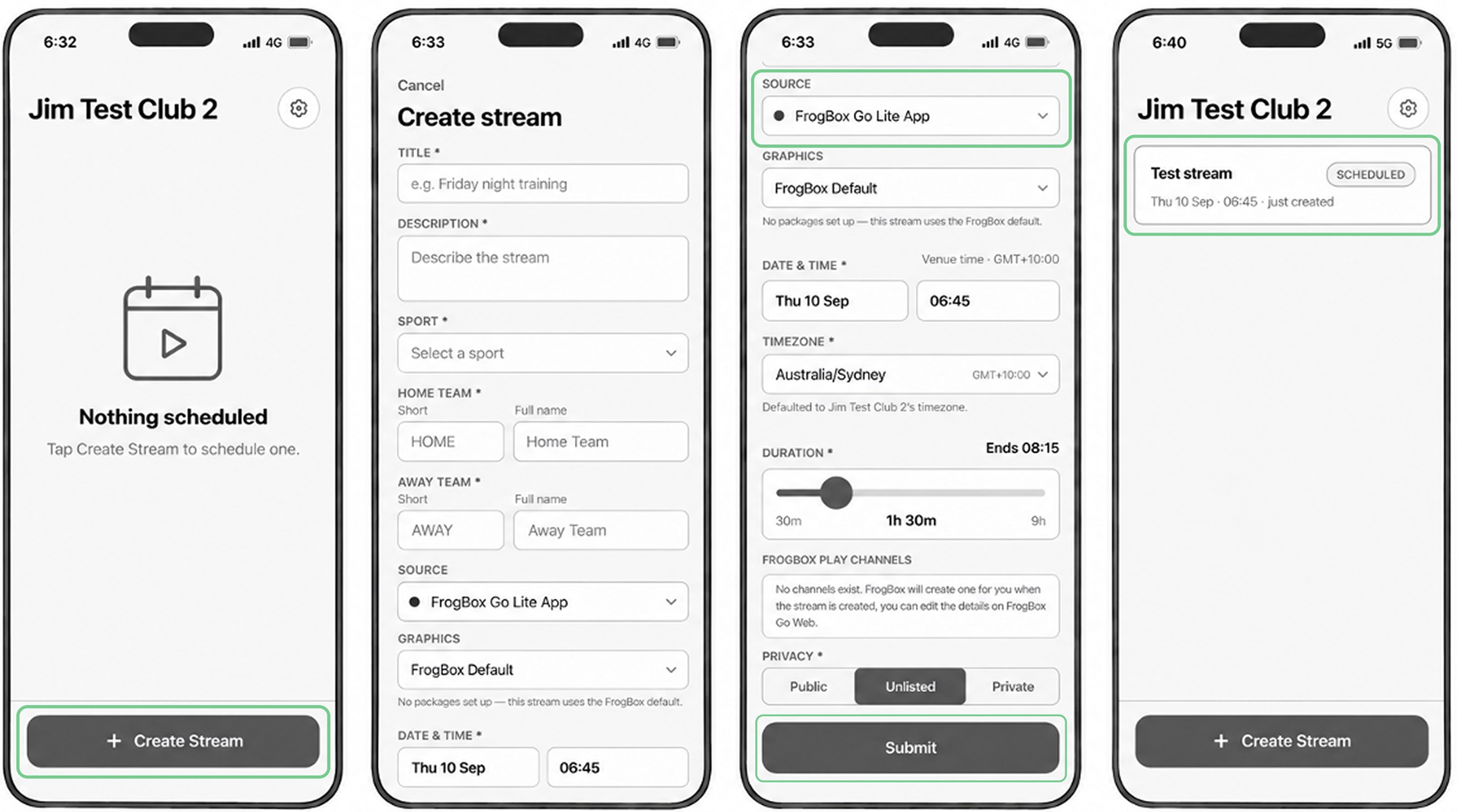
Step 1: You'll need to shedule streams on FrogBox Go Lite. Log into the app and make sure you are on the main Dashboard.
Step 2: Tap + Create Stream at the bottom of the screen.
Step 3: Enter your match or event details. Fill in all required fields on the Create stream form:
Title: Enter a clear title for the event (e.g., "Friday Night Finals" or "Round 4 vs. Rivals").
Description: Add optional information about the fixture.
Source: Select FrogBox Go Lite App from the dropdown menu. (This configures the platform to receive video directly from your phone's camera).
Graphics: Select FrogBox Default.
Date & Time: Set the scheduled match date, start time, duration, and local timezone.
Sport & Teams: Select your sport, and choose or type the Home Team and Away Team names.
Privacy: Choose your streaming privacy level:
Public: Discoverable by anyone.
Unlisted: Accessible only to people with the direct share link.
Private: Restricted view.
Step 4: Tap Submit to save your scheduled stream. Your stream is now scheduled and will appear on the main Dashboard.
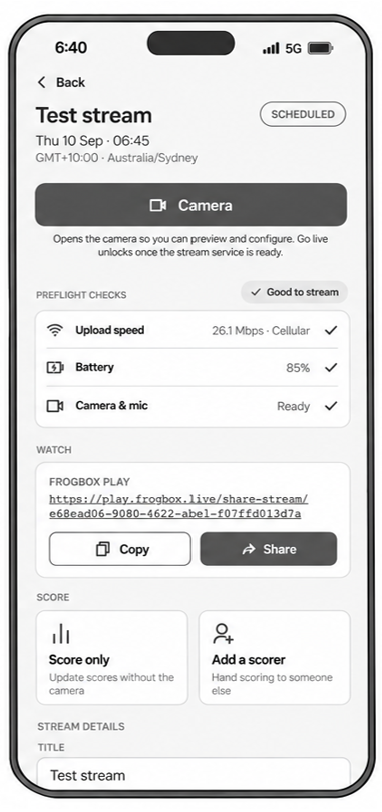
Step 5: Tap Share to copy your live stream link and share it with your club community so they can watch your match live.
NEXT STEP: Once your match is scheduled, here's how to go live on match day and here's how to live score your live streams.
NEED HELP?
Submit a FrogBox Support Ticket or please contact our Support team at support@frogbox.com. Please provide your club details so our team can assist you.