
Once your kit is fully charged and your phone/tablet and camera are paired, it's time to assemble the tripod, camera, encoder, and cable for the first time.
SET UP THE TRIPOD & MOUNT THE CAMERA
Step 1: Loosen top and bottom screws
Step 2: Extend out tripod legs
Step 3: Level the tripod legs as needed
Step 4: Secure tripod with sandbags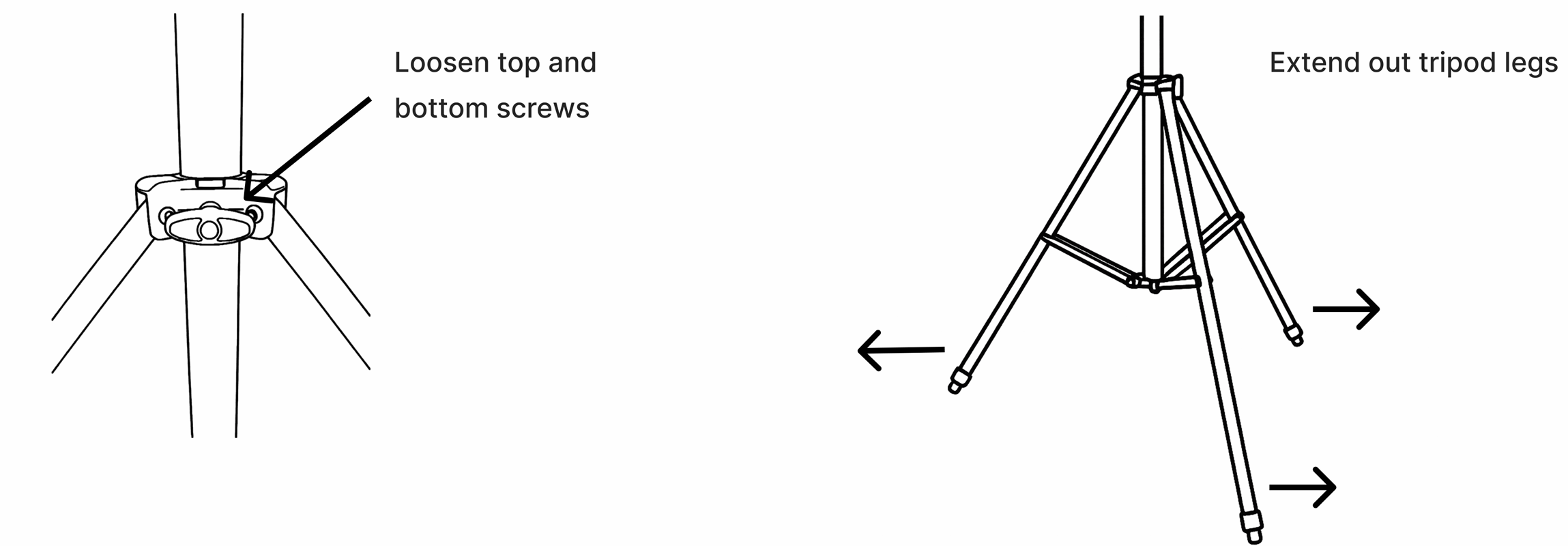
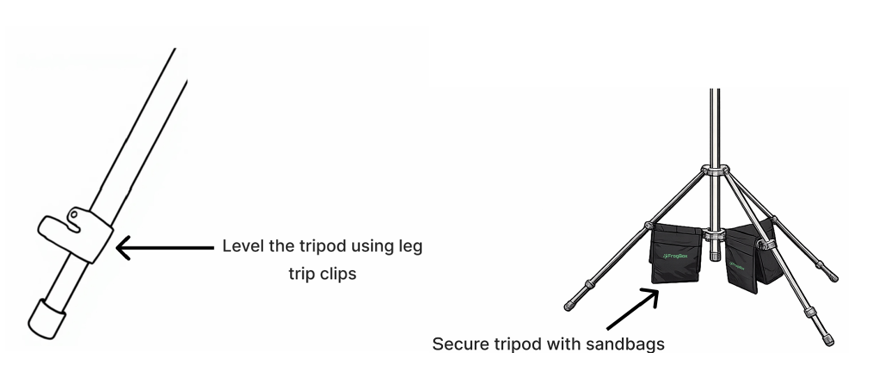
Step 4: Screw the (black) camera mount into the camera. If this has already been done, skip this step.
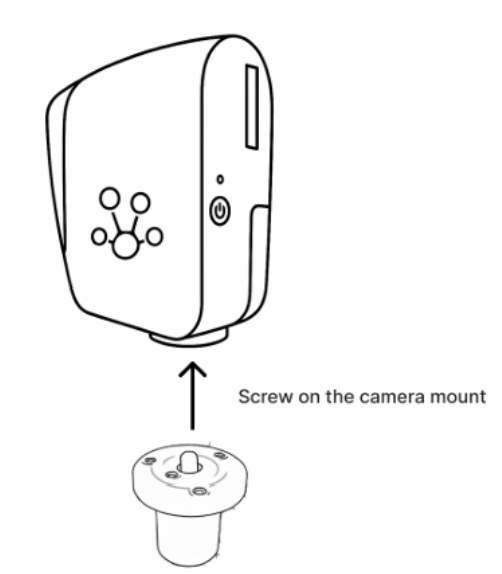
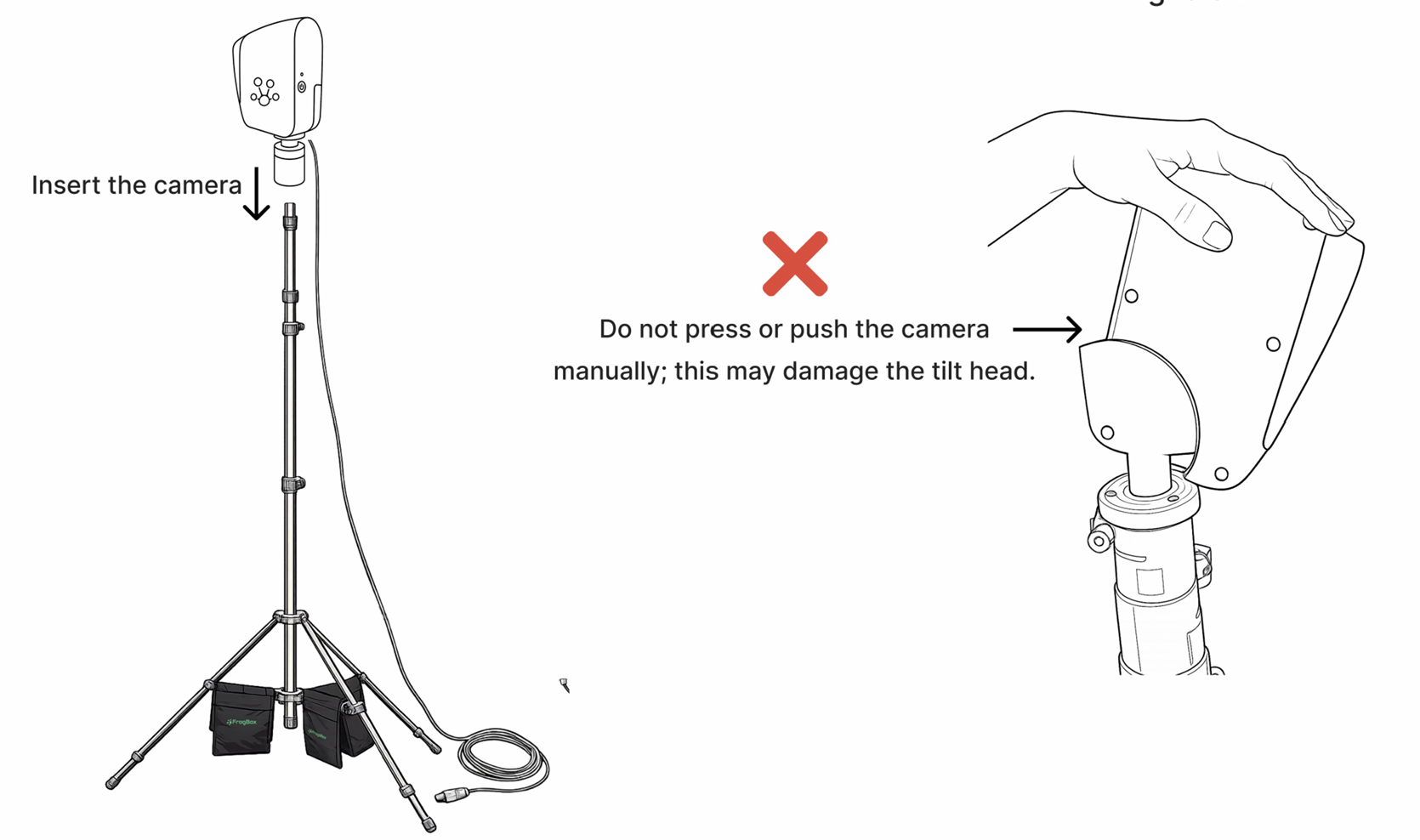
Step 5: Plug one end of the HDMI cable into the camera. Do NOT press or push the camera manually as this may damage the camera.
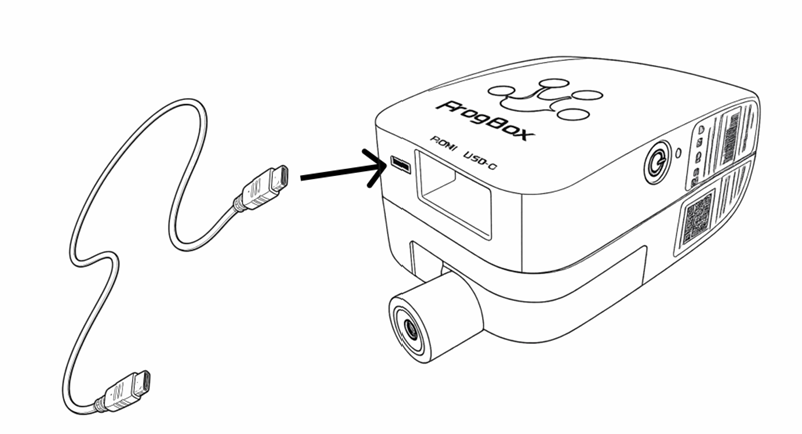
Step 6: Insert the camera into the top mount of the tripod
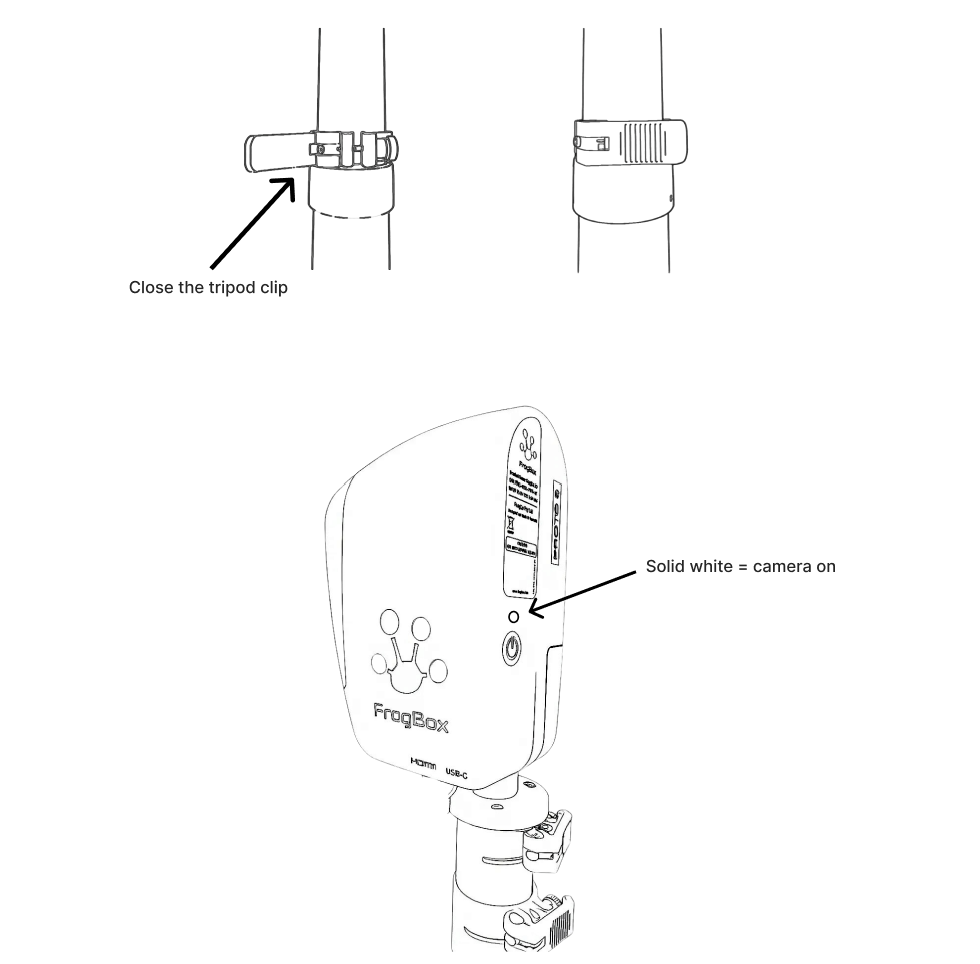
Step 6: Close the clip to secure the camera
Step 7: Check to make sure the camera is on. If not, press the black button (solid white light = camera on)
SECURE THE ENCODER TO THE TRIPOD & CONFIRM INTERNET CONNECTION
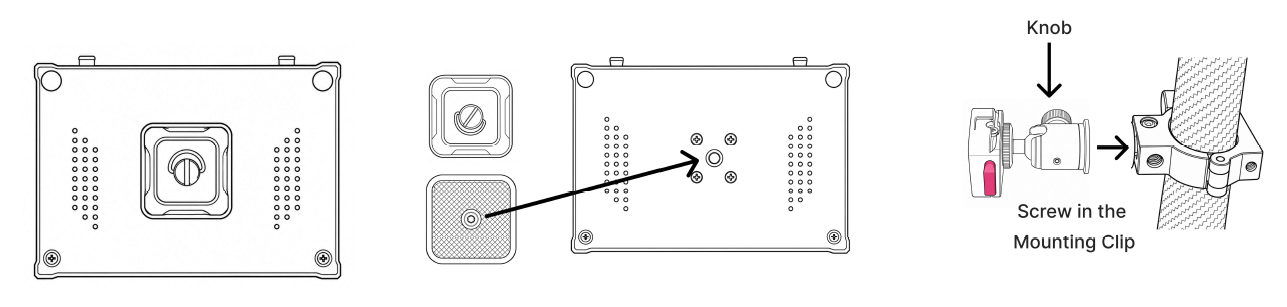
Step 1: The mounting plate should already be attached to the back of your encoder. If it isn't, screw the mounting plate into place.
Step 2: Screw the encoder mount clip into the top of the tripod, with the red release button positioned at the side. To adjust the clip's orientation, loosen the black ball-joint knob, rotate the clip to the correct position. Leave the encoder mount clip attached to the tripod when packing down the kit.
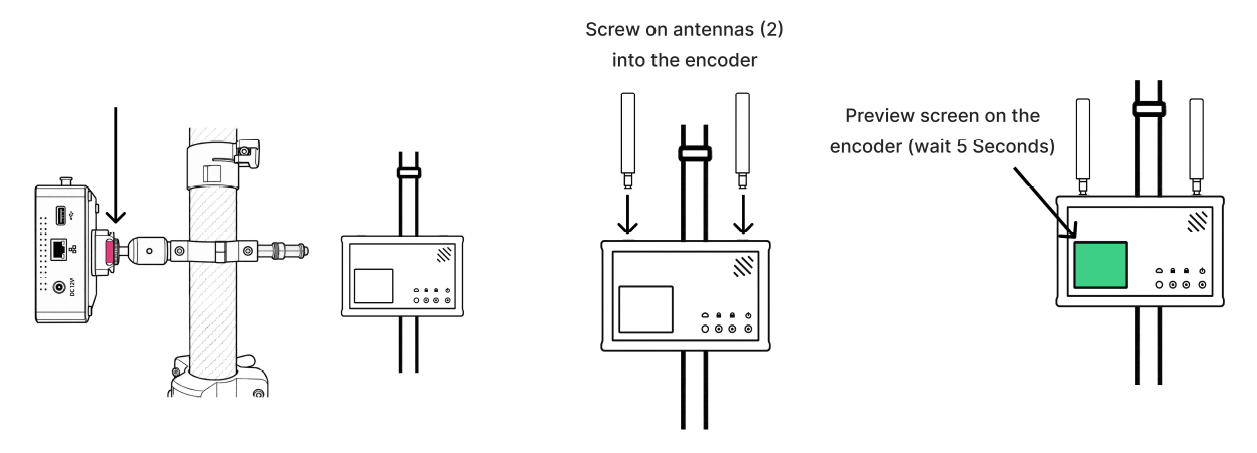
Step 3: Align the mounting plate on the back of the encoder with the encoder mount clip, then push the encoder into the clip until securely attached.
The encoder screen should sit in the bottom-left position.
N.B. Earlier kits use the (silver) screw-on spigot mount system. For information on mounting your encoder to the tripod using the silver spigot, please visit V2 Encoder Mounting Instructions.
Step 4: Connect your kit to the internet
For SIM or Wi-Fi connections, screw the antennas (2) into the encoder.
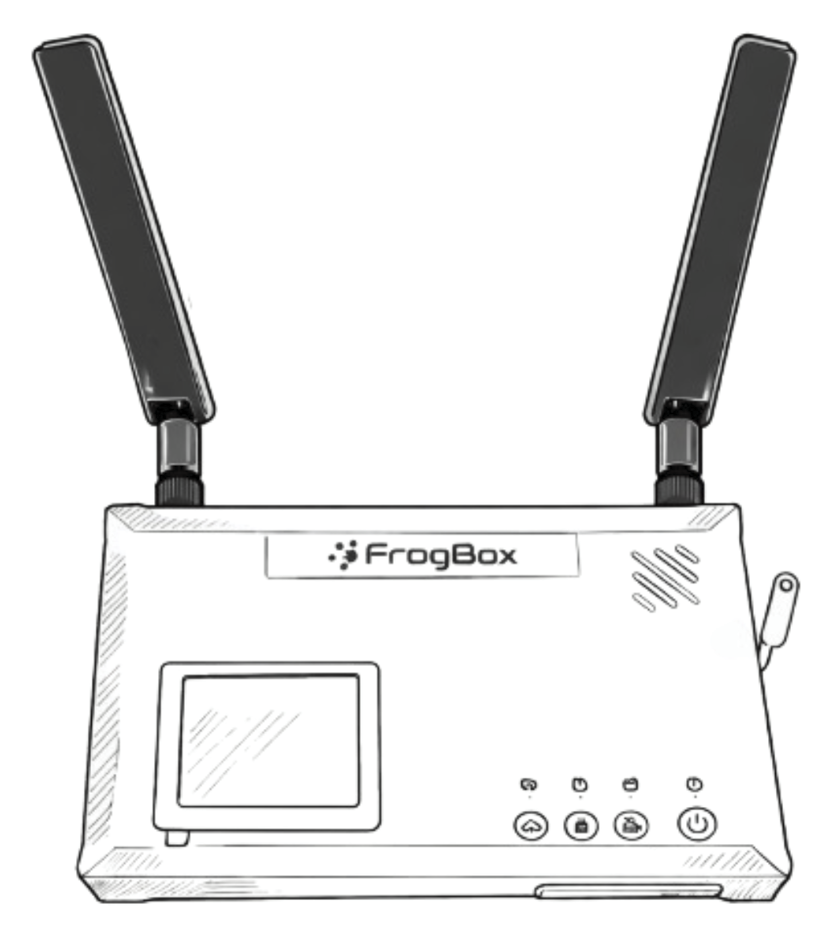
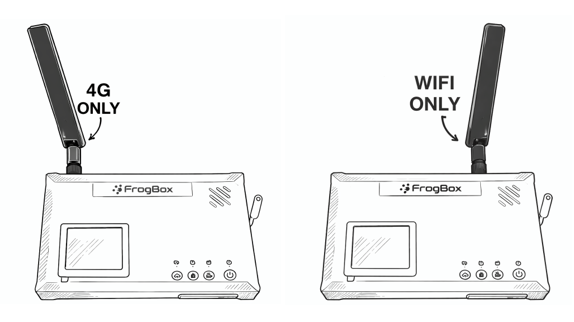
If your club uses Wi-Fi, it’s likely the network has already been configured. If so, the kit will automatically connect when within range. (Optional) If only using one antenna (1), screw it into the 4G port.
If your club uses a SIM, it’s likely the SIM card has already been inserted into the encoder. (Optional) If only using one antenna (1), screw it into the WiFi port.
- For an Ethernet connection, simply insert the Ethernet cable into the encoder. You do not need to screw on the antennas.
- If the network icon doesn't appear, click here for How to connect your kit to the internet.
Step 5: Check to make sure the encoder is on. If not, press the power button for 5 seconds.
Step 6: Wait until the preview screen lights up. A network symbol should appear confirming successful internet connection
CONNECT THE HDMI CABLE & EXTEND THE TRIPOD POLE
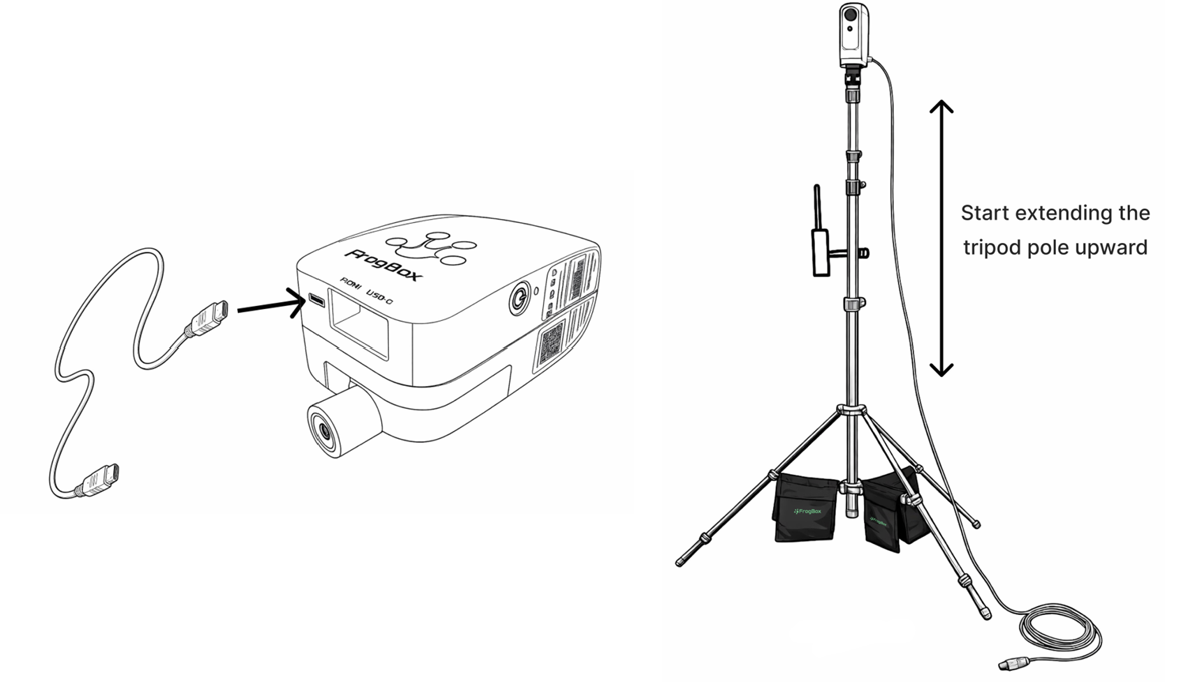
Step 1: The HDMI cable may already be connected to the camera. If not, then connect now by plugging in one end of the HDMI cable into the camera. Do NOT press or push the camera manually as this may damage the camera.
Step 2: Begin extending the tripod pole upward
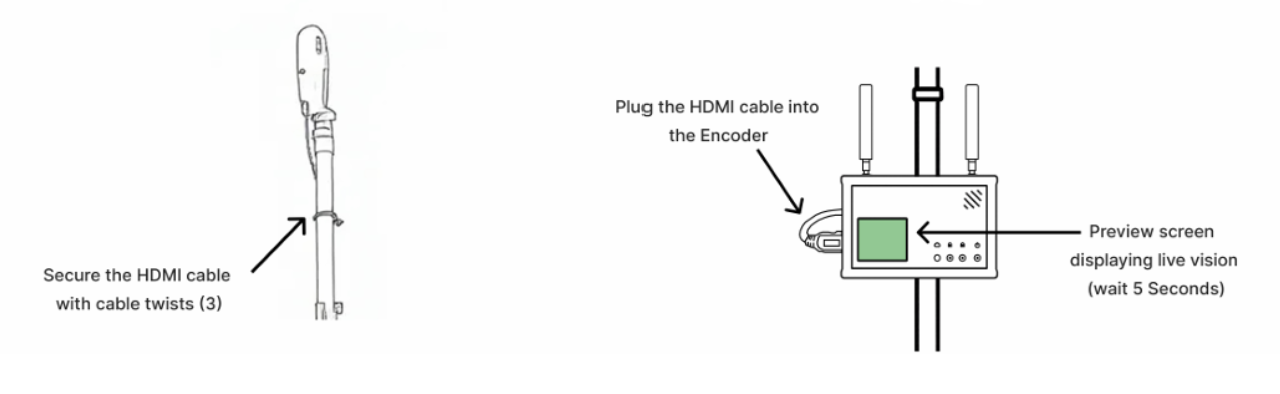
Step 3: Secure the HDMI cable to the top of the tripod pole using a cable twist (1)
Step 4: Continue extending the tripod pole to your preferred height
Step 5: Continue to secure the loose cable with the remaining cable twists (2) at the middle and bottom of the pole
Step 6: Plug the other end of the HDMI cable into the encoder
Step 7: Check the encoder screen to confirm live vision is showing (wait up to 5 secs)
Step 8: Rotate the tripod pole left or right to capture the centre of the action
NEXT STEPS
- Final Camera Adjustments - Remotely monitor battery life and adjust your camera's tilt and zoom from your phone/tablet during a game. Here's how: FrogBox Connect: Advanced Camera Settings
- Stream with FrogBox Go - Once your FrogBox kit is set up, you'll need FrogBox Go to start streaming your matches. This article provides guidance on how to access FrogBox Ho, set up your account, stream your matches and access live-chat support on match days: Streaming with FrogBox Go
- Advanced training and troubleshooting guides can be found her in our Operating Guide.